Claude Cowork for Professionals: The Complete Guide for Practical Use
Skills, MCP connectors, plugins, scheduling, setup, and what to do when your org locks it down
You got Claude access. You tried it. The answers were genuinely smart. And then you closed the tab.
“It’s smart, but I don’t really know what else to do with it.”
I hear this every day.
I’ve been traveling the past week, onboarding groups to Claude. Researchers. Scientists. Professionals with decades of expertise and accumulated knowledge nobody had ever fully written down.
Almost all of them used Claude the exact same way.
They opened the chat window, asked a question, got a strong answer, and stopped there.
The clearest version hit me while staying with an old friend for three nights.
She’s retired. With decades of fieldwork behind her. Site measurements, project reports, handwritten notebooks, contacts spread across old systems, half-finished ideas buried in directories nobody had opened in years.
She had Claude access.
I watched her use it. Ask a question, get an answer.
And then she shrugged.
“It just answers questions.”
And honestly, that reaction made complete sense.
Nobody had shown her what existed beyond the chat window.
The tabs. The skills. The MCP connectors. The scheduling layer. The persistent context. The workflows. The systems that turn AI from a chatbot into something far more useful.
I realized I was seeing the same pattern everywhere.
Some people had learned how to build entire workflows around AI tools. Most people were still using them like search boxes.
Few had built the bridge between the two.
This guide is meant to be one.

What’s inside:
How to start a real project in Claude (in 10 minutes)
How to make Claude do something your way, every time (in 5 minutes)
How to schedule Claude to work without you (in 5 minutes, includes practicing)
Why your Cowork or Code tab might be missing, and how to do about it
Hi, I’m Jenny 👋
I build AI systems and tools, then share how I did it. I run the Practical AI Builder program, for people who already use AI and want to build real things with it. Check it out if that sounds like you.
If you’re new here, welcome! This is a good place to start:

Where Claude Lives — and What the Tabs Actually Are
Most people find Claude through a browser. You may have typed claude.ai or claude.com. Both work. You get a chat window. You start asking questions.
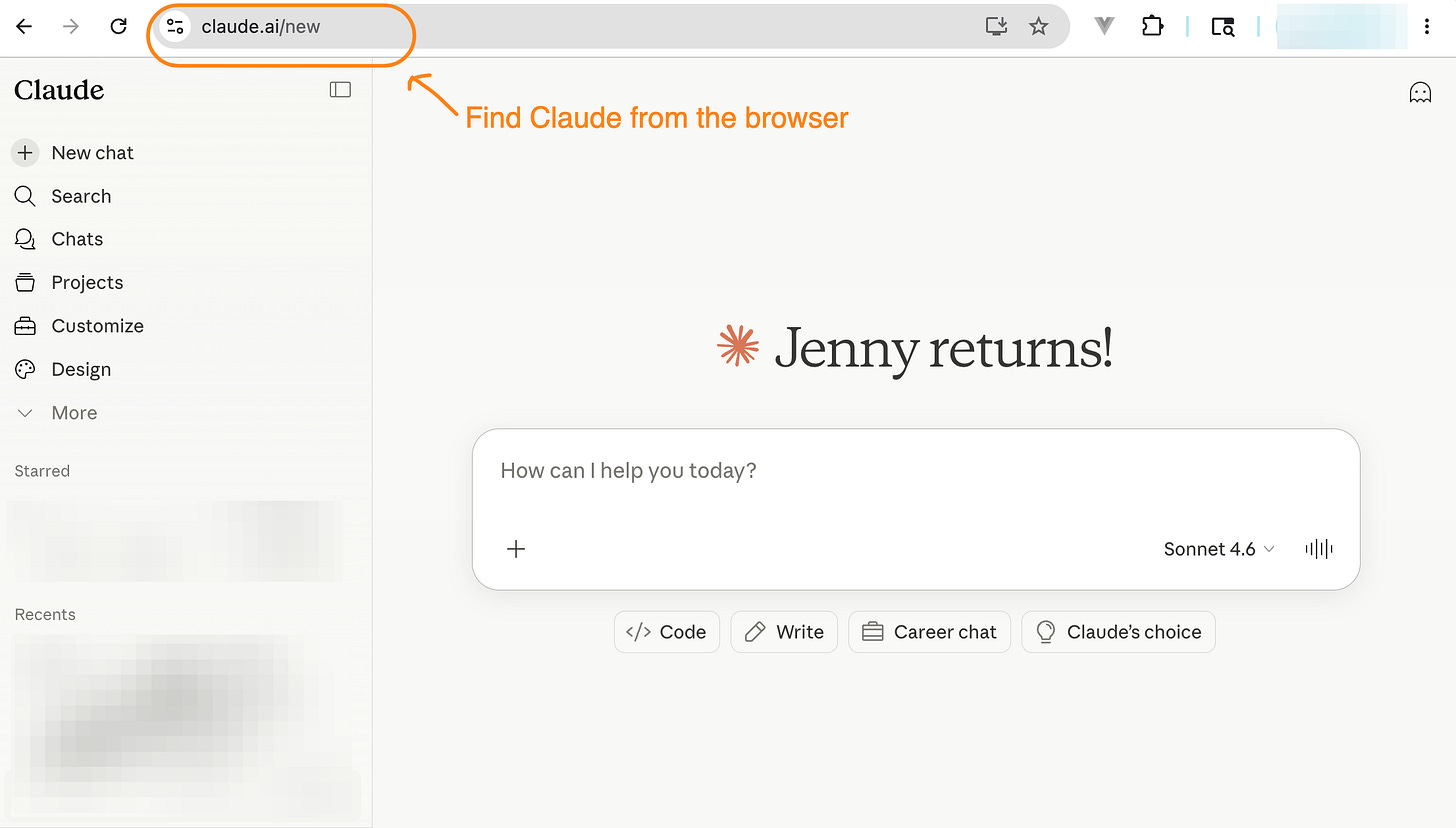
Claude in the web browser
What you don’t get, in the browser, is the full picture.
Download the desktop app and it opens three tabs.
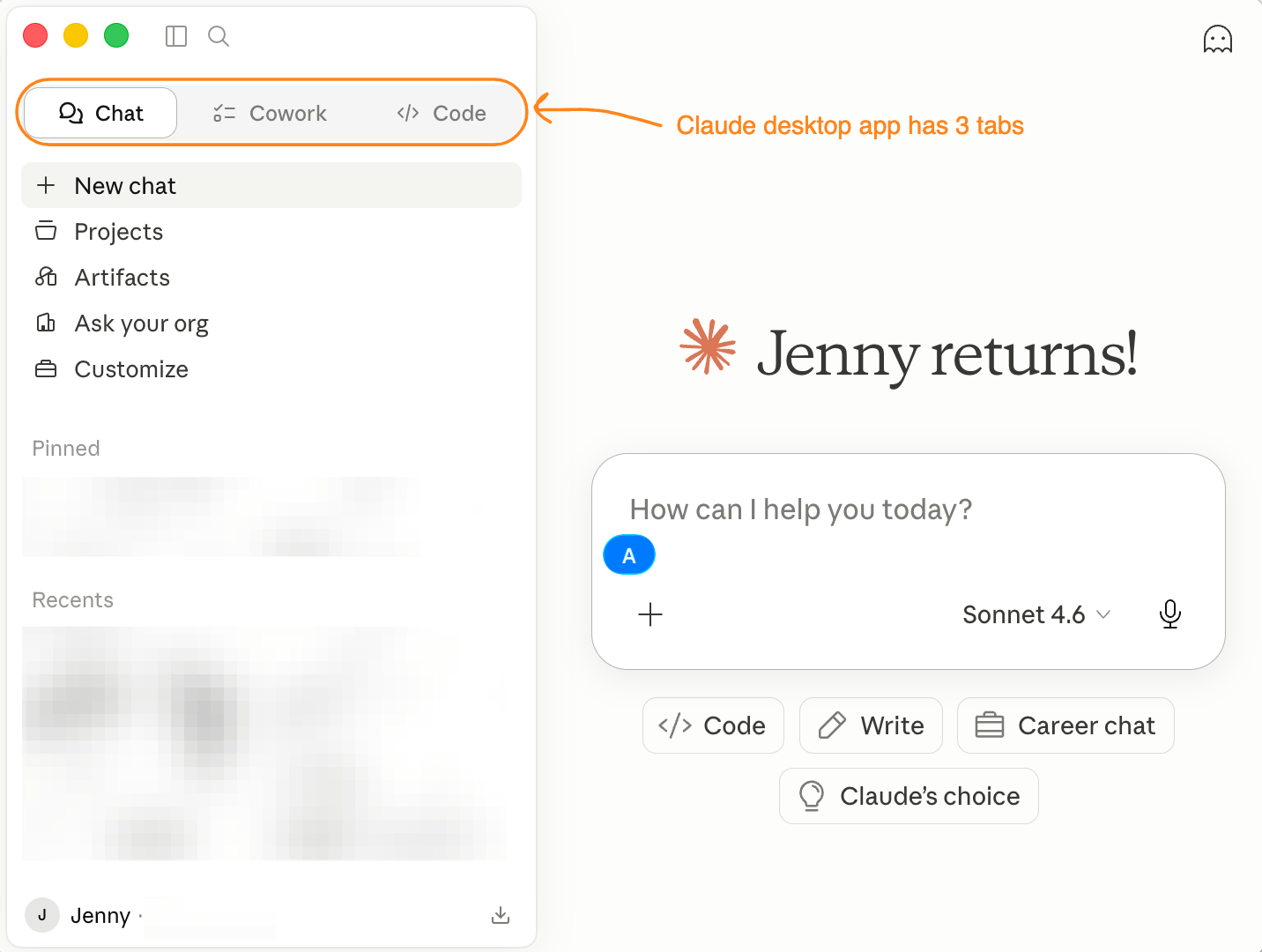
Claude desktop
Chat is where most people live. Fresh conversation every time, no memory between sessions.
Cowork is where actual project work happens. Claude knows your files. It knows what you’re working on. You don’t re-explain context every time you open it.
Code is for when you want Claude to do things on your computer: run automations, manage files, execute tasks.
Don’t let Code’s name put you off. You don’t need to know how to code to use it. Most of what it does, it handles on its own.
If you’re on a team or institution plan and don’t see Cowork or Code, skip to the last section. Your org may have disabled them. It’s common, and there’s a workaround.
Start with Cowork. That’s the answer to “which one first” for almost every professional with ongoing work to manage.
Chat is where you feel the intelligence. The moment it clicks that this isn’t autocomplete, that there’s real thinking on the other side of the screen. Most people stop there because the conversation is good enough.
But once you’ve felt that intelligence, the next question arrives on its own:
How do I get Claude to do this my way, with my files, on my schedule, without re-explaining every time?
That’s what the next layer answers.
To make the most of Claude Cowork, you need to know these additional things: Skills, MCP connectors, Plugins, Agents.
Same Claude. More gears. The rest of this guide walks through each one.
How Claude Skills Stop You From Re-Explaining Every Session
Here’s the problem skills solve.
You find a way of working in Claude that you like.
A way of summarizing papers that actually captures what you care about.
A way of reviewing drafts that hits your specific criteria.
A way of sorting your inbox that matches your particular system.
And then the next day, you open a new conversation, and you start over.
Re-explain the context.
Re-describe how you want things done.
Get back to where you were yesterday.
Skills stop that loop.
A skill is an instruction set. A written-down version of how you want Claude to do something.
Once it exists, you invoke it by name and Claude follows the same approach every time, without you repeating a word.
Think of a colleague who has a way they always do things. You don’t re-explain the process each time you work with them because it’s already built into how they operate.
A skill is that: written down and given to Claude.
Skills can look very different because they do very different things:
Interactive: Claude asks you questions in a specific order, like a coaching session you can rerun.
Step-by-step guide: Claude walks you through a process one stage at a time. Good for multi-part workflows where sequence matters.
Decision tree: If X, go this direction; if Y, go that way. Useful when the task branches depending on the situation.
Distilled approach: Someone’s entire way of doing something, written down. A mentor’s playbook. Your own best method captured before you forget exactly how you did it. (This is where the “I distilled myself into a skill” posts come from, it’s a real thing, and it works.)
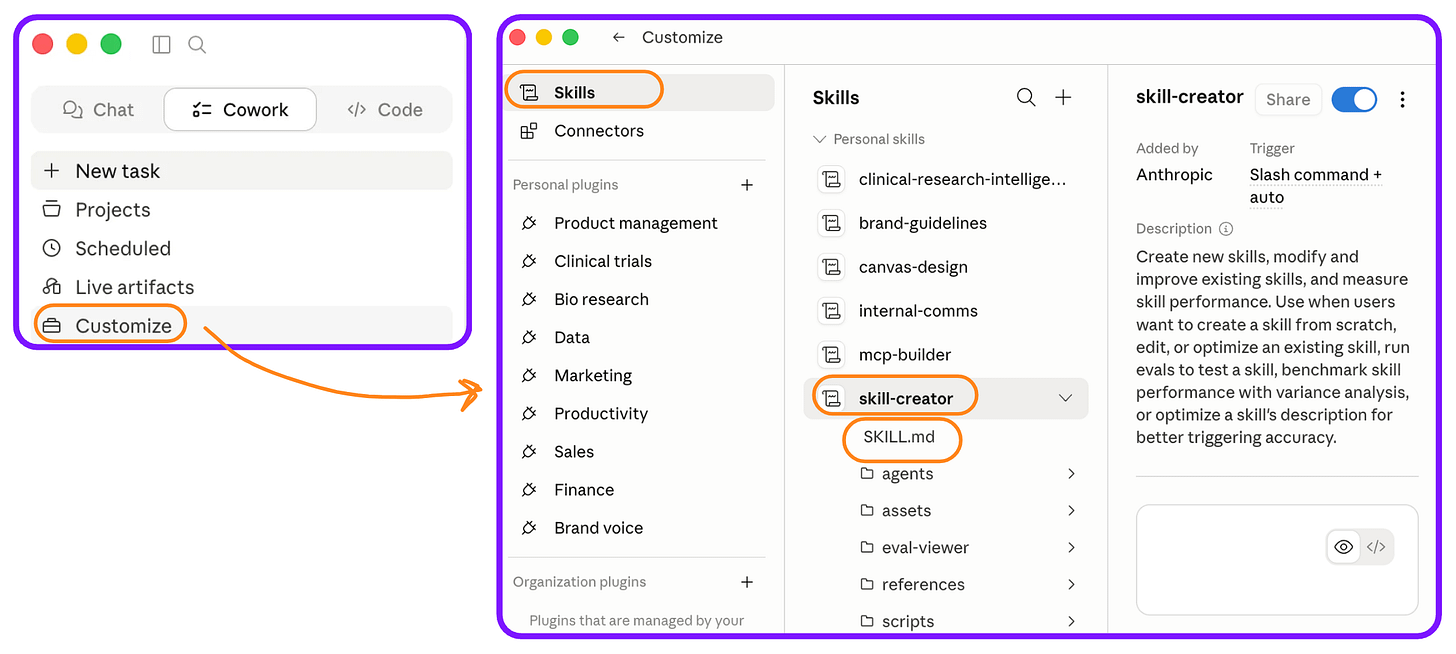
What a skill actually is, mechanically: a folder with a single markdown text file inside, called SKILL.md.
No code, no scripts, no special syntax. Claude reads it the way a colleague reads a one-page handbook, then applies the instructions when you invoke it by name.
You don’t need to know how to code to create one.
And the best way to build a skill isn’t to sit down and write it from scratch. It’s to do the task once, correctly, in Cowork, then let Claude write the skill for you. More on that in a few sections below.
Back to my friend, the retired professor.
Every few weeks she pulls down a batch of emails and sorts them: conferences, student events, papers being reviewed, project correspondence, raw data. Each category gets organized her particular way: dated first, tagged by project, filed under the right timeline.
She’s been doing this manually for years.
That’s a skill in disguise.
One Cowork session: she drops in a batch of emails, walks Claude through how she sorts them. They go end to end. The result is exactly what she’d have done by hand, in a fraction of the time. She captures that session as a skill.
Next month: new batch, same result. No re-explaining.
The first session was the investment. Every session after is the return.
Once that clicked, she started listing.
Summarizing papers the same way every time: hypothesis, what shifted in her field, what to follow up.
Reviewing student drafts with the same five questions she’d been asking for thirty years.
Drafting grant proposal backgrounds the way she always structured them.
Each one was a task she’d done hundreds of times without ever writing the process down.
Each one was a skill waiting to be captured.
“It’s like having a grad student who’s been watching me work for years,” she said, “and finally knows exactly how I like things done.”
That’s the moment it stopped being a chatbox.
→ To browse and install skills, go to Customize in Claude Desktop.
For the full picture of what skills are, how they compare to ChatGPT’s GPTs and Gemini’s Gems, and where they fit in Anthropic’s stack, see the complete guide to Claude skills.
When self-built skills go quietly wrong, the fixes live in Stop Adding New Claude Skills — Fix the Broken Ones First.
How MCP Works — and Why It Can Access Your Data
MCP is the piece that surprises people the most. And it usually triggers the same three questions, in the same order.
I’ll answer them that way. Each one only makes sense once you’ve heard the answer to the one before.
Question 1: How does Claude even have access to my data (email)?
Think of your data as scattered across separate places. Email on one server. Documents in cloud storage. Research notes in a folder on your desktop. Photos on your phone.
Normally, nothing connects to anything.
MCP is the universal connector, an open standard that Anthropic built and released publicly. Any tool or data source can implement it. When you install an MCP connector, you’re plugging a data source into Claude the same way you’d plug a USB drive into a computer.
That’s the what. Once the picture lands, the next question shows up on its own.
Question 2: But why does that work? What gives Claude permission to reach into another product?
Google has Drive, Gmail, and Calendar. Three separate products, three separate data stores. It doesn't feel weird when Gmail reads your calendar to capture a meeting time, or when a Drive file shows up in a Gmail attachment.
Because you understand: they're all in the same system.
MCP puts Claude into that same kind of shared system with whatever sources you choose to connect.
The “weirdness” disappears once you see what’s actually happening. It’s not Claude wandering into your email on its own. It’s a connector you installed and authorized. You opened the door.
It’s possible because of the open standard. It’s allowed because you said so.
That leaves the practical question.
Question 3: How does the data actually get into the conversation?
Each MCP connector has tools. These tools do the actual retrieval. They reach into the source and pull specific information into the conversation, on your behalf, when you're actively working.
Think of plugging in a USB drive. The connection is the install. The tools are the act of dragging a file across. This is the moment data actually moves into the conversation.
Claude isn’t in your email between conversations. It reads what you ask it to read, when you ask.
What this looks like in practice.
Back to my professor friend with contacts scattered across decades of email. Once she connects Gmail through an MCP connector, she can ask:
“Find every email from conservation organizations I worked with between 2010 and 2018, and group them by organization.”
Behind that one sentence, all three layers fire:
The Gmail MCP server is reachable because it follows the open standard (access).
She authorized the connector when she installed it (mechanism)
Claude invokes the search tool, which queries Gmail on her behalf and pulls the matching emails into the conversation (runtime).
She can then keep going.
“Who introduced me to the Wetlands Trust?”
“Draft a reconnect email to the three most recent contacts”.
Each follow-up uses the same machinery. That whole sequence is what happens when an abstract “MCP setup” becomes a real workflow.
Once Gmail connected, she immediately thought of everything else sitting in silos.
Decades of field measurements.
Scanned notebooks living in a Drive folder nobody had touched in years.
Her literature library, organized by her own tagging system.
Files she’d always gone digging for manually.
With MCP, they become a live layer Claude can pull from while she’s actively working.
The first time Claude found something in five seconds that would have taken her twenty minutes of digging. She started wondering what else she’d been doing the hard way.
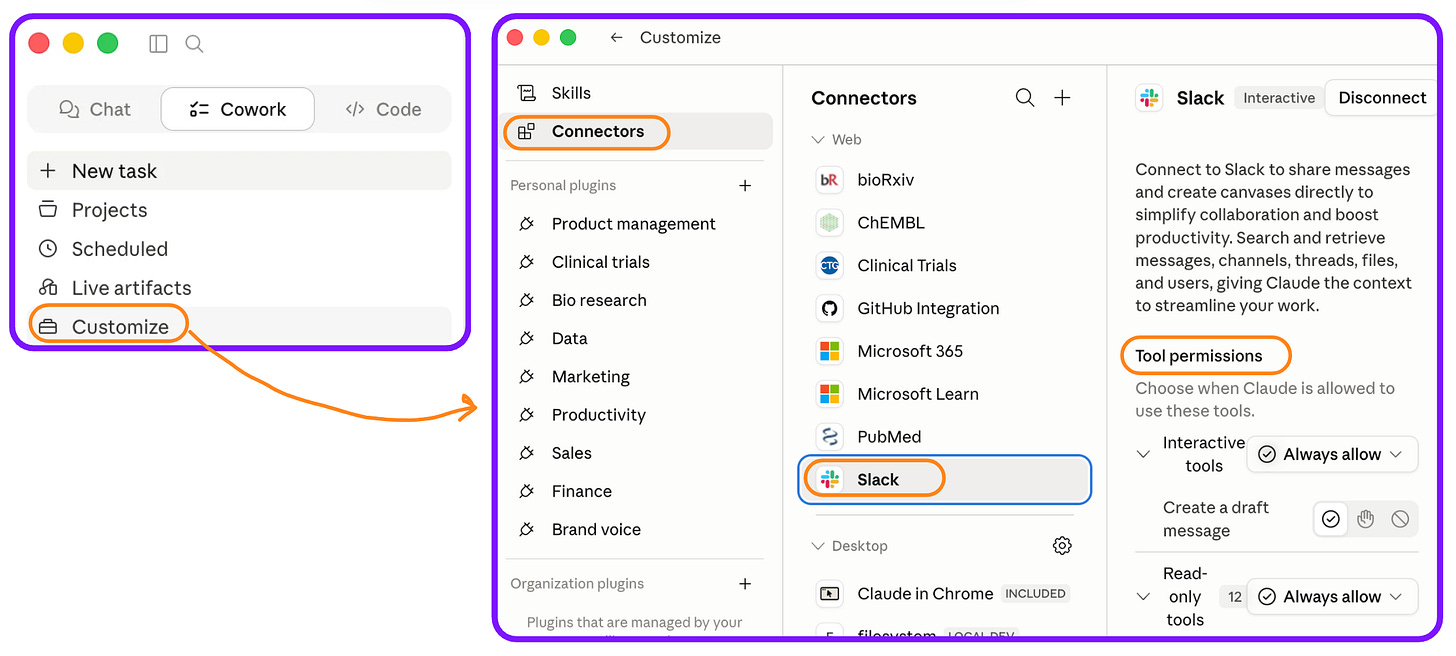
→ To browse and install connectors, go to Customize in Claude Desktop.
I’ve mapped the best MCP servers by use case, install some from the list when you’re ready.
When you’re ready to go further, building a custom MCP for your own knowledge base is the next step.
What Plugins Are For (and When They Actually Matter)
You’ve now seen two of the three layers. Skills tell Claude how to work. Connectors tell Claude what to read.
Plugins are what you build when you want to hand both of those to someone else.
A plugin is a packaged combination: a set of skills plus the connectors it needs, wrapped together and distributed as one thing.
Here’s a concrete example.
Say you want Claude to read your Gmail every morning, find your important meetings, rank them by priority, add them to your calendar, and flag the next steps for each one.
That workflow needs a skill (the logic) plus a Gmail connector, a Calendar connector, maybe a local files connector.
Package all of that together and you have a plugin. One install. Done.
The person you share it with doesn’t need to configure three things separately. Connectors are included in the plugin. They click install and the whole workflow is live.
When plugins matter — and when they don’t:
If you’re working solo and comfortable managing skills and connectors yourself in Cowork, you don’t need plugins. Skills plus connectors handle everything a plugin does, they’re just in separate pieces.
Plugins matter when you’re handing a complete workflow to someone else.
Plain framing: Skills are how Claude thinks. Connectors are what Claude reaches. Plugins are when you box both up to hand off.
→ To browse and install plugins, go to Customize in Claude Desktop.
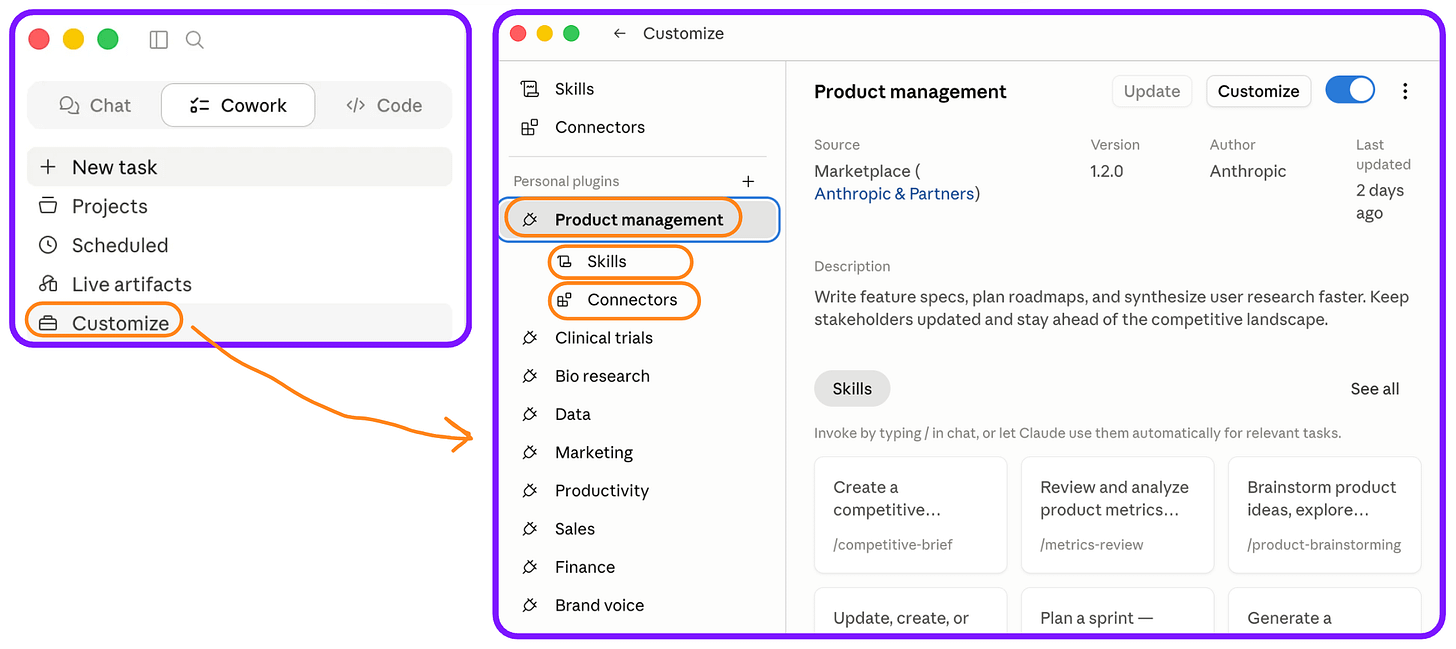
Skills, connectors, plugins, all three live in one place: the Customize section in Claude Desktop.
That’s where you browse, install, and manage everything. If you’ve been looking around the interface trying to find where Claude’s best capabilities live, that’s it.
For a tested breakdown of which Claude plugins are worth installing, here’s a list of Claude plugins, tested, reviewed, and kept.
How Claude Agents Work (and When to Use Them)
An agent is a skill and a set of connectors running autonomously on a task.
You give Claude a goal and it works through the steps on its own: reads what it needs, makes decisions, checks results, keeps going until it’s done or needs your input.
You’re not in the loop for each step the way you are in a normal conversation. That’s the meaningful difference.
You're not installing an "agent" in Claude Cowork.
Instead, you can watch it happen.
The interface below shows Claude's internal steps as it works through them, and subagents triggered along the way.
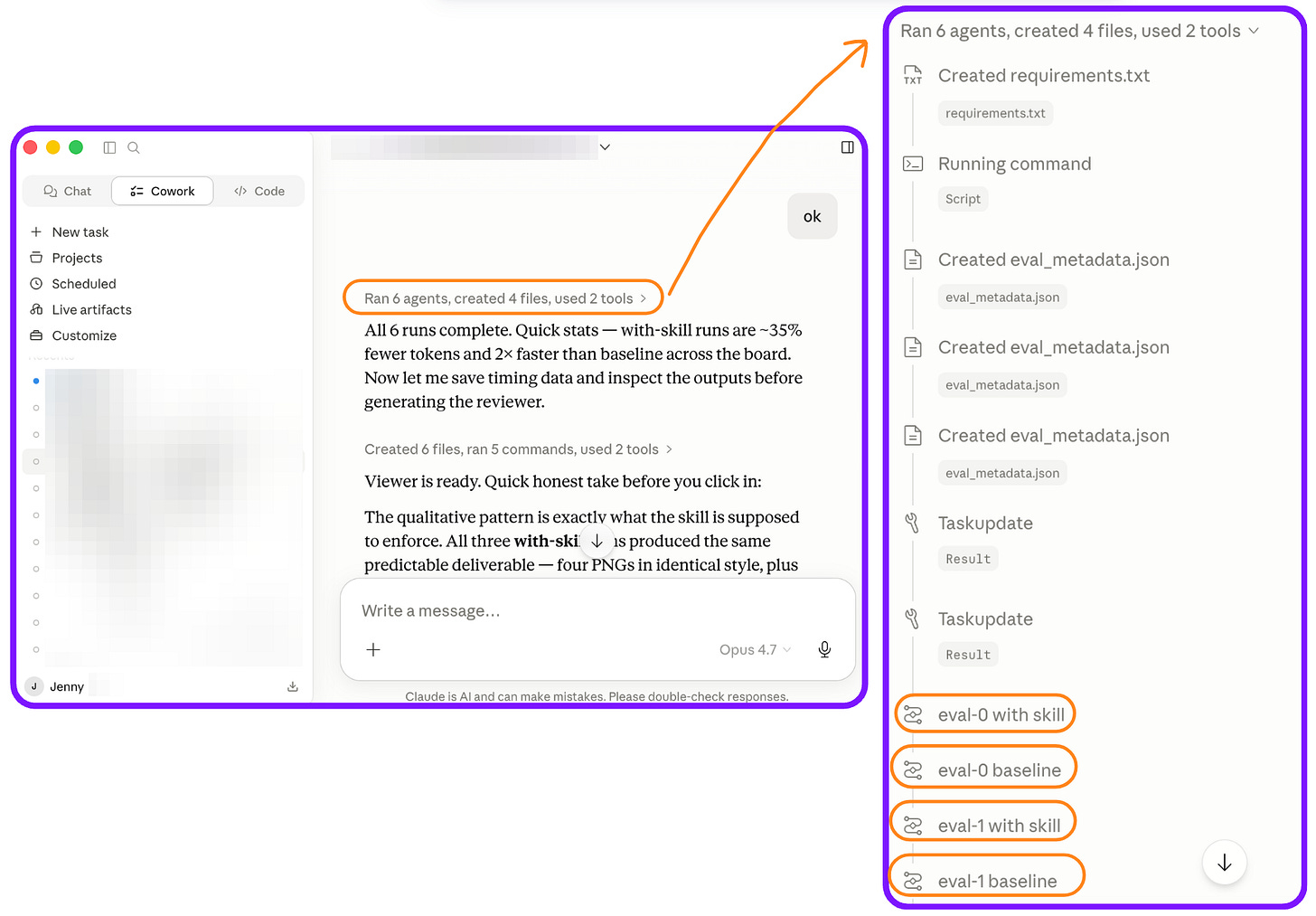
For a plain-language walkthrough of what agents are and when they're worth building: AI Agents for Everyone.
How to Start a Real Project in Claude Cowork in 10 Minutes
By the end of this section, you’ll have a real Cowork project running. With Claude pointed at your actual files, knowing what you’re working on and why.
I used to overthink the setup. Don’t.
Open the Cowork tab and type /setup-cowork. Claude walks you through five steps. The whole thing is about ten minutes, and by the end it’s running against your real work, not a demo.
One thing to grab before you start:
A folder with files you’re already working with. It doesn’t need to be organized. It just needs to be real, a paper you’re reading, some meeting notes, a half-finished document, photos from a project, anything.
Claude is going to orient around what you’re actually doing, not create work from nothing.
Then: open the Cowork tab and type /setup-cowork.
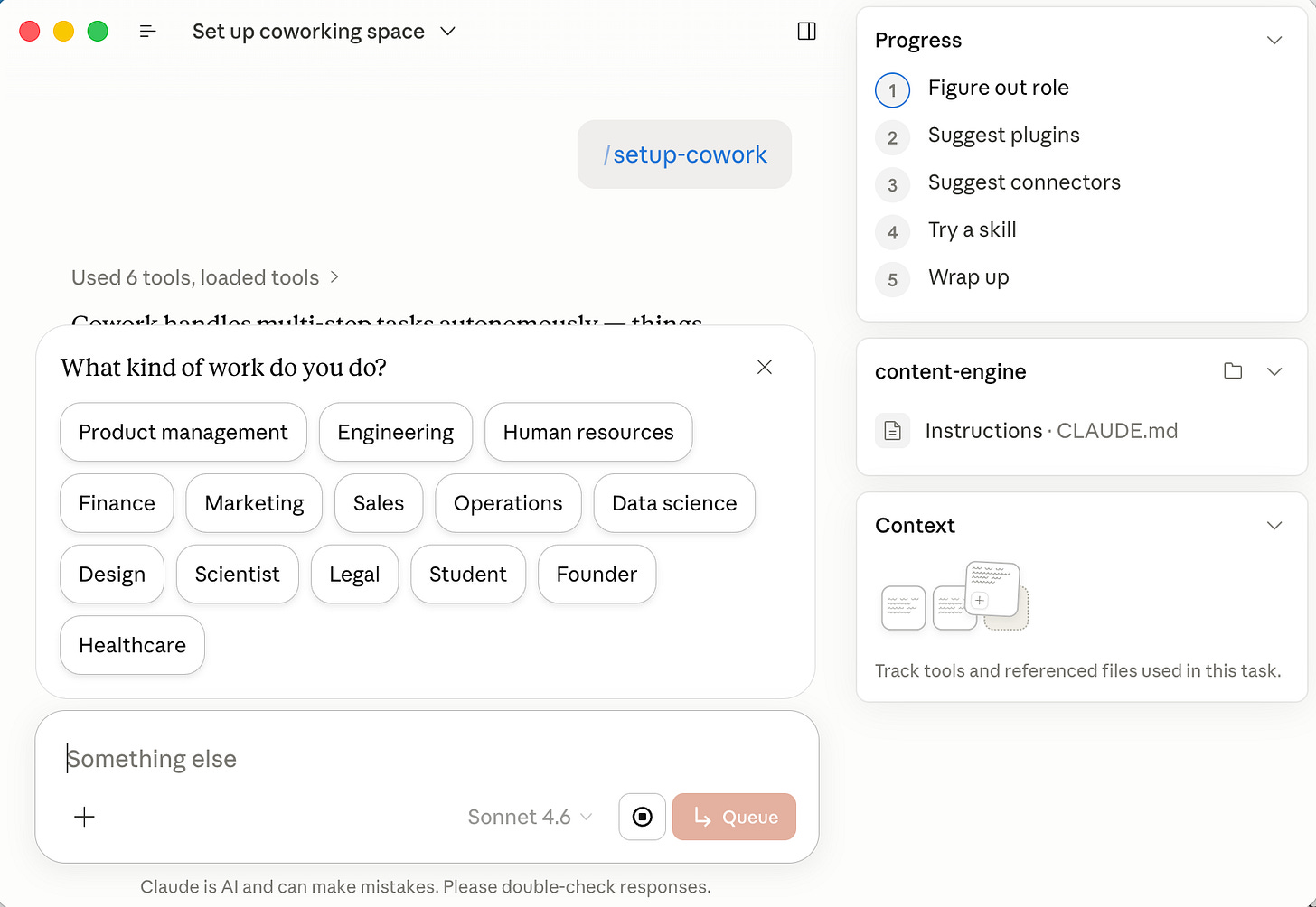
That one command kicks off the whole process. Claude walks you through five steps, in order. The whole thing is about ten minutes.
Here’s what /setup-cowork walks you through:
Answer Claude’s questions about your context. Who you are, what kind of work this is, what you’re trying to do. This is how it tailors what comes next. Don’t skip it.
Review the plugin suggestions. Claude will suggest packaged workflows based on your context. Scan them. Install the ones that look relevant. Don’t stress about getting this perfect. You can add or remove plugins later.
Review the skill suggestions. Same idea: individual instruction sets for specific workflows. Take the ones that look useful.
Review the connector suggestions. These are the MCP connections to your data sources. Install the ones that match what you want Claude to read.
Finish with a working project. You’ll end up with a Cowork project pointed at your actual files, with context Claude carries into every conversation you open inside it.
The honest caveat:
The suggestions in steps 2–4 are educated guesses. Some will be a great fit. Some won’t apply to you at all. That’s fine. The point of setup isn’t to find the perfect stack on the first try. It’s to know what exists and start somewhere.
The Claude Hub has the best guides mapped by tools and use cases, useful once you've run setup and want to narrow down.
How to Make Claude Do Something Your Way, Every Time
Once you’ve run a task end-to-end in Cowork and liked how it went, you have everything you need to make it permanent.
Don’t start over next time.
Say you walked Claude through revising an article title, then adding structural sections, then expanding each section into full content. You came out the other end with something you were happy with. The result was good because the session was good.
That’s when you type /skill-creator.
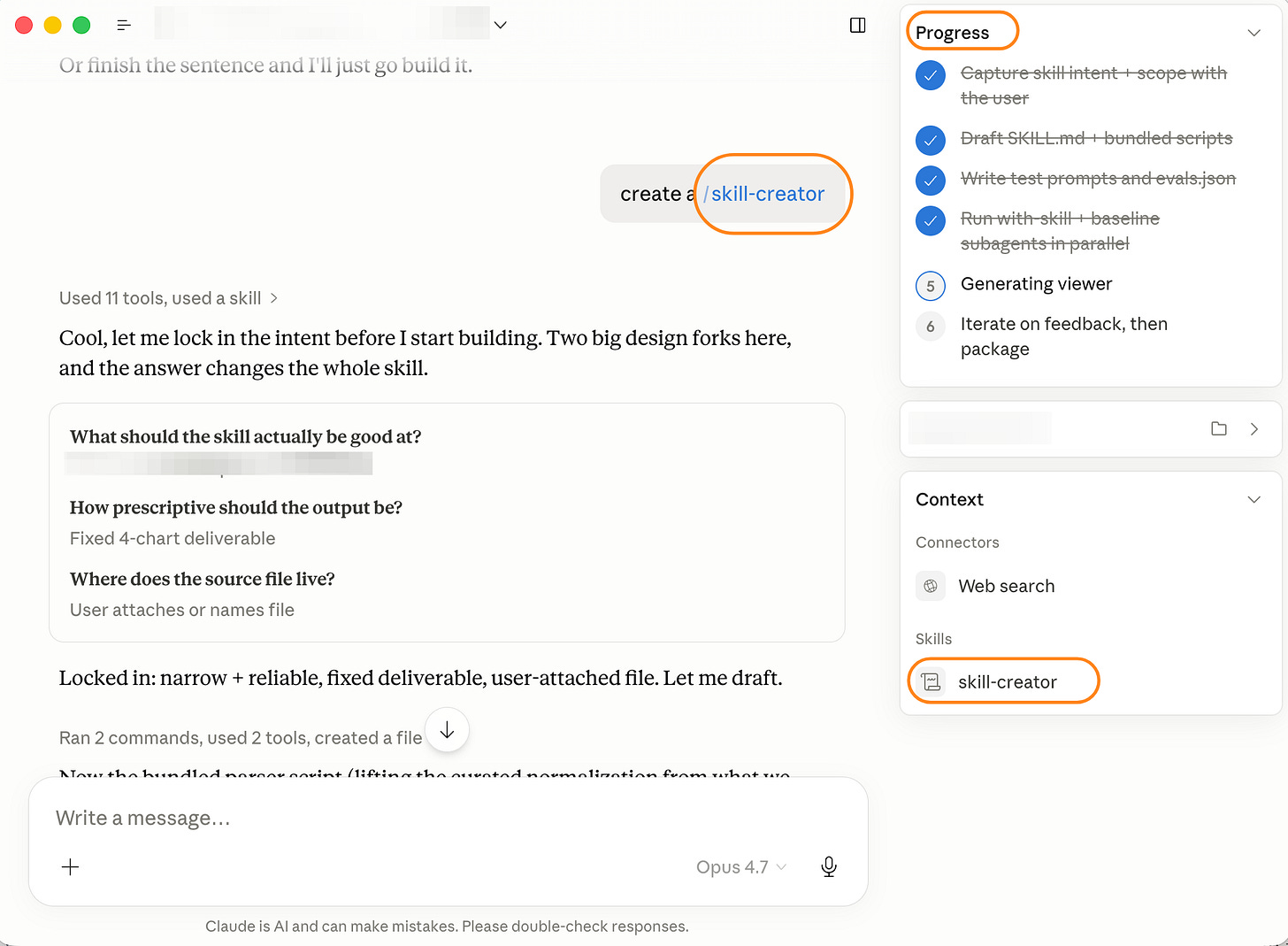
Claude takes that session and builds a working skill from it. It creates the files, sets up the structure, defines the trigger phrase.
What comes back is a skill you can invoke by name in any future conversation. Same approach, same structure, same output format, without re-explaining a word.
The three-step process:
Do the task end-to-end in Cowork. The way you’d actually want it done. Don’t shortcut it. Work through it until you feel satisfied with the output.
Type
/skill-creatorat the end of the session. Not before. Not halfway through. At the end, when the result is already good.Claude builds the skill file. It creates the folder, writes the instructions, sets the trigger. You end up with a reusable skill, built from a session that already worked.
You’re invoking a built-in skill (skill-creator) to build a new skill. Exactly as meta as it sounds, and exactly as practical.
The alternative is to write the skill manually from scratch. I’d skip that for your first one. Do the task first, get it right, then capture it. That’s the order that works.
How to Schedule Claude to Work Without You
Most people don’t know Claude can run workflows on a schedule.
It can.
The built-in skill is /schedule. Here’s the order that works.
Run the two defaults first.
Open the schedule area and look for the daily brief and weekly brief already set up.
Run them. Let them complete. Seeing what a scheduled workflow produces — what it includes, what it skips, how it reads — gives you something concrete to build from. Much easier to customize something you’ve seen than to design one from nothing.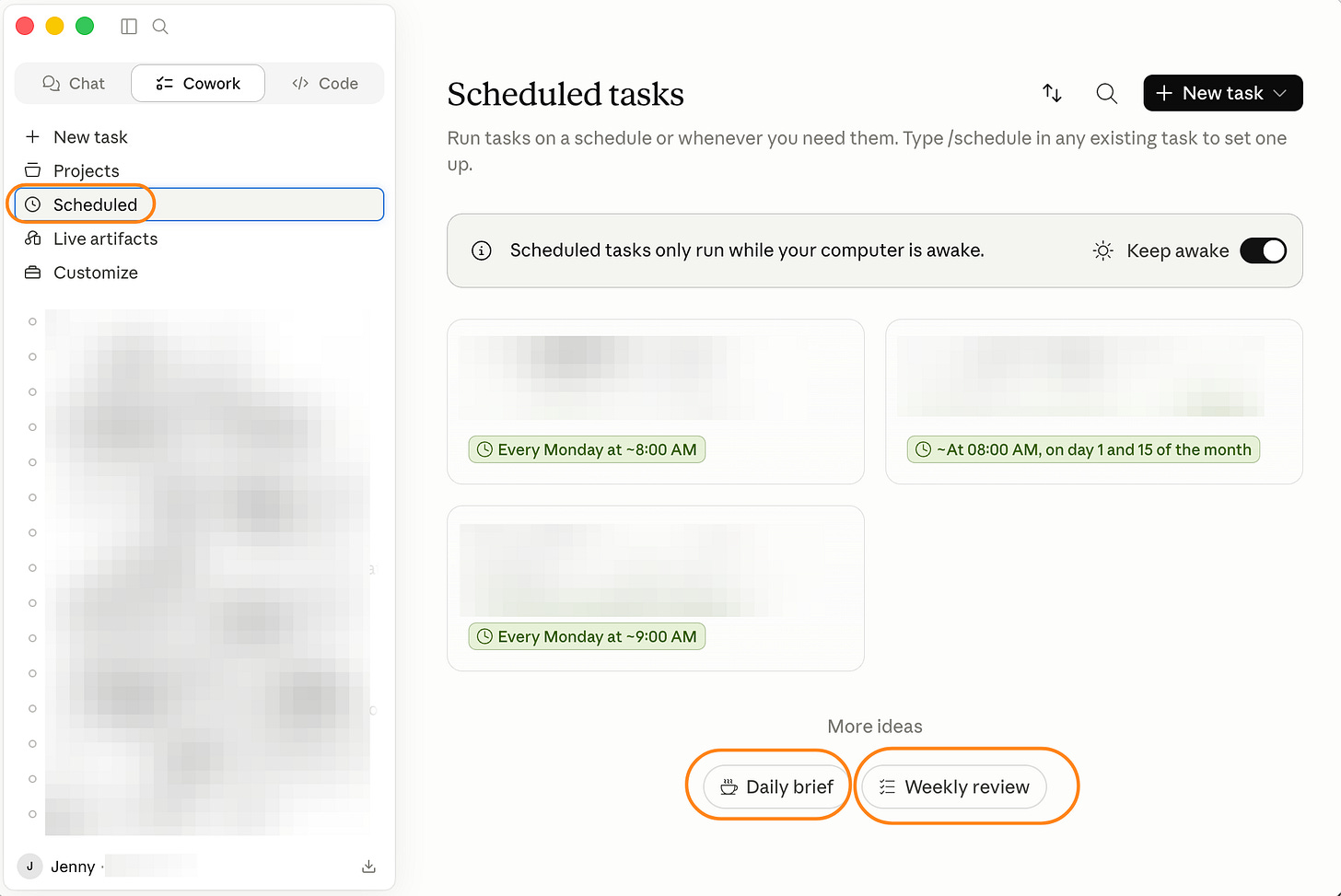
Try “Daily brief” and “Weekly review” from Claude Cowork “Scheduled” tab
Build your own with
/schedule.Once you've seen the defaults, type
/schedulein Cowork or Code. Claude walks you through setting up a custom workflow: a morning digest of important emails, a weekly summary of your research notes, an automated folder review every Friday. Anything that runs in those two tabs can be scheduled.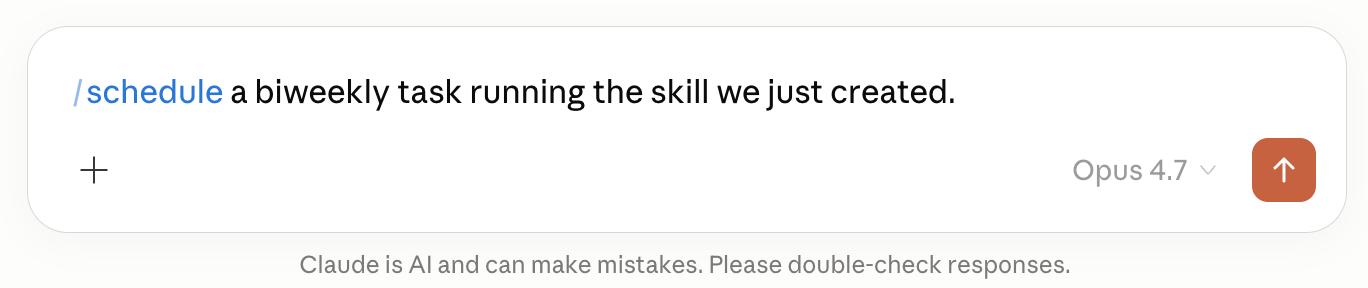
Use /schedule on Claude Cowork
Know the machine constraint. Scheduled tasks run on your computer, not in the cloud. Your laptop must be awake and Claude Desktop must be open at the time the task fires. If your laptop is closed, Claude skips that run and picks it up the next time you open the app.
One important distinction: Scheduled tasks work in Cowork and Code, not in Chat. If you’re building something you want to run automatically, it needs to live in one of those two tabs.
Also: online routines in Claude Code and locally scheduled tasks in Claude Code are two separate mechanisms — one cloud, one local. If you're setting up scheduled work in Code specifically, this breakdown explains the difference.
Why Your Cowork or Code Tab Might Be Missing
If you open Claude on your work computer or your university login and don’t see Cowork or Code anywhere, you’re not missing something obvious.
Your organization almost certainly disabled those features.
This is common. Universities, hospitals, research institutions, and large organizations frequently restrict Cowork and Code for their team plans.
The reasons vary: data privacy policies, security reviews, IT governance requirements, etc. But the experience is the same. Features that exist for individual subscribers are grayed out or absent entirely for institutional accounts.
Last week I visited Dartmouth College. The number of features disabled for their institutional plan was striking:
Code grayed out.
Only a handful of pre-selected connectors, no option to add new ones.
No Cowork tab.
No skills options.
No plugins options.
My retired professor friend was genuinely disappointed. That’s not unusual for universities and large institutions.
What you can do:
If you’re on a team or institution plan and don’t see Cowork or Code:
→ Ask your IT administrator or account admin whether those features can be enabled for your account.
They may be available but not switched on. Worth asking before assuming they're gone.
If the tabs are locked and IT can’t help, here’s the workaround.
Claude Projects are available on most plan types, including many institutional accounts where Cowork is disabled.
The setup takes about five minutes and gets you most of what Cowork offers.
Create a Project and upload your files. In Claude (web or desktop), create a new project for whatever you’re working on. Upload the files you want Claude to have access to — documents, notes, papers, anything. The project keeps those files in reach across every chat you open inside it. That’s your persistent context, the equivalent of pointing Cowork at a folder.
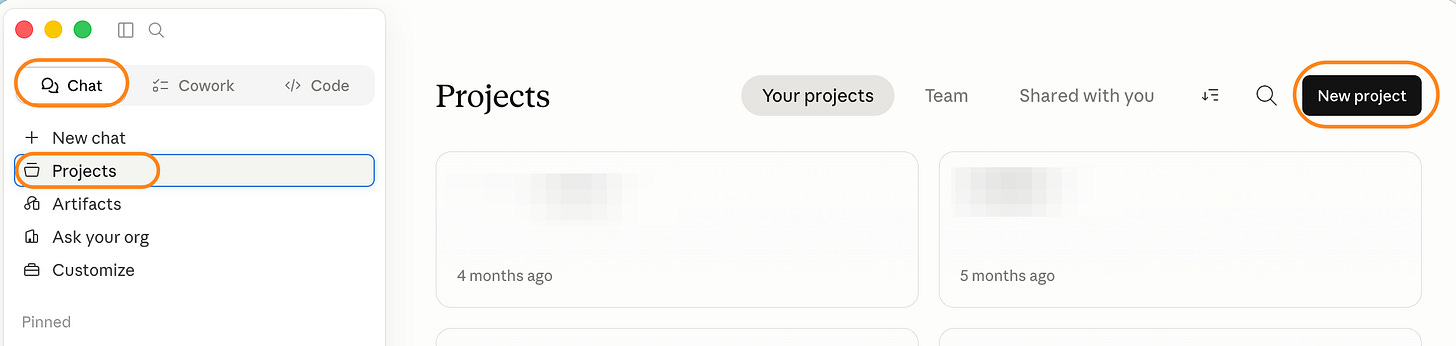
In Claude Chat, open “Projects” tab
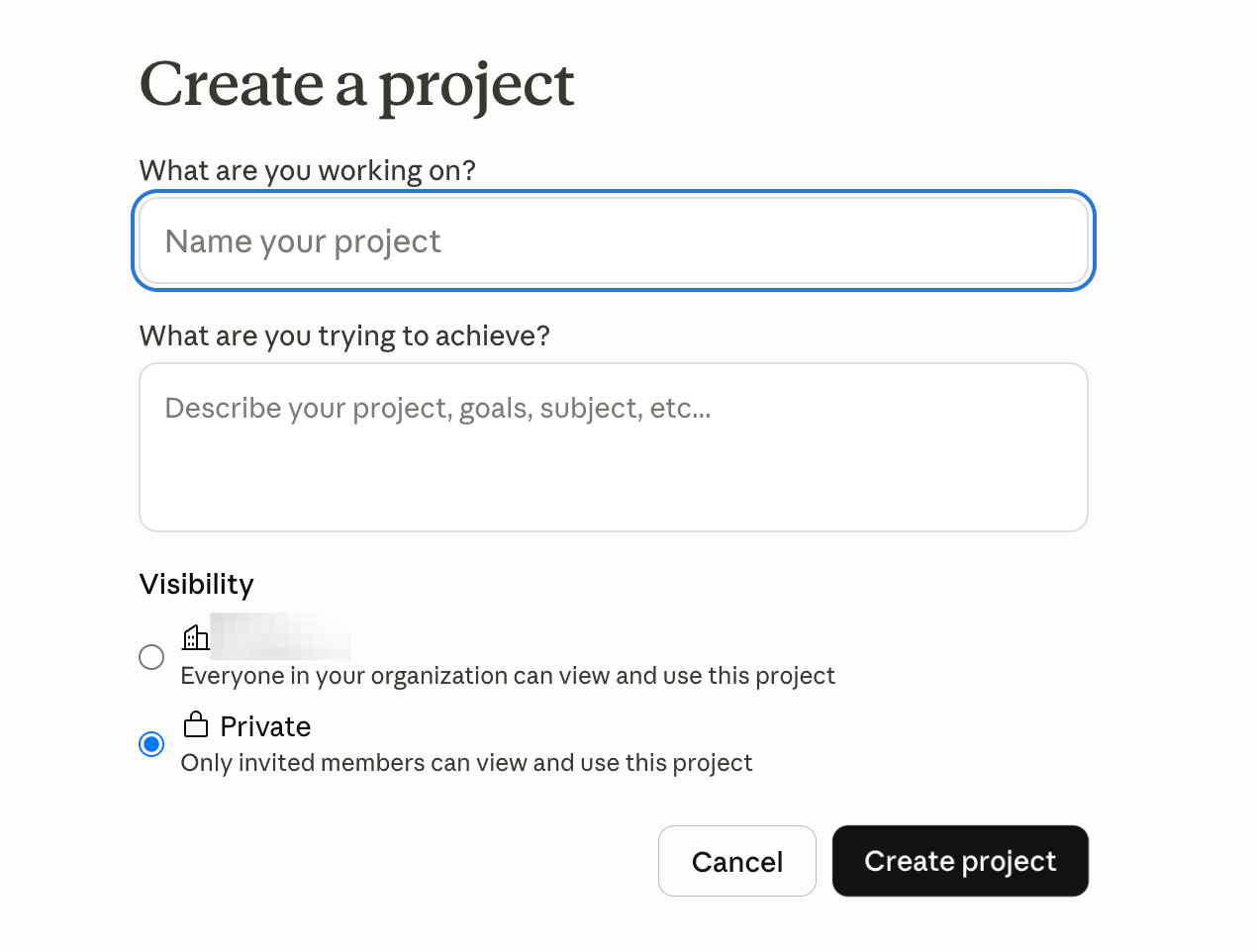
Create a new project
Build skills as uploaded files.
In Cowork, skills get installed as instruction files Claude invokes automatically.
In a Project, you do it manually: run a task in a Project chat the way you want it done, then ask Claude to write up the instructions as plain text.
Copy that text into a file on your computer — something likesummarize-papers.txt— and upload it to the Project alongside your other files.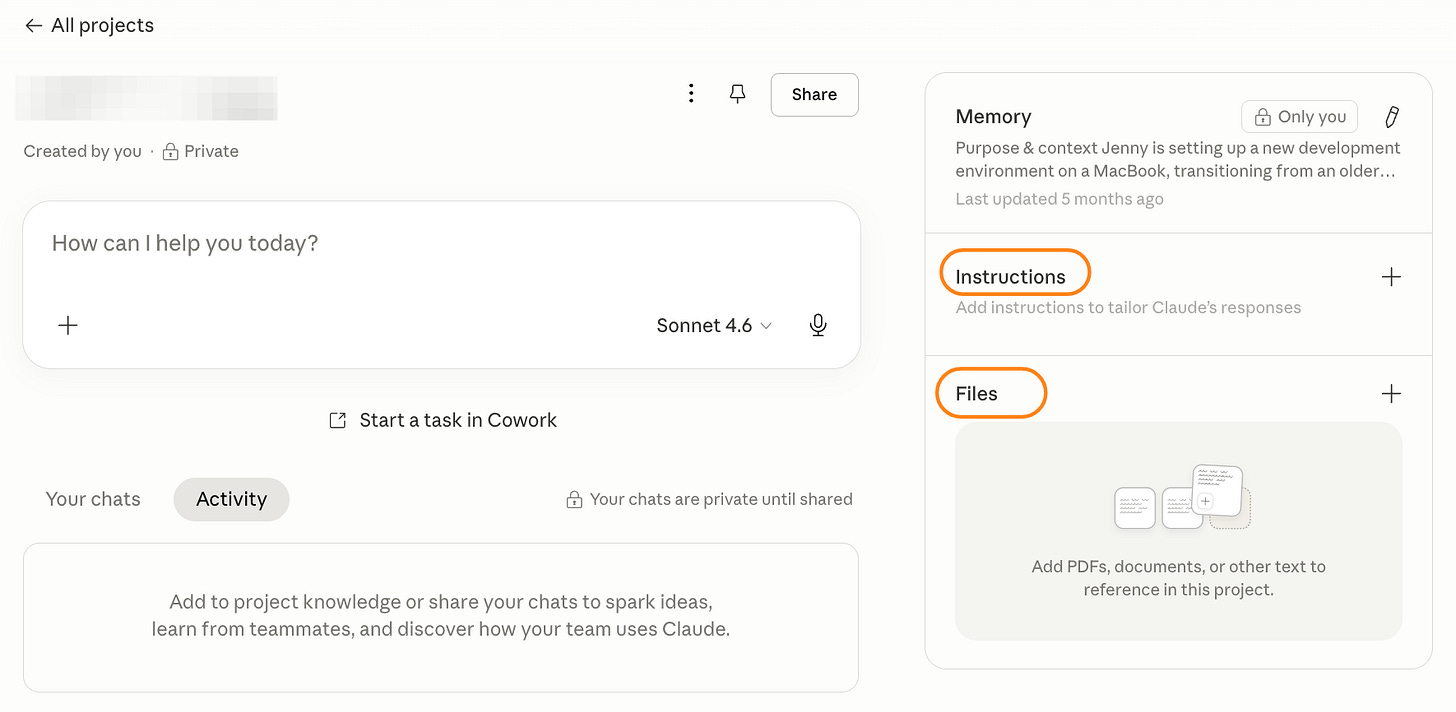
Upload skill files to the “Files” section
Call each skill by name. In any chat inside the Project, just name it: "Use my paper-summarizing instructions on this." Claude reads the file and follows the process. Same result, more manual setup.
It’s not as seamless as Cowork’s built-in system. But the underlying capability is the same: context that persists, workflows that repeat, your files in reach.
If you’re on an individual plan and still don’t see them:
→ Check that you're using the desktop app, not the web browser. The browser version doesn't always surface all tabs.
→ Check your plan level. Cowork and Code availability varies by tier and location.
Next Steps
If you’ve never opened a tab other than Chat:
Start in Cowork. Point it at a folder you’re already working in. Type /setup-cowork and follow the five steps. Don’t worry about plugins or MCPs yet. The setup process will surface what’s relevant for your situation.
If you’ve tried Cowork but never set up a skill or MCP:
Pick one thing you do repeatedly in Claude. Run it once in Cowork, end to end, the way you want it done. Then type /skill-creator. You'll have a reusable skill in one session.
If you’ve set up skills and MCPs but still feel like you’re guessing:
Go to the complete AI builder resources hub. I’ve mapped the best MCPs and plugins by use case. Find the ones that match your work, not just the most popular ones.
If this landed, share it with someone who has Claude access but still thinks it’s just a smart chatbox.
Frequently Asked Questions
What’s the difference between Claude Chat, Cowork, and Code?
Chat is a fresh conversation each time, good for one-off questions and brainstorming. Cowork is a persistent project assistant that knows your files and context, good for ongoing work. Code has full admin access to your computer and can run commands, write files, and manage your system, good for technical tasks you’d want automated.
Is MCP safe? Why does it have access to my data?
MCP is a controlled access agreement. It doesn’t give Claude free access to your data. You install specific connectors for specific sources, and each connector has tools that retrieve information only when you’re in an active conversation. You authorize each connection.
What’s the difference between a skill and a plugin?
A skill is the workflow logic, how Claude does something. A plugin packages a skill plus any connectors it needs into one distributable unit. Plugins are most useful when you want to share a complete workflow with teammates or across an organization.
Do I need plugins to get started?
No. Most solo workflows run fine with skills and connectors open directly in Cowork. Plugins matter most when you’re sharing workflows with other people.
Why don’t I see Cowork or Code in my Claude interface?
You’re probably on an institutional or team plan where an admin has restricted those features. It’s common at universities and hospitals. Ask your IT administrator whether those tabs can be enabled for your account. If you’re on an individual plan, check that you’re using the desktop app and confirm your plan level.
What would change if Claude could do that one thing you keep using it for, consistently, every time?
— Jenny
Why Upgrade · Practical AI Builder Program · Claude Hub · Vibe Coding · AI Agents · Shipped Products · Substack Growth