How to Onboard to Claude Without the Learning Curve
A practical Claude adoption guide: get Claude to know you, make the most of the ecosystem, and start with the right workflow for your role.
Claude is taking the community by storm. Most people never get past the chatbox. This guide walks through the full stack, in order: how to get Claude to know your work, how Cowork, commands, skills, plugins, and connectors fit together with one plain-English example, where to start for your role, and how to roll it out across a team.

You opened Claude for the first time. You typed something like “help me write a project update.” You got back something that could’ve been written by any AI chatbot. Generic. Bland. No idea who you are or what you do.
So what exactly am I paying $20+ a month for?
That reaction is normal. And it’s not Claude’s fault.
The problem is that Claude in 2026 has grown into a whole ecosystem. Connectors. Code. Cowork. Slash commands. Skills. Plugins. Every week there’s a new article about some new capability. People who’ve been deep in it are excited. People who just signed up are overwhelmed.
I get asked about this constantly at work.
“What plugin do I use?”
“What’s a skill vs a slash command?”
“Do I need Cowork or Code?” *
And the honest answer for someone starting out is: you don’t need any of that yet. If you’re further along and comparing Claude Code to other build tools, I tested 8 of them on the same spec on the same day — the results will answer the ‘which tool should I actually use’ question with real data.
The thing that changes everything is getting Claude to know you first. The rest: plugins, skills, slash commands... makes sense once that’s in place.
This guide is that path.
What’s inside:
How to set up Claude Desktop in under 10 minutes — the 4-step baseline that gives Claude full strength from day one
How to get Claude to actually know your work — one folder, Cowork, and two prompts that replace 20 onboarding questions
Cowork, skills, plugins, and connectors explained — all six layers walked through with one real workflow so the terms stick
Which Claude plugin to install first (by your role) — HR, Finance, Marketing, Sales, Operations — plus a hands-on test of what these plugins actually do
Plus two gifts: a custom Substack Notes plugin for paid members, and all 11 official knowledge-work plugins for everyone.
Hi, I’m Jenny 👋
I build AI systems and tools, then share how I did it. I help non-technical people turn friction into working AI systems through the Practical AI Builder Program, for people who already use AI and want to build real things with it. Check it out if that sounds like you.
If you’re new to Build to Launch, welcome! Here’s what you might enjoy:

How to Set Up Claude Desktop in Under 10 Minutes
If you’ve used ChatGPT, Gemini, or any other AI chatbot, you already know how most of Claude works. Chat, upload files, get answers. The basics are the same everywhere.
Here’s what to set up so Claude runs at full strength from day one. Most of this will feel familiar.
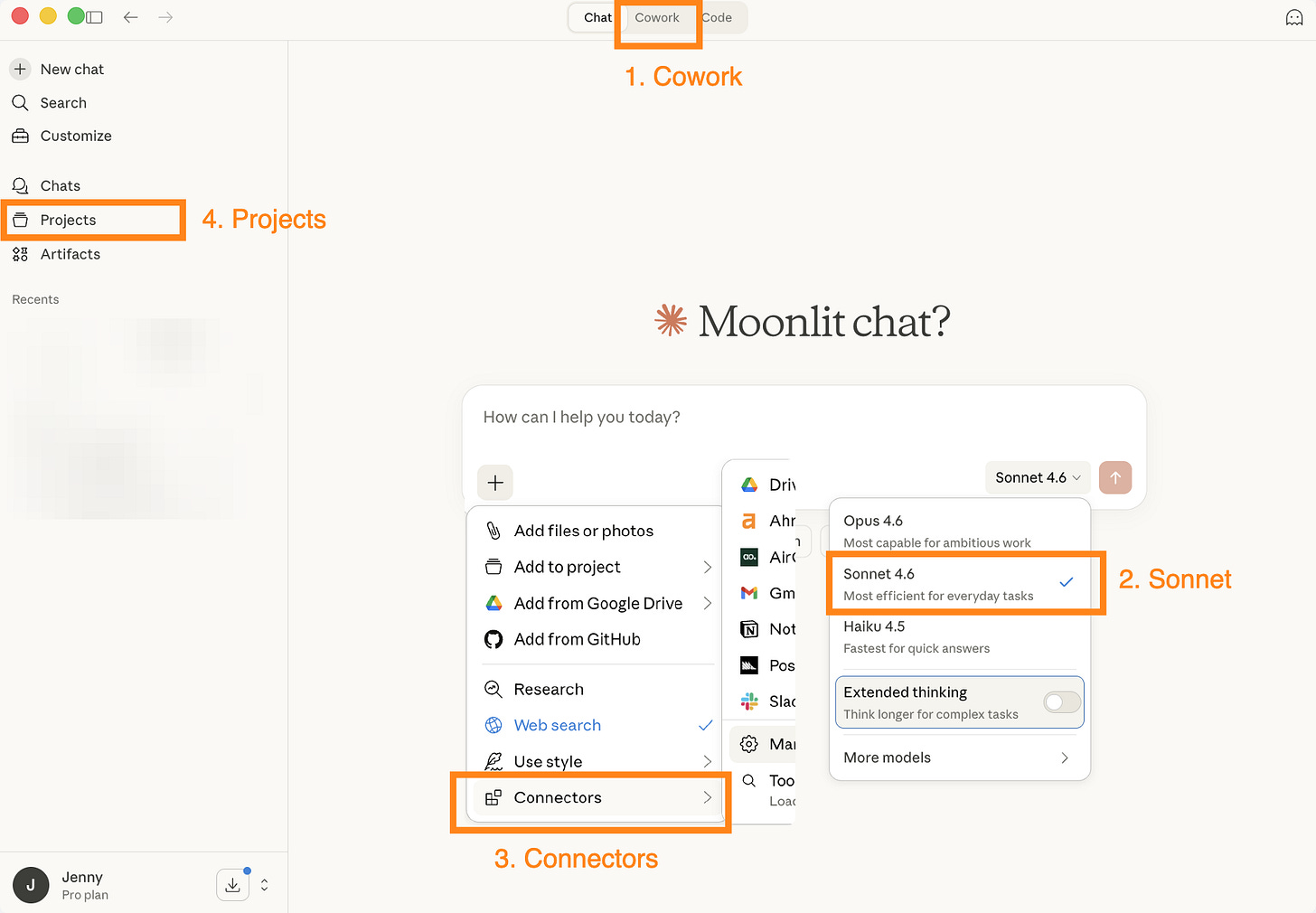
1\. Get the desktop app.
Go to claude.com/download. Not the website, the app.
The desktop app unlocks features (like Cowork and Code) that the website can’t. You don’t need them yet, but you won’t need to switch tools later.
2\. Pick the right model.
Click the model selector at the bottom of the chat. Select Sonnet 4.6.
In the past, Extended Thinking (where Claude pauses to reason before answering) was incredibly useful, it cut down on rushed, shallow answers.
Now, Sonnet 4.6 is smart enough that you get strong results without it.
3\. Connect your tools.
Settings → Connectors → Browse → click “Add” → sign in.
If you use Google Drive, connect that.
Gmail, Slack, Notion, HubSpot… whatever your work lives in.
Instead of copy-pasting context into Claude, it reads from your tools directly. This is the same concept as ChatGPT’s connectors or Gemini’s built-in Workspace integration.
4\. Create a Project and let Memory build.
Click Projects in the sidebar → New Project.
Give it a name, drop in key files or instructions for that work area.
Claude keeps context across conversations within a project.
Over time, Claude’s Memory also picks up your preferences and how you communicate, same concept as ChatGPT’s Projects + Memory or Gemini’s Saved Info.
That’s the baseline. Four things, less than 10 minutes.
You’re now running Claude’s strongest model, connected to your tools, organized by project, and building memory. This is what a good AI setup looks like regardless of which tool you use.
For a lot of people, this is already enough. If all you need is a reliable AI for ad-hoc questions, writing, and analysis, you can stay right here.
But if you want Claude to stop being generic, and want it to feel like it actually knows your work from day 1, keep reading.
The next section is where Claude pulls ahead of everything else.
Get Claude to Know You
You’ve probably seen the advice:
Start by letting the AI ask you questions so it gets to know you.
That works, and it’s worth doing over time. But in practice, I’ve seen a lot of people stall there.
You’re 20 questions in, not sure what’s useful to share vs. what’s noise, and it’s hard to tell whether any of it is making Claude better.
The friction isn’t the method. It’s the uncertainty.
There’s a faster way.
Instead of telling Claude about your work, show it your work.
For every paid plan, including the $20/month Pro, Claude gives you Cowork, a separate tab from the regular chat.
Cowork works directly with files on your computer. It can read your documents, create real Word docs, Excel spreadsheets, PowerPoints, and handle multi-step tasks.
Think of it as Claude sitting at your desk instead of talking to you through a chat window.
Here’s how to set it up:
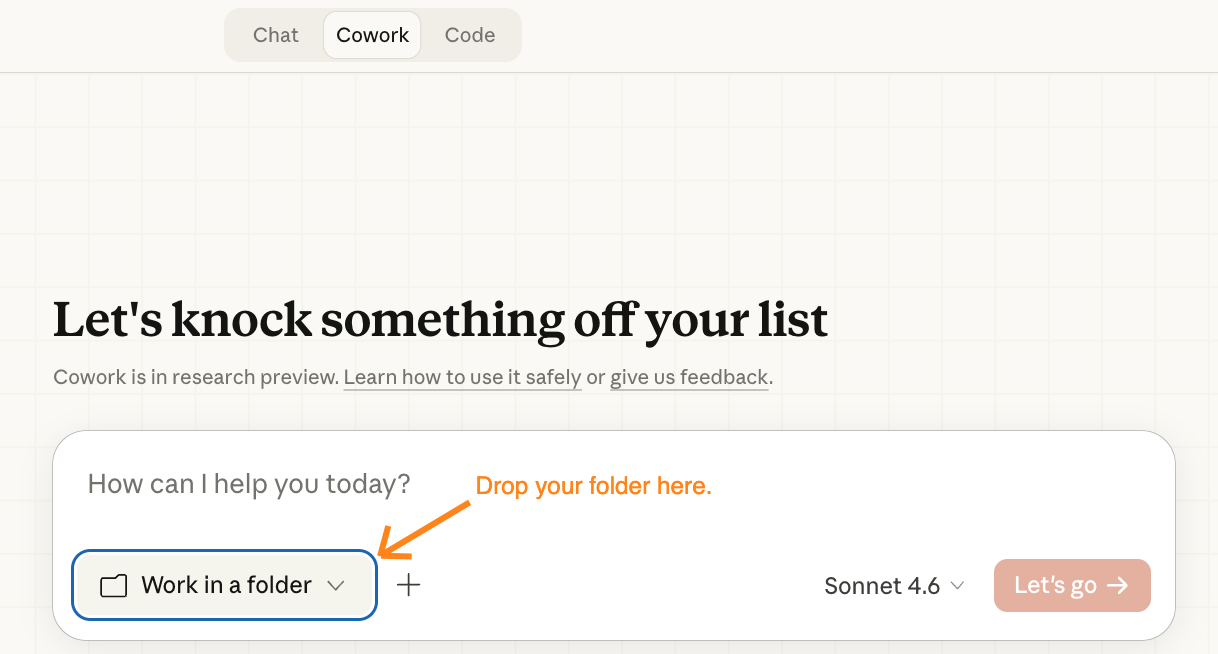
Open Claude Desktop. Click the Cowork tab at the top. Select a folder, any folder where you keep your work files.
Your project folder, your team’s shared drive that syncs locally, wherever.
If you don’t have one obvious folder, create one. Call it Claude-Work or whatever works for you. Drop 2-3 files in it that represent your actual work:
HR work — Employee handbook, offer letter template, org chart
Finance work — Chart of accounts, close checklist, budget template
Marketing — Brand guide, top campaigns, tone examples
Sales — Product one-pager, competitor battlecard, pricing sheet
Operations — Top SOPs, vendor list, process docs
Anything else — 2-3 documents that represent how you work
Don’t overthink this. Use files you already have. Don’t create new ones.
Now try these prompts in order. Copy each one into Cowork and let it run. You’d be surprised what Claude sees when it reads your actual work.
Step 1: Let Claude Read Your Files First
This is the “getting to know you“ step. But instead of you answering 20 questions, Claude reads your files and tells you what it found. No recommendations yet. Just understanding.
You are acting as a deeply attentive life and productivity strategist. Your job is not to answer questions, but to understand a person and then reveal things to them they couldn’t see themselves.
Start by reading everything in the shared folder. Take your time. Look for: recurring themes and preoccupations, tasks they seem to do manually or repeatedly, frustrations they hint at, goals that appear but never seem to progress, and the gap between what they say they want and what they actually do. Then browse any relevant links or resources you find in the files to deepen your understanding of their world.
Once you have a rich picture, produce a personal report:
Their hidden patterns, the loops they’re stuck in, the work they’re doing the hard way, the things they keep circling back to. Be specific and name them plainly.
Close with one honest observation: the single highest-leverage change they could make, the one that would compound everything else.
Read what Claude comes back with. Correct what’s wrong. Confirm what’s right.
This conversation is how Claude starts to know you, not through a questionnaire, but through your actual work.
Step 2: Ask Claude to Map Your Work to Its Features
Now that Claude understands your work, ask it to map what it found to specific things it can help with.
Based on everything you just read and analyzed, map what you found directly to Claude’s actual products and features. Be specific and ruthless about relevance. For every capability you suggest, it must connect to something real you found in my files. No generic suggestions.
Cover the full surface area: Claude.ai features like Projects, Memory, and artifacts. Claude in the browser, in Excel, in PowerPoint. Claude Code for anything that touches automation or pipelines. The API if anything I’m building could be powered by it. Specific prompting techniques that would unlock better results for my exact kind of work.
For each one, write a single ready-to-run prompt or setup instruction I can use immediately — built around my actual content, not a hypothetical.
End with a ranked list: the three Claude capabilities that would have the highest impact on my specific work, and why.
If your folder has too many files for Claude to finish the above chats
Just start with this so Claude doesn’t choke on everything at once:
You have access to a shared folder with a lot of files. Do not try to read everything at once. Work in three passes:
Pass 1 — Map. List every file you can see. Don’t open anything yet. Just inventory what’s there — names, types, rough categories. Tell me what you found.
Pass 2 — Select and read. From that map, choose the 5–7 files that are most likely to reveal how this person actually works — what they’re building, struggling with, repeating, or trying to do. Tell me which ones you picked and why, then read them deeply. Browse any URLs or links you find inside them.
Pass 3 — Reflect. Based only on what you actually read, produce a personal report: their hidden patterns, the loops they’re stuck in, the work they’re doing the hard way, the things they keep circling back to. Be specific. Close with the single highest-leverage change they could make.
If at any point you hit a length limit, stop, tell me where you are, and wait for me to say continue.
Then follow with Step 2 above.
If you don’t have files to share
No folder? If you set up connectors in the previous section, just ask Claude:
“Based on my established connectors, what do you recommend?”
Claude pulls from what’s already connected, your email, calendar, documents, conversations… and works from there.
Claude Cowork, Skills, Plugins, and Connectors Explained
By now you’ve seen words like Cowork, plugins, skills, slash commands. If you’re confused about what’s what, you’re not alone. Here’s the plain-English version.
Think of it as layers. Each one builds on the last. I’ll walk through all of them using one real example: how I create and publish Substack notes with Claude.
1\. Chatbox
— The basic conversation.
You type, Claude responds. Every AI tool works this way.
My example:
I open Claude and type: “Write me a short Substack note about how most people use AI for answers when they should be using it for better questions.”
Claude writes something. It’s fine. But it doesn’t know my voice, my format, or what makes a note perform well. I’d have to explain all of that every time.
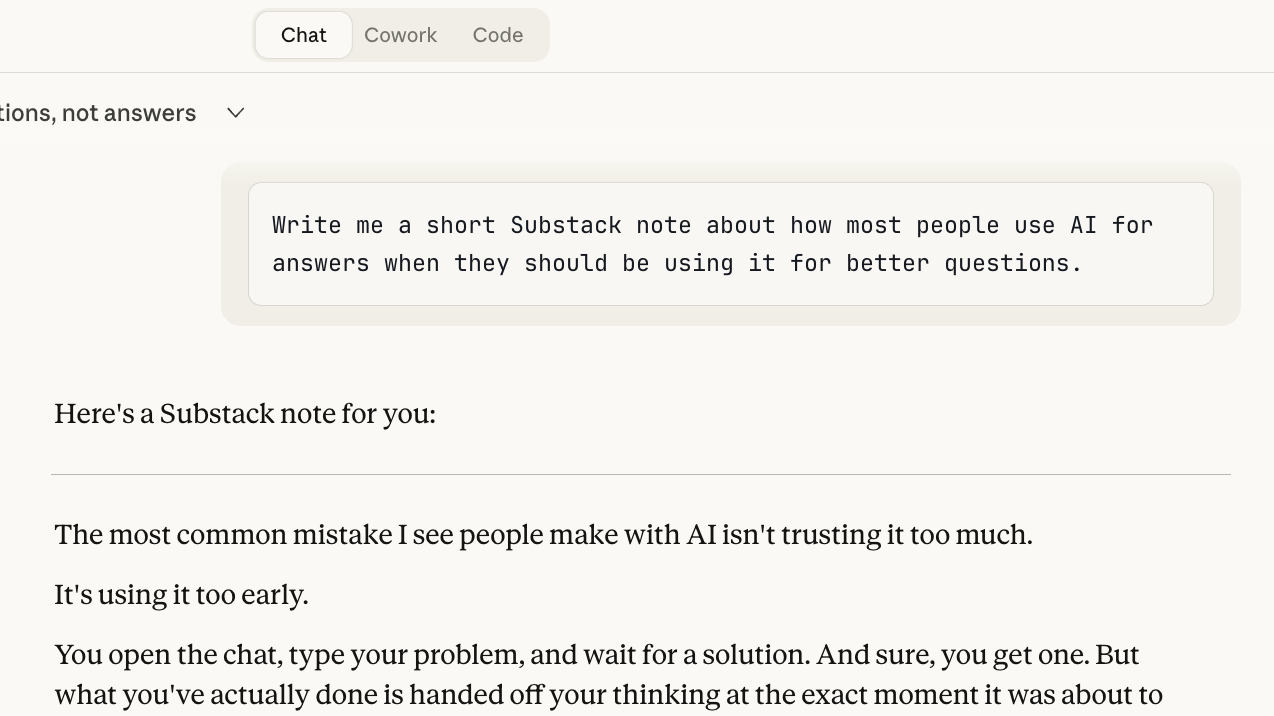
Claude in Chatbox gives you generic results
2\. Cowork
— A mode in the Claude Desktop app where Claude works with your local files.
Instead of just chatting, Claude can read your documents, create new files (real Word docs, Excel spreadsheets, PowerPoints), and execute multi-step tasks on your computer. You turned this on when you pointed Claude at your work folder.
My example:
I switch to Cowork and point it at a folder with my past notes and writing samples. Now when I ask for a Substack note, Claude reads my actual writing first. The output starts to sound like my notes instead of generic AI.
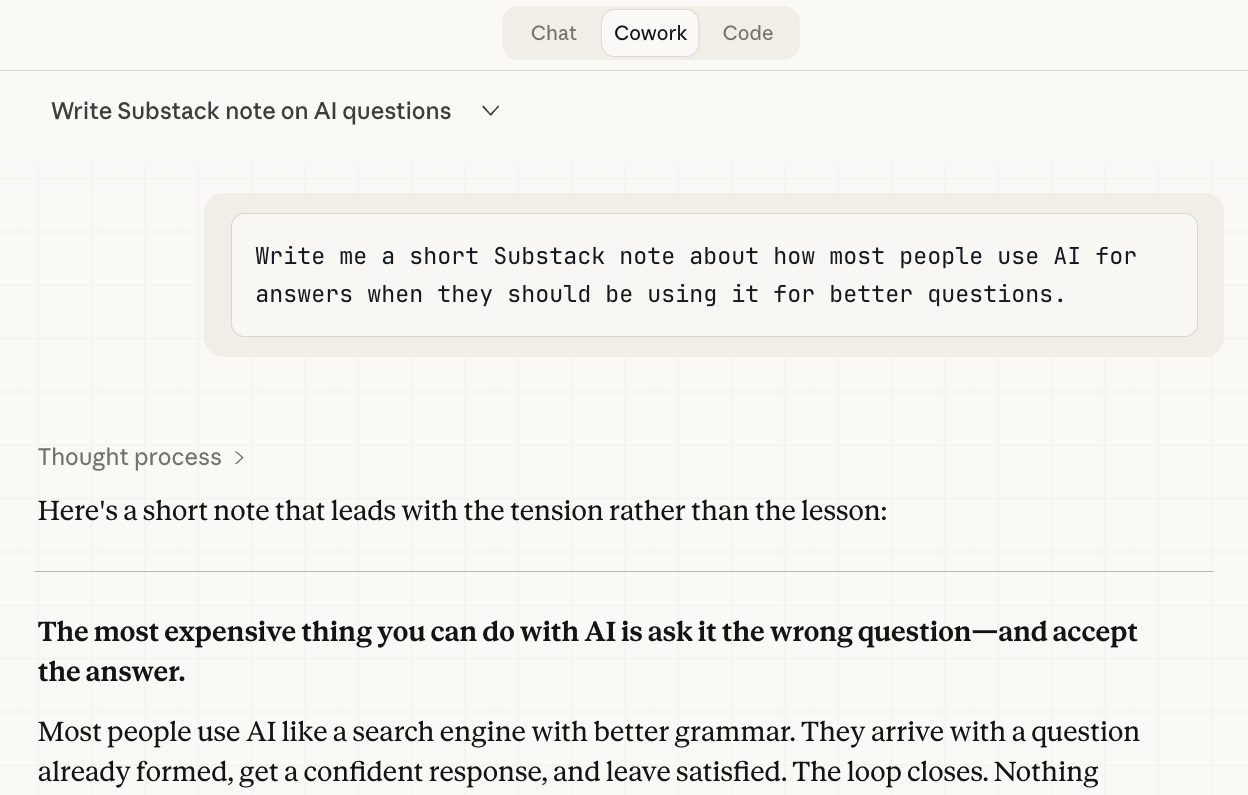
Claude in Cowork start to pick up your patterns
3\. Slash command
— A shortcut you type with / that triggers a structured workflow.
Instead of re-explaining your instructions every time, you save them as a command. You can have as many as you need, each one does a specific job.
My example:
I notice I keep pasting the same instructions every time I want notes. So I created two commands:
/draft-notes [topic]— generates a note in specific structural format (a copy-paste framework, a rhythm-based statement build, and a numbered list). My voice rules, banned words, and quality checks are baked in. I just type the topic.
Draft a Substack note from the following input using the formulas and guidelines from the substack-notes skill:

$ARGUMENTS

**Step 1 — Read the content energy:**

Determine what the content is *doing* (teaching, challenging, storytelling, diagnosing, curating) and select the single best formula for this input.

**Step 2 — Draft the note:**

Write one polished note following the chosen formula. Apply all formula rules (word count, structure, no hedging, no "try this!" calls to action). Format it ready to post.

**Step 3 — Present:**

Show the drafted note clearly. State which formula was used and why. Offer to revise or try a different formula if the user wants options.
/schedule-notes— pulls up my unscheduled notes and my calendar, then schedules the ones I pick through my Substack connector at non-round-number times (2:23pm, not 2:00pm) with proper spacing between posts.
Schedule the following Substack note using the scheduling rules from the substack-notes skill:

$ARGUMENTS

Apply these rules when suggesting a time:
- Maximum 3 notes per day
- Use non-round minutes only: :08, :17, :23, :38, :42, :47, :53 (never :00, :15, :30, :45)
- Minimum 3–4 hour gaps between notes on the same day
- Express all times in UTC
- Aim for variety in category and formula across any 7-day window

If the user hasn't specified a time, suggest 2–3 good options based on the note's category and the rules above. If they haven't specified a category, suggest one based on the note's content.

Present the proposed schedule clearly and ask the user to confirm before finalizing. Do not finalize or save anything without explicit confirmation.
Two commands, two specific jobs. I use them separately depending on what I need.
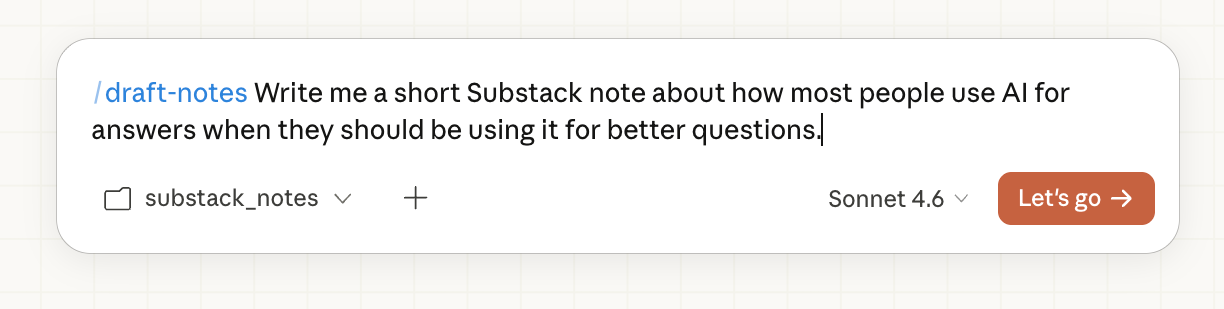
Claude with slash command containing pre-baked instructions
4\. Skill
— Domain expertise that Claude draws on automatically.
You don’t type these. When Claude recognizes a relevant situation, the skill activates on its own, bringing the knowledge, rules, and judgment needed to handle it well.
My example:
The slash commands are useful when I want control. But other days, I just want to say “make notes from this article/paraphrase and suggest publishing times” and let Claude figure out the rest.
What formula to use. How to space the schedule. Those aren’t steps I want to dictate, they’re judgements I want Claude to make on its own, using everything it knows about how my notes work.
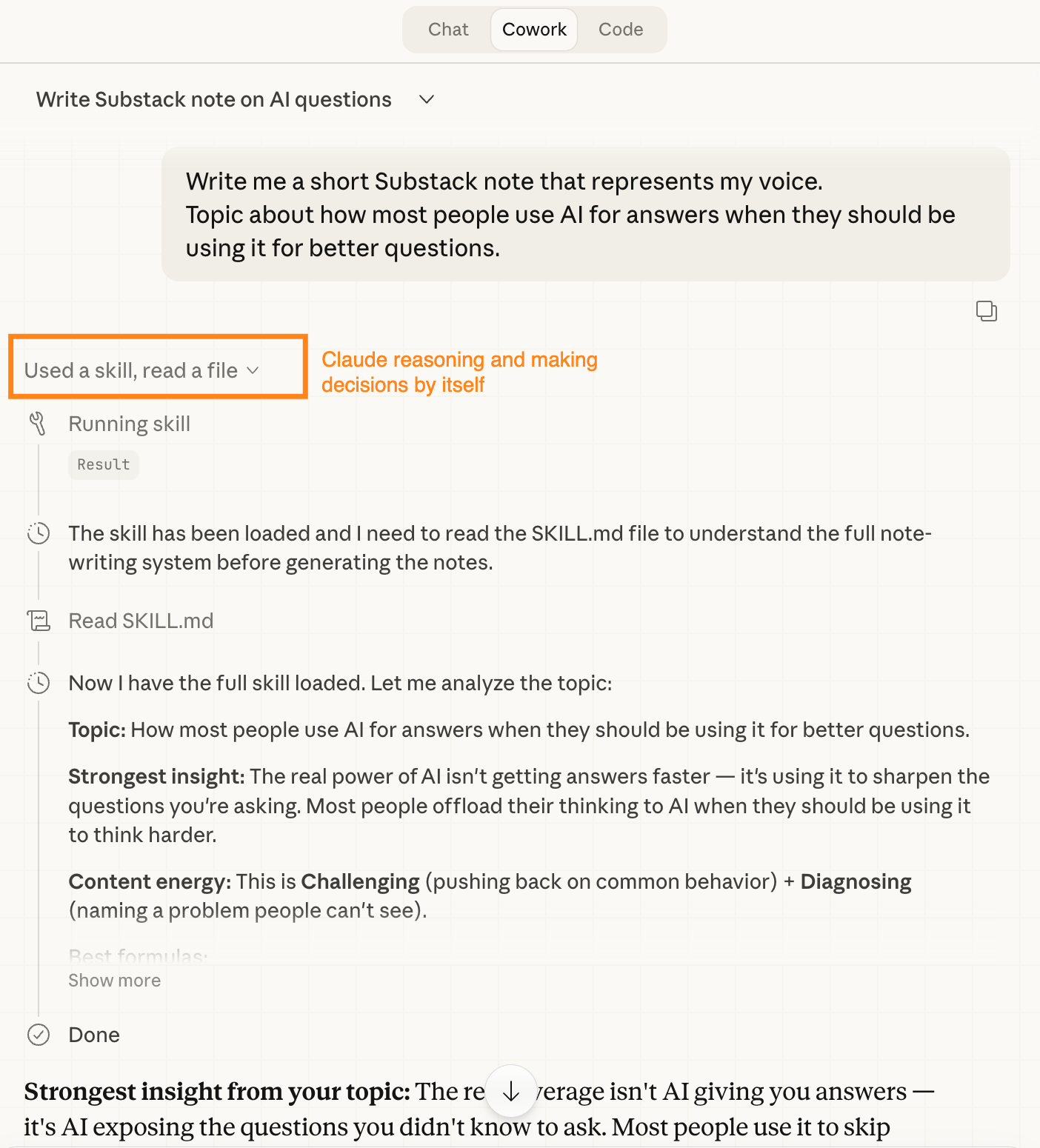
Claude invoking a skill
That’s what a skill holds: the expertise to make those calls without me directing each one.
5\. Connector (MCP)
— A way for Claude to talk to external tools and services directly.
Instead of you copy-pasting data between apps, Claude reaches into the tool itself.
My example:
The schedule command above wouldn’t work if I had to manually copy-paste generated notes and then go to Substack to post. Instead, I connect my Substack account through an MCP (Model Context Protocol) connector.
That’s what lets Claude pull my published notes directly, read my note queue, and schedule note posting, all without me leaving the conversation. The connector is the bridge between Claude and the outside tool.
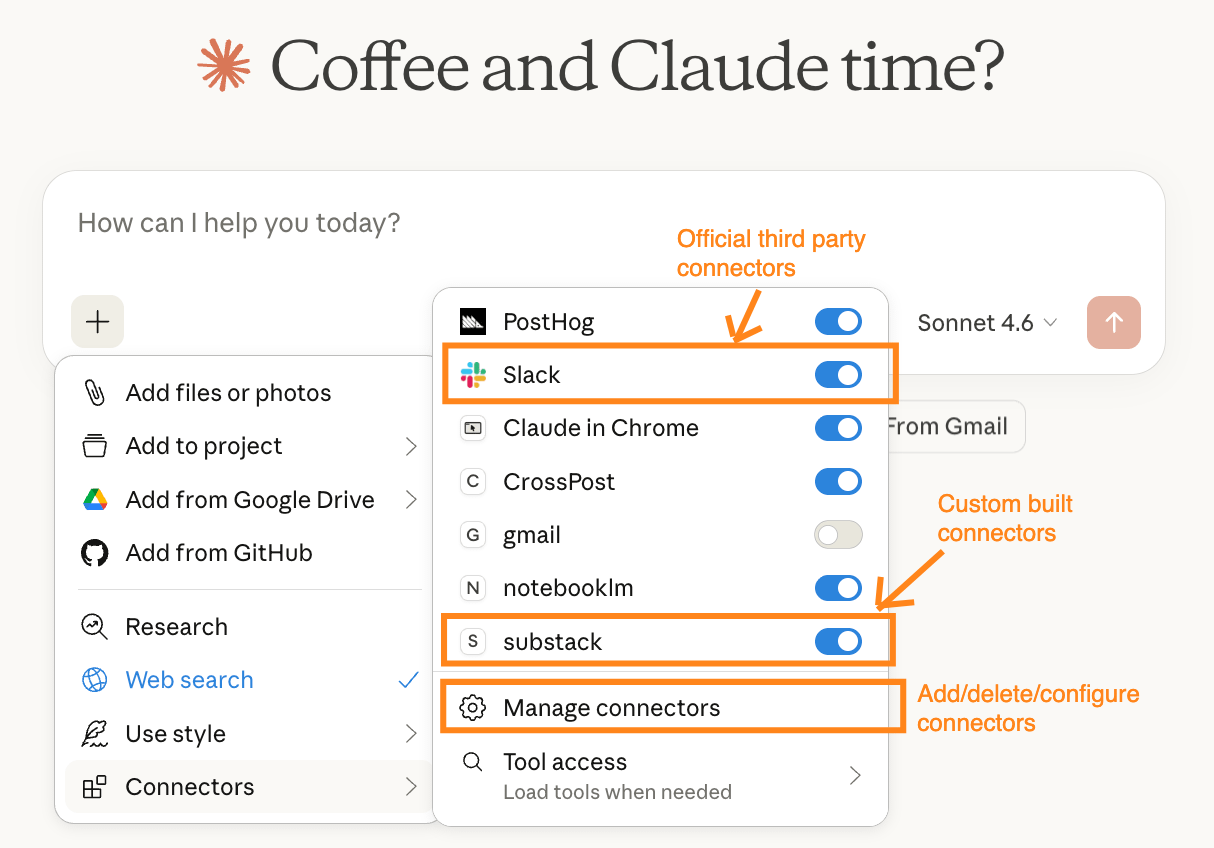
Claude Connectors from the chatbox
Going deeper on connectors:
What Is an MCP Server, in Plain English — the concept before the setup
MCP Setup Across All Clients — Claude Desktop, Claude Code, Cursor, and ChatGPT step by step
How to Build Your Own MCP Server — when you’re ready to create a custom connector
Custom MCPs for Claude Code and Cursor — packaging MCP servers for your exact stack
6\. Plugin
— Everything above, packaged together. A plugin bundles slash commands, skills, and connectors for a specific workflow. One install, all the options.
My example:
My Substack notes plugin packages /draft-notes, /schedule-notes, the full-pipeline skill, and the Substack notes connector into one installable thing. The reason it’s a plugin and not just a skill: flexibility.
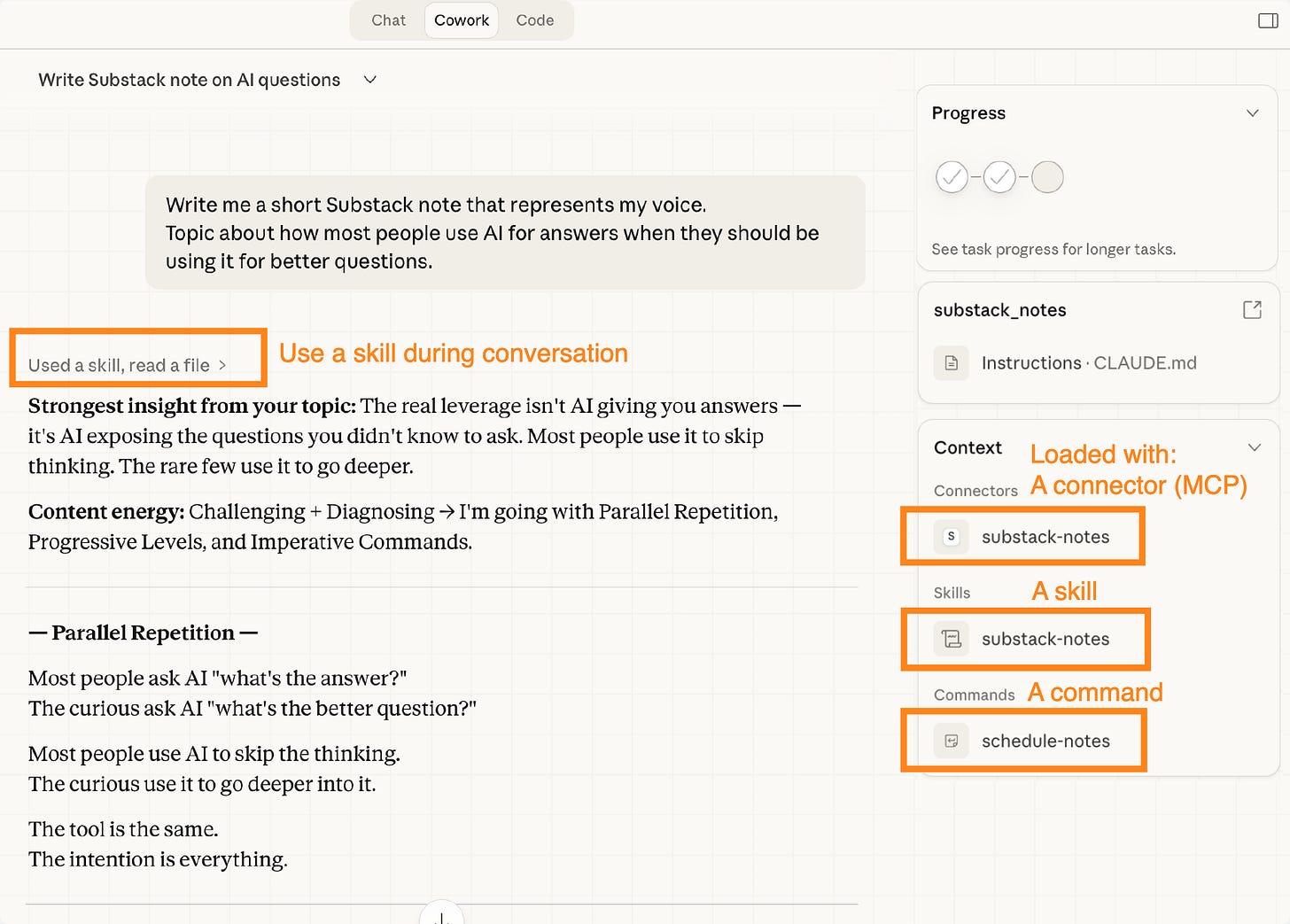
Claude plugin with skills and commands packaged together
Some days I want the full automated workflow: “pull my latest notes, show me what’s working, and make a few suggestions.” That’s the skill.
Other days I just want to draft 3 quick notes about an idea I had in the shower. That’s /draft-notes.
And sometimes I’ve been writing notes all week and I just need to batch-schedule them. That’s /schedule-notes.
A plugin gives me all three modes. I use whichever one fits the moment.
🎁 Gift for paid members: use Substack Notes Plugin to draft and schedule Substack notes inside Claude; slash commands, 7 formulas, and scheduling MCP from quickviralnotes.xyz.
Reach out for questions, I read every message from you.
The bottom line: The commands, skills, connectors, plugins, and cowork aren’t separate products you choose between.
They’re layers that build on each other.
Most people start at chatbox and stay there, and that’s perfectly fine.
The people who needs more leverage move up the stack, each layer removes one more thing you have to do manually, until Claude runs the whole workflow and you just assess the output.
Which Claude Plugin to Install First (By Your Role)
You’ve got the map: chatbox, Cowork, slash commands, skills, connectors, and plugins, and how they stack.
You don’t have to build those layers from scratch. Anthropic and others have already packaged them into plugins for common roles.
So the next step is simple: install one that matches your job.
Once you’ve pointed Claude at your files (or connected your tools), that’s the easy win.
How to install a plugin:
In Claude Desktop, click Customize in the sidebar → Browse Plugins → click Install.
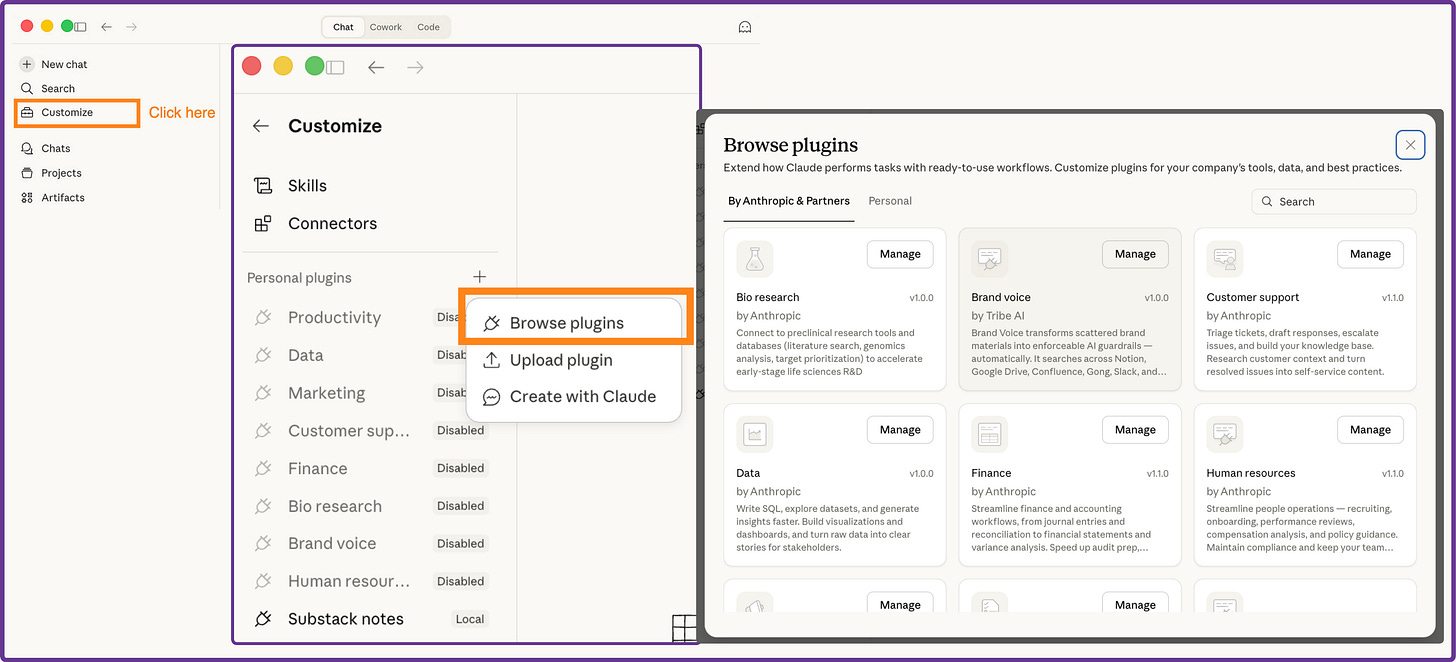
Where to find plugins in Claude Desktop
Type / in any conversation to see your available plugin commands and skills.
Official Claude Plugins for Every Role
Anthropic released 11 official plugins for knowledge workers. Here’s the one that matches your job:
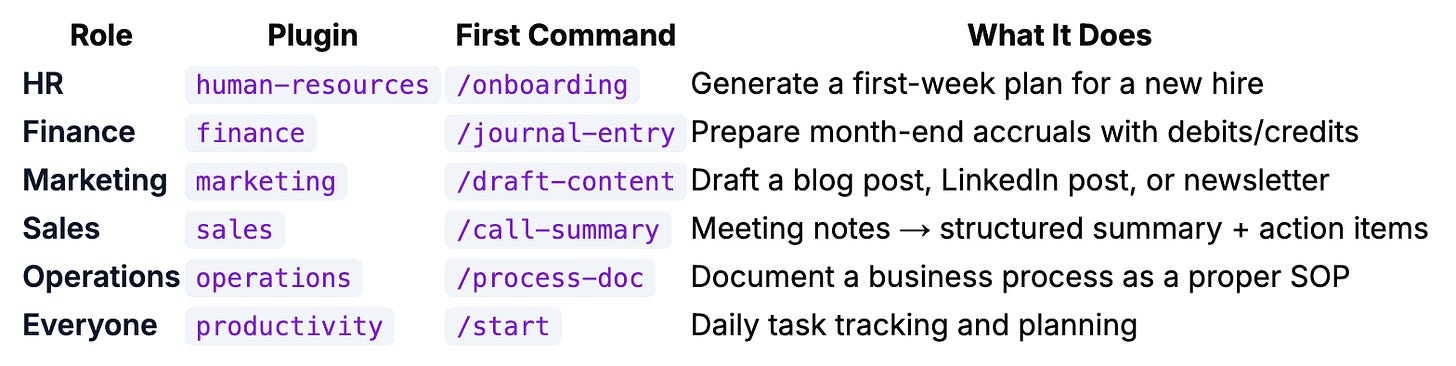
More commands worth trying early:
HR:
/draft-offer(offer letters),/policy-lookup(”What’s our PTO policy?”),/performance-reviewFinance:
/reconciliation(bank recs),/variance-analysis(”Why is OPEX up 15%?”),/income-statementMarketing:
/email-sequence(nurture flows),/campaign-plan,/brand-review(check copy against brand voice)Sales:
/forecast(weighted pipeline), research before any call (just ask), draft outreach emailsOperations:
/vendor-review,/status-report,/runbook(step-by-step procedures)
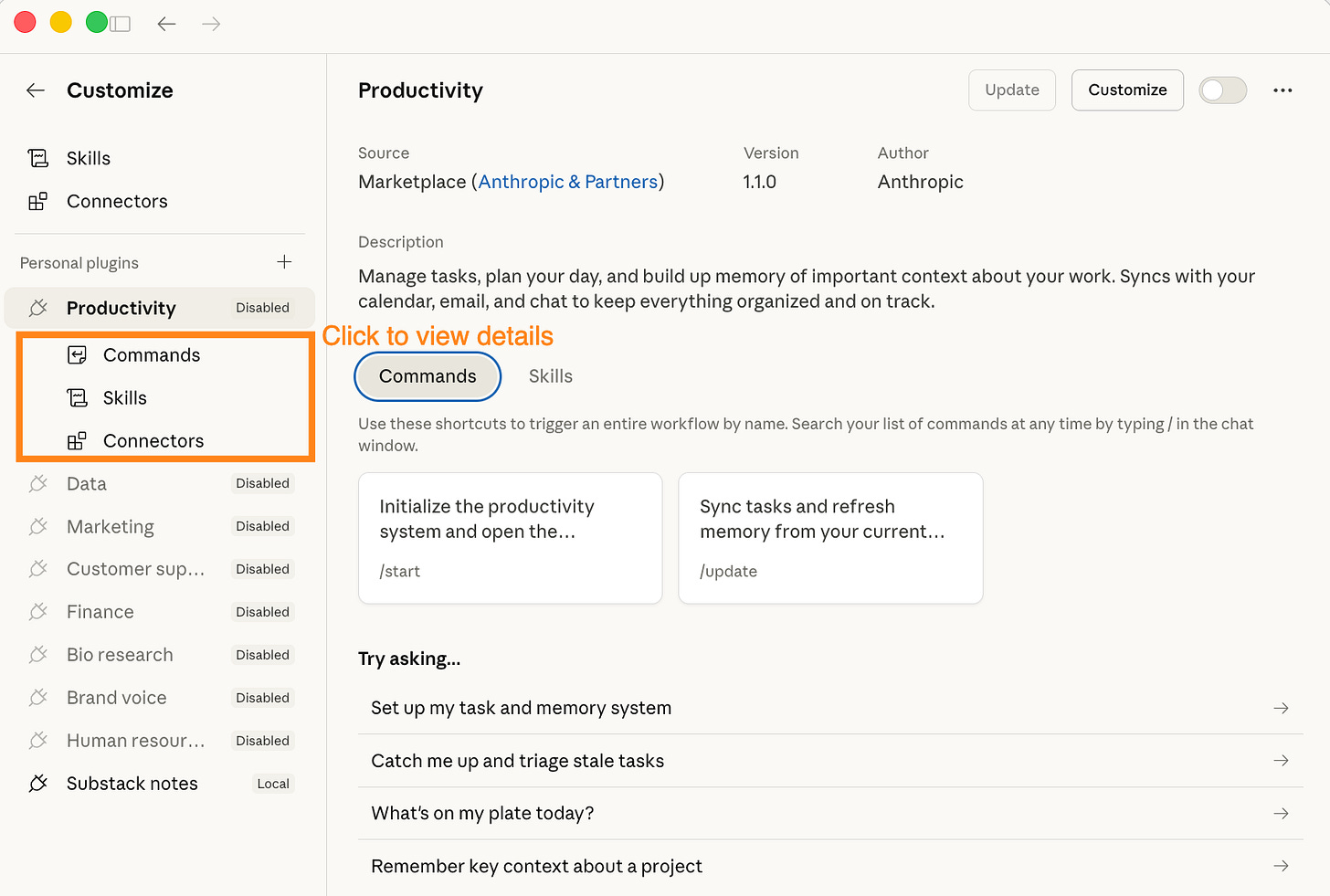
Claude Built-in Plugins usually have at least one of the three components: Commands, Skills, Connectors
A tip for prompting in Cowork with plugins: You don’t need to write a long, detailed prompt.
Give Claude one sentence about what you want and what success looks like. Point it at your folder first so it has context.
Claude then structures the next step, often an interactive form with buttons and options to confirm scope, and shows you a plan.
You approve. It executes. The heavy lifting is the goal and the folder; Claude figures out what to ask.
🎁 I’ve made all of these plugins available in .md file format. Download them for free on my resources page and use the prompts, commands, and skill instructions as you need (even if you don’t have Claude paid plan)
Drop them into your working project, adapt them for the free version of Claude or any AI you use, or share them with your team.
Why Claude Cowork Feels Slow (And What to Do About It)
It can feel slow.
The context window compacts constantly as conversations get long.
The more plugins you enable, the more context gets eaten before you’ve even said anything. Especially on the $20/month tier, where you feel the limits sooner.
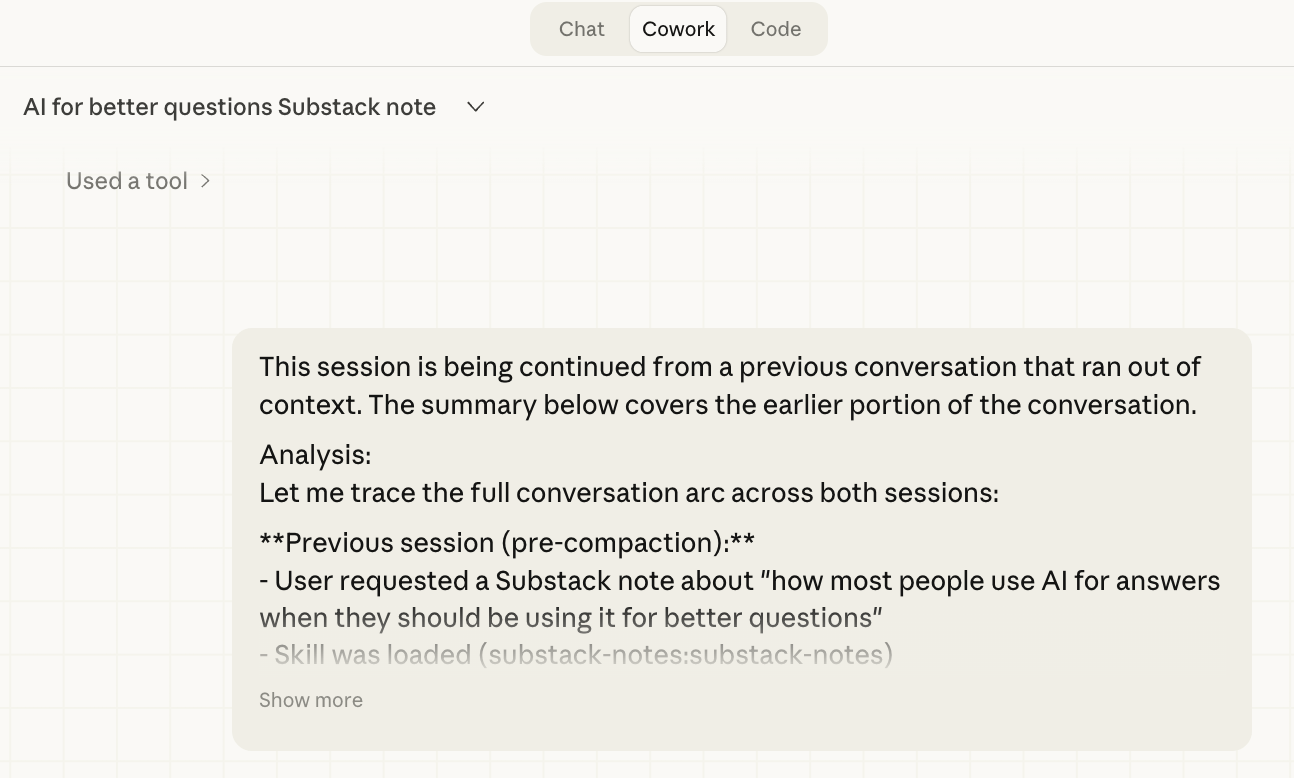
Context window was compacted at least 3 times for this conversation
Or you run out of usage and had to wait for long.
With a $20/month Pro plan, you’ll see a lot of those with cowork
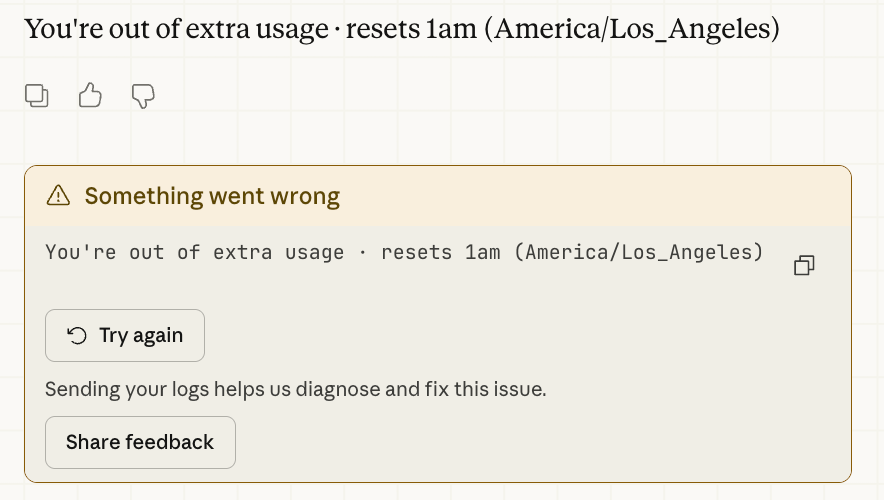
That friction is not a flaw; it’s the tradeoff for the simple, app-based setup. This is when Claude Code comes to rescue.
What About Claude Code?
Claude Code is a separate tool that lives in the terminal. It reads your entire codebase (folder), writes code (anything), runs testss (processe), manages git (version), and builds software (product) alongside you.
If you write code, you’re already familiar with the pipeline, but Claude Code makes the whole process a lot smoother.
If you don’t write code, that’s fine too: Claude Code isn’t only for code. It gives a much smoother experience than Cowork, with less slowness, less context compacting, and you’re not fighting the plugin limit.
It’s worth trying both and seeing which one fits how you work.
Explore more: 12 project ideas · best MCP servers · 15 best prompts · how subagents work · token costs
The Desktop redesign made Claude Code easier than ever to start — here’s how it reshaped my Cursor and OpenClaw workflow.
How to Roll Out Claude to a Team Without a Training Program
If you’re setting up Claude for just yourself, you have everything you need above.
If you’re responsible for getting a team on Claude, here’s what works.
Don’t onboard everyone at once. Pick one person per role: the curious one, the early adopter, the person who already uses ChatGPT for random things. That’s your champion.
Walk each champion through this article in 20 minutes. Download → Model → Folder → One conversation. Let them sit with it for a week on real work. Not demos. Actual deliverables.
Then they show their own team. When the HR champion demos an offer letter Claude drafted using their actual handbook, in their company’s format? That’s more convincing than any vendor presentation. Peer credibility beats top-down mandates.
Expand role by role. Finance sees HR succeeding. Finance wants in. Repeat.
Start Today: 3 Steps That Take 20 Minutes Total
Right now (5 min): Download Claude Desktop. Select Sonnet 4.6. Connect one tool you use daily. Start one conversation about something you’re working on today.
When you’re ready (10 min): Open Cowork, point it to your work folder. Ask Claude to help with a real task using your files. Notice the difference.
When you’re comfortable (5 min): Install your role’s plugin. Try the first slash command from the table above.
Share this with someone who just got Claude and doesn’t know where to start.
Frequently Asked Questions
Do I need Claude Pro, or can I use the free version?
Free works for basic chat. But Cowork is off, Projects are limited, and the model is weaker by default. Pro ($20/mo) or Team ($25/person/mo) unlocks everything in this guide.
What about ChatGPT? Should I switch?
You don’t have to. Claude’s Cowork + Plugins gives you structured workflows ChatGPT doesn’t have yet. For knowledge work, Claude is ahead. For images, ChatGPT and Gemini are better.
Does Claude store my data?
Pro plans: Anthropic says it doesn’t train on your conversations. Team and Enterprise add admin controls, audit logs, and SSO. Regulated industries: talk to IT about Enterprise.
Can Claude create Excel spreadsheets and PowerPoints?
Yes. In Cowork: real .xlsx files with working formulas, real .pptx files. There’s also a Claude Excel add-in for your existing spreadsheets. For presentations, install the pptx skill from the document-skills bundle.
Why does team adoption feel harder than individual adoption?
The people who’d benefit most are also the ones with options if it feels pushed on them. Related read.
What about scientists and researchers?
Both Cowork and Code. Cowork for literature review (PubMed plugin included), ideation, and writing. Claude Code for data analysis: Python, RNA-seq pipelines, Nextflow. Start with Cowork, add Code when the analysis demands it.
My connector connected but Claude isn’t reading anything from it. What’s wrong?
Disconnect and reconnect in Settings → Connectors — auth tokens drop over time, especially Google Drive and Gmail. If that doesn’t fix it, check the permission scope you granted on sign-in; read-only is often the default but some connectors need write access.
Free articles show you what’s possible. Paid articles show you exactly how.
If you’re into vibe coding, Claude, and building in public, subscribe and the next one goes straight to you
What’s the first file you’d drop in your Claude folder?
— Jenny
Why Upgrade · Practical AI Builder Program · Templates · Builder Showcase