MCP Servers in Every AI Client: Claude, ChatGPT, VS Code, and Cursor
Seven clients, one config format — exact setup steps and a decision table so you know which method to start with
Most MCP guides cover Claude Desktop, or at most, Claude Code.
This one covers all seven clients: Claude Desktop, Claude Code, ChatGPT Desktop, Cursor, Windsurf, VS Code with GitHub Copilot, and remote OAuth connectors.
Each client has a different config file, a different file path, and different behavior when something breaks.
You’ll get exact config snippets for each, a team-sharing option, and a decision table to pick the right method for your setup.
New to MCP? Read What Is an MCP Server? first. For a deep install walkthrough by MCP type, see How to Install Any MCP Server in Claude.

I’ve connected MCP servers to every major clients. This is the article I wish existed when I started.
What’s in here:
MCP transport types: stdio vs HTTP/SSE — two transport types, one config format
How to add MCP servers to Claude Desktop —
claude_desktop_config.json, Mac and WindowsHow to add MCP servers to Claude Code (CLI) —
claude mcp add, fastest setupHow to share MCP config across a team (.mcp.json) — project config, team-shareable
How to set up MCP in Cursor and Windsurf — IDE-native MCP
How to add a remote MCP server via Claude Connectors — no config files, one-click OAuth
How to add MCP servers to ChatGPT — same servers, different client
How to set up MCP in VS Code with GitHub Copilot —
"servers"key, not"mcpServers"Which MCP method should you use? — decision table
Hi, I’m Jenny 👋
I build AI systems and tools, then share how I did it. I run the Practical AI Builder program — for people who already use AI and want to build real things with it. Check it out if that sounds like you.
If you’re new to Build to Launch, welcome! Here’s what you might enjoy:
MCP Transport Types: stdio vs HTTP/SSE
Two transport types. Pick the right one and the rest follows.
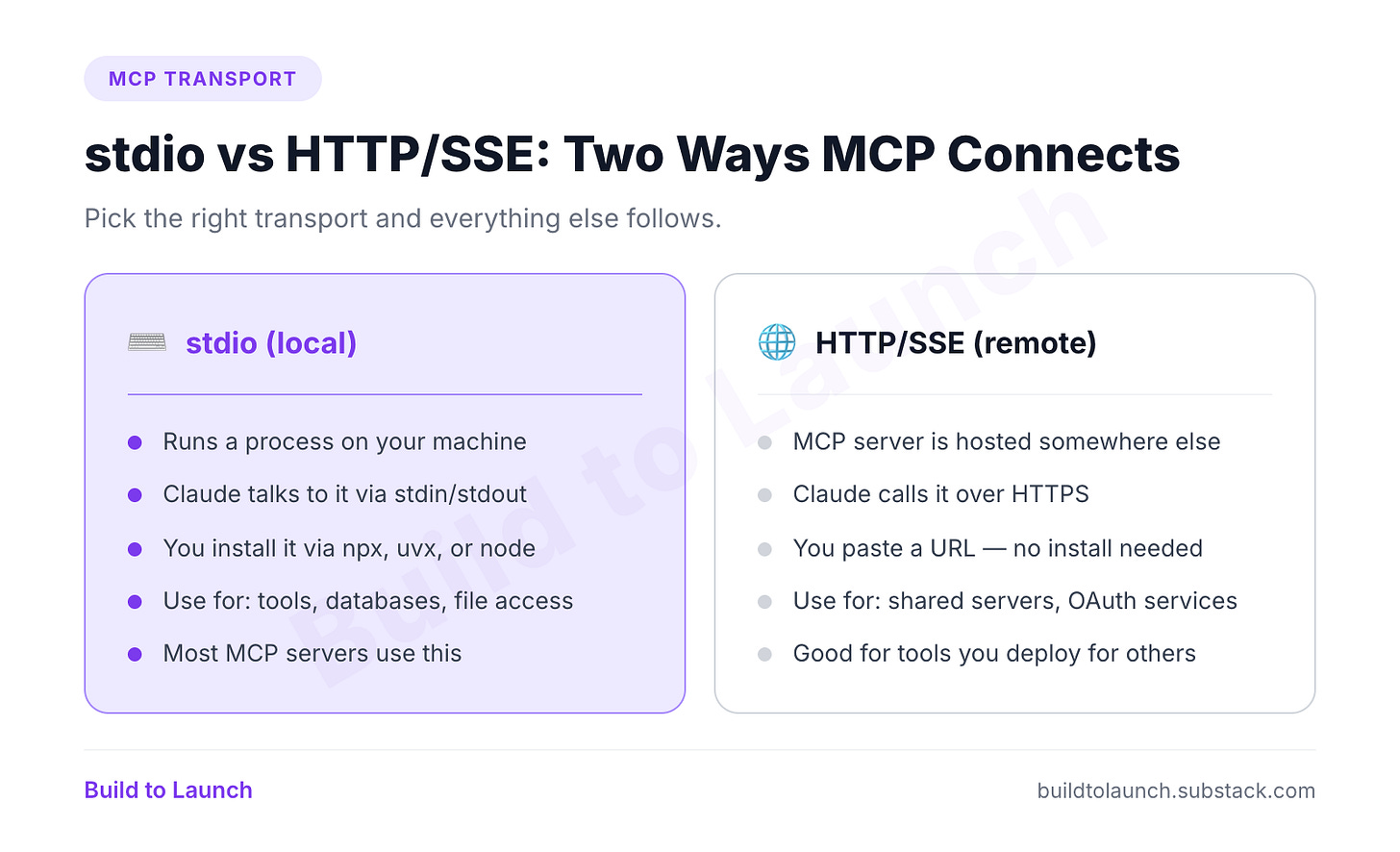
Local stdio = you add an npm package to a config file. Remote HTTP = you paste a URL into Claude Connectors. Same protocol, different transport.
All seven MCP clients — Claude Desktop, Claude Code, ChatGPT, Cursor, Windsurf, VS Code, and remote OAuth — use the same underlying JSON config structure. The only things that change are the file path and the root key name.
One config format for all local clients:
{
  "mcpServers": {
    "server-name": {
      "command": "npx",
      "args": ["-y", "package-name"],
      "env": {
        "API_KEY": "your-key-here"
      }
    }
  }
}
Claude Desktop, Claude Code, and Cursor all use this exact structure. The only thing that changes: the file path where you put it.
Not sure what MCP servers actually are or why you'd want them? What Is an MCP Server? Plain-English Explanation covers the concept before you touch any config files.
One important exception: VS Code uses "servers" as the root key, not "mcpServers". Every other client uses "mcpServers". If you copy a config from Claude Desktop into VS Code, it will silently fail. More on this in Method 7.
How to Add MCP Servers to Claude Desktop
No terminal needed once the server is configured. The most beginner-friendly method.
Where the config file lives
Mac:
~/Library/Application Support/Claude/claude_desktop_config.json
Windows:
%APPDATA%\Claude\claude_desktop_config.json
Fastest way to find it: Claude Desktop → Settings → Developer → Edit Config. Opens the file directly.
What the config looks like
If you haven’t added any MCP servers yet, the file might be empty or {}. Add your first server:
{
  "mcpServers": {
    "gumroad": {
      "command": "npx",
      "args": ["-y", "gumroad-mcp@latest"],
      "env": {
        "GUMROAD_ACCESS_TOKEN": "your_token_here"
      }
    }
  }
}
To add a second server, add another key inside "mcpServers":
{
  "mcpServers": {
    "gumroad": {
      "command": "npx",
      "args": ["-y", "gumroad-mcp@latest"],
      "env": { "GUMROAD_ACCESS_TOKEN": "your_token_here" }
    },
    "stripe": {
      "command": "npx",
      "args": ["-y", "@stripe/mcp"],
      "env": { "STRIPE_SECRET_KEY": "your_stripe_key_here" }
    }
  }
}
After editing: restart required
Claude Desktop doesn’t pick up config changes while running.
Quit completely — Cmd+Q on Mac, File → Exit on Windows
Reopen Claude Desktop
Start a new conversation. Ask “what tools do you have?” — that confirms the server is connected.
Three Ways to Install an MCP Server (npm, Python, Local)
Do you need Node.js or Python installed?
Yes, for local stdio servers. npm-based servers require Node.js (check: node --version in terminal). Python-based servers require uv (install on Mac: brew install uv). If you don’t have either, install Node.js from nodejs.org — it covers the majority of available MCP servers.
npm (Node.js):
"command": "npx",
"args": ["-y", "package-name"]
The -y flag auto-confirms the install. Without it, Claude hangs waiting for input.
Python (uv):
"command": "uvx",
"args": ["package-name"]
Requires uv installed. On Mac: brew install uv.
Local clone:
"command": "node",
"args": ["/absolute/path/to/server/dist/index.js"]
Path must be absolute. Relative paths break.
Troubleshooting Claude Desktop
“Could not attach to MCP server [name]”
The server didn’t start. Check:
Package name is correct (
npx -y wrong-namefails silently in config)Absolute path exists if you’re using a local clone
All required env variables are present in
"env"
Server is in the list but tools aren’t showing
The server started but isn’t responding. Open the log:
~/Library/Logs/Claude/mcp-server-[name].log
This shows the actual error the server threw on startup.
JSON syntax error — Claude Desktop won’t launch
One wrong character breaks the entire config. Paste into jsonlint.com to find it.
How to Add MCP Servers to Claude Code (CLI Method)
No file editing. The fastest way to add a server to Claude Code.
The `claude mcp add` command
claude mcp add <name> <command> [args...]
Examples:
# npm server
claude mcp add gumroad npx -y gumroad-mcp@latest

# npm server with API key
claude mcp add stripe npx -y @stripe/mcp \
  -e STRIPE_SECRET_KEY=your_key_here
Claude Code writes the entry to ~/.claude/settings.json for you.
User Scope vs Project Scope: Which to Use for Claude Code MCP
Default: user scope. Available in every Claude Code session, every directory.
For a server that only runs in one project:
claude mcp add --scope project stripe npx -y @stripe/mcp \
  -e STRIPE_SECRET_KEY=your_key_here
Project-scope servers go into .claude/settings.json in your current directory, not the global ~/.claude/settings.json.
Useful commands
claude mcp list          # see all connected servers
claude mcp remove <name> # remove a server
claude mcp get <name>    # inspect a specific server's config
Edit the file directly (optional)
If you prefer file editing over CLI:
User scope (global):
~/.claude/settings.json
Project scope:
.claude/settings.json (in project root)
Same JSON structure as Claude Desktop.
How to Share MCP Config Across a Team (.mcp.json)
Your whole team gets the same MCP setup. No one edits their own settings.
Drop a .mcp.json in your project root, commit it to git, and everyone on the project picks up the same servers automatically.
The format
{
  "mcpServers": {
    "gumroad": {
      "command": "npx",
      "args": ["-y", "gumroad-mcp@latest"],
      "env": {
        "GUMROAD_ACCESS_TOKEN": "your_token_here"
      }
    },
    "stripe": {
      "command": "npx",
      "args": ["-y", "@stripe/mcp"],
      "env": {
        "STRIPE_SECRET_KEY": "your_stripe_key_here"
      }
    }
  }
}
How to Store API Keys Safely in a Shared .mcp.json
Don’t put real API keys in .mcp.json if you’re committing to git.
Option A: Reference environment variables
{
  "mcpServers": {
    "gumroad": {
      "command": "npx",
      "args": ["-y", "gumroad-mcp@latest"],
      "env": {
        "GUMROAD_ACCESS_TOKEN": "${GUMROAD_ACCESS_TOKEN}"
      }
    }
  }
}
Each person sets GUMROAD_ACCESS_TOKEN in their shell (.zshrc, .bashrc, or a local .env that’s gitignored). The .mcp.json is safe to commit.
Option B: Gitignore the file
If the config contains your personal keys and is only for you, add .mcp.json to .gitignore. Per-project config, no risk.
The same env-variable pattern works in Claude Code CLI (-e KEY=${KEY}), Cursor’s mcp.json, and VS Code’s settings. You’re not locked into a single secrets approach across clients.
`.mcp.json` vs `.claude/settings.json`
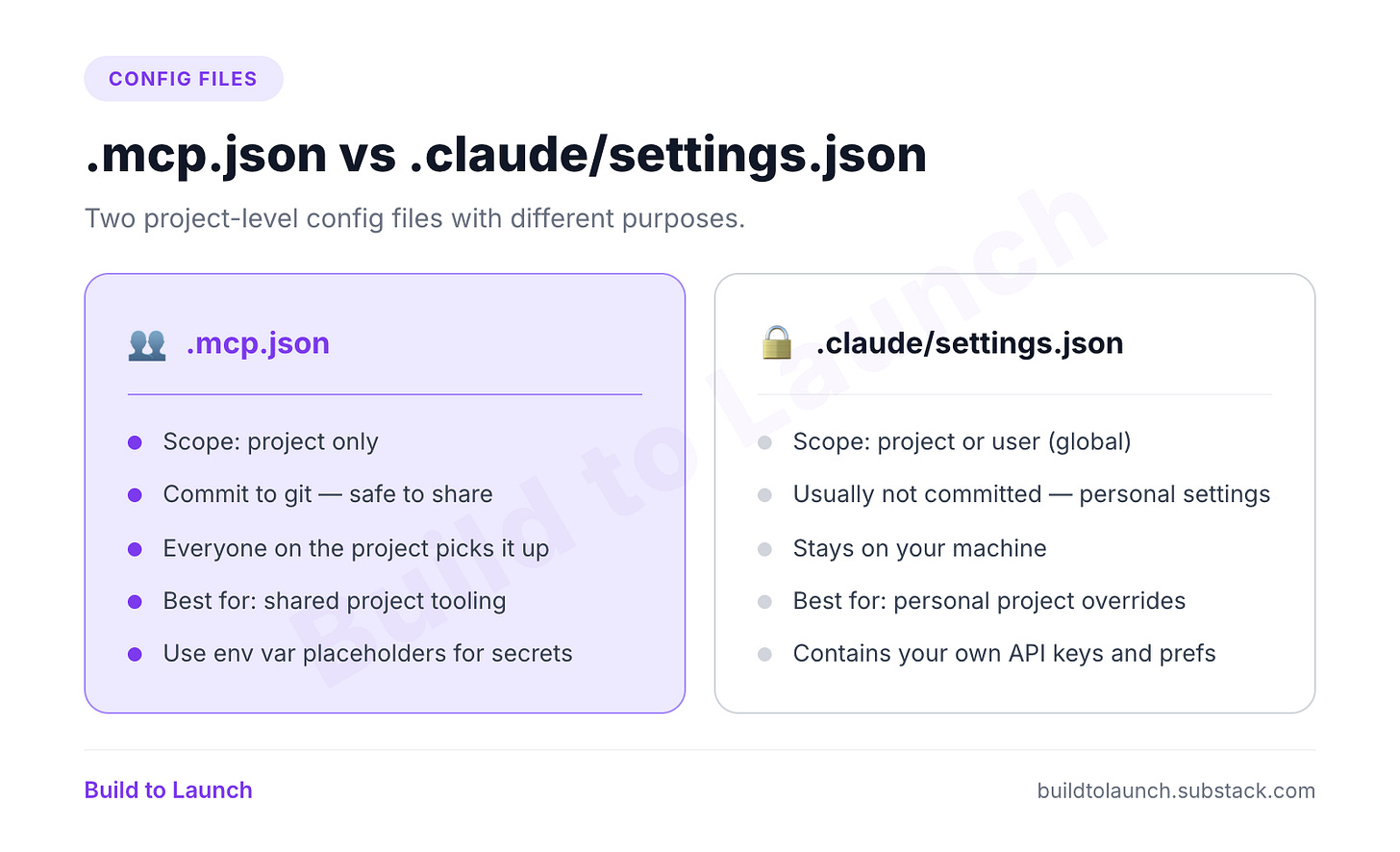
How to Set Up MCP Servers in Cursor and Windsurf
Your MCP servers live inside the IDE, not in a separate desktop app.
Cursor: project config
Create .cursor/mcp.json in your project root:
{
  "mcpServers": {
    "gumroad": {
      "command": "npx",
      "args": ["-y", "gumroad-mcp@latest"],
      "env": {
        "GUMROAD_ACCESS_TOKEN": "your_token_here"
      }
    }
  }
}
Cursor reads this when you open the project.
Cursor: global config
For servers you want in every Cursor project:
Open Cursor Settings (Cmd+,)
Go to Features → MCP
Click Add new global MCP server
Paste the server config
Or edit directly: ~/.cursor/mcp.json
Enabling MCP tools in Cursor’s Composer
MCP tools don’t appear automatically. To activate them:
Open Composer (Cmd+Shift+I)
Click the Tools icon in the Composer input bar
Select the MCP tools you want active for this session
Or reference a tool directly in your prompt — @gumroad list my products — and Cursor activates it automatically.
Troubleshooting Cursor MCP
If a server shows red in the MCP tab, hover over the status indicator — it shows the specific error message. Common issues:
“spawn npx ENOENT” — Node is not on the PATH Cursor sees. Run
which nodein terminal and check if Cursor’s PATH matches. Fix: set the full path tonodein"command"instead of relying on npx.Tools not appearing in Composer — You added the server but didn’t enable it in Composer. Open the Tools icon and toggle the server on.
Config not updating — Cursor caches the MCP list. Close and reopen the project folder (not just the window) to force a reload.
For a Perplexity + Claude Code + Cursor MCP workflow in practice, see this AI research agent setup.
Windsurf
Same pattern as Cursor.
Global config:
~/.windsurf/mcp.json
Project-level:
.windsurf/mcp.json (in project root)
How to Add a Remote MCP Server via Claude Connectors
No config file. No terminal. Connect by URL.
The server lives somewhere else and you give Claude a URL. Claude calls it over HTTPS. Authentication is via OAuth: a standard “Allow/Deny” screen instead of copying API keys.
I built this for Quick Viral Notes: any subscriber goes to Claude Connectors, pastes https://mcp.quickviralnotes.xyz, clicks through a consent screen, and Claude has access to their QVN knowledge bank. No JSON, no instructions to follow.
How to add a remote connector
Go to claude.ai
Click your profile → Settings → Integrations (or Connectors)
Click Add custom connector
Enter the server URL
Complete the OAuth flow if prompted
Done. No restart.
Local vs remote: when to use each
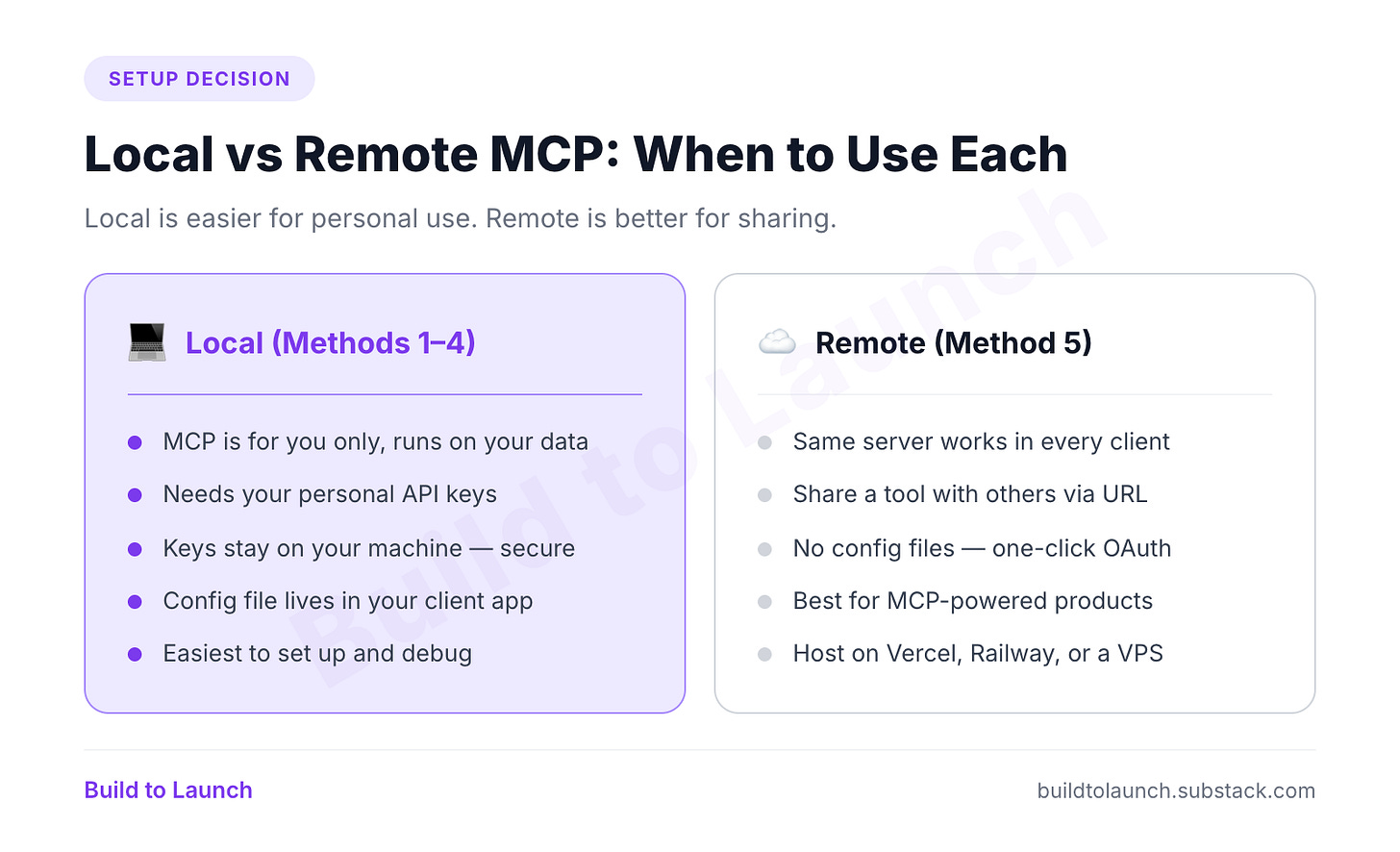
Local is almost always easier for personal use. For anything you’re sharing, remote is far better UX. You’ll need to host it somewhere: Vercel, Railway, or a VPS.
How to Add MCP Servers to ChatGPT
OpenAI publicly documents MCP support in two places:
the Responses API for developers, and
ChatGPT Apps / Connectors for user-facing integrations.
In ChatGPT, custom MCP-based integrations are configured through the Apps / Connectors UI, not through a local desktop mcp.json file.
Full MCP support in ChatGPT, including write actions, is currently documented as a beta feature for Business, Enterprise, and Edu workspaces using developer mode.
Users can invoke connected apps via @ mentions or by selecting them from the + menu.
How to connect in ChatGPT
Go to chatgpt.com
Open Settings (gear icon or profile menu)
Go to Connected Apps or Integrations
Add the connector URL or search available integrations
Users can invoke connected apps via @ mentions or by selecting them from the + menu in the chat input.
Why add MCP to ChatGPT if you already use Claude?
Your tools follow you across models:
o1 for reasoning-heavy tasks
DALL-E for image generation
Switch models mid-workflow and your tools stay connected
Same server config in both clients. Zero extra setup.
The caveat: the experience is smoother in Claude. Use ChatGPT MCP when you need model diversity, not as a primary setup method.
How to Set Up MCP in VS Code with GitHub Copilot
VS Code has native MCP support since version 1.99 (early 2026), with GitHub Copilot Chat as the interface.
The project config: `.vscode/mcp.json`
{
  "servers": {
    "gumroad": {
      "command": "npx",
      "args": ["-y", "gumroad-mcp@latest"],
      "env": {
        "GUMROAD_ACCESS_TOKEN": "your_token_here"
      }
    },
    "stripe": {
      "command": "npx",
      "args": ["-y", "@stripe/mcp"],
      "env": {
        "STRIPE_SECRET_KEY": "your_stripe_key_here"
      }
    }
  }
}
Key difference: VS Code uses "servers" not "mcpServers". Same structure, different root key. This catches everyone who copies a config from Claude Desktop.
Enable MCP in VS Code settings
Add to settings.json:
{
  "chat.mcp.enabled": true
}
Or search mcp in Settings (Cmd+,) and toggle it on.
Using MCP tools in Copilot Chat
Open Copilot Chat (Cmd+Shift+I). Use # to reference tools:
#gumroad list my products this month#stripe show disputed payments
VS Code shows a confirmation dialog before executing. You see the exact arguments before anything runs. More cautious than other clients, which is useful for tools with side effects.
Global config
Add to your global settings.json:
{
  "chat.mcp.enabled": true,
  "mcp": {
    "servers": {
      "gumroad": {
        "command": "npx",
        "args": ["-y", "gumroad-mcp@latest"],
        "env": { "GUMROAD_ACCESS_TOKEN": "your_token_here" }
      }
    }
  }
}
Cursor vs VS Code for MCP: Which Is Better?
Both run MCP via stdio. The practical difference:
Cursor: tighter Composer integration, reference tools naturally mid-session, stable longer
VS Code: explicit confirmation dialogs, newer support, still maturing
If you’re choosing purely for MCP: Cursor is smoother now. If you’re already in VS Code, the native support is good enough.
Which method should you use?
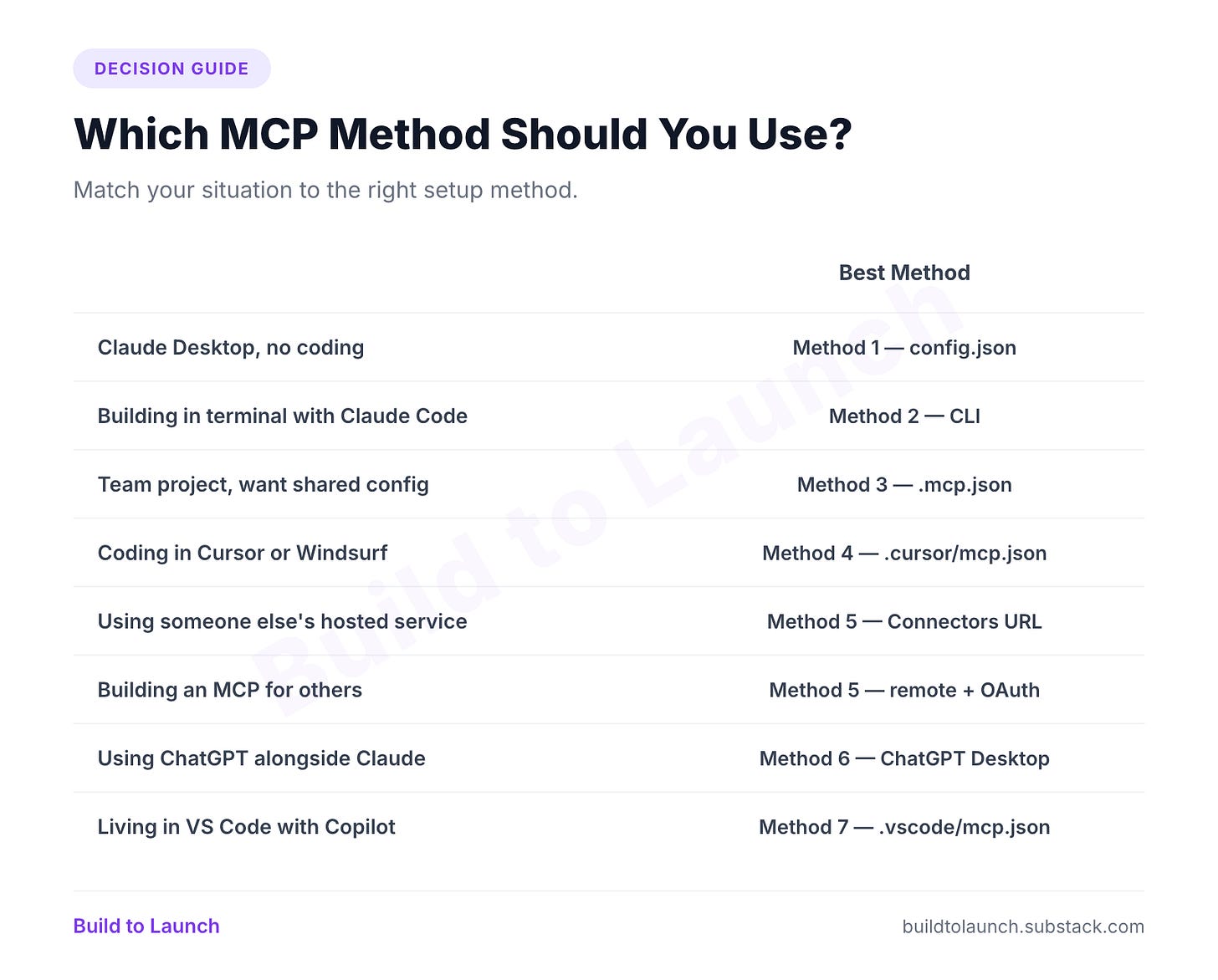
These methods aren’t mutually exclusive. I run the same Gumroad and Stripe servers in Claude Desktop, Claude Code, and ChatGPT Desktop. Same server, three configs. The tools follow you across every client you use.
You don’t install different MCP servers per client. You install one server and register it in each client’s config file. The server binary is the same — only the registration location changes.
Can I use the same MCP server across all clients?
Yes — with one config per client. The server itself is identical. What changes is where you register it. A Gumroad MCP server runs from the same npm package whether you add it to Claude Desktop, Cursor, or VS Code. You copy the same command and args block into each client’s config file. You do not need to install a different server per client.
The only thing that varies: the file path and root key name (and for ChatGPT, the connection method). The table above maps each client to its config location.
How to migrate MCP config from one editor to another
Moving from Cursor to VS Code (or vice versa) is a copy-paste job with one rename.
Open your source config (
.cursor/mcp.jsonor~/.cursor/mcp.json)Copy the contents of the
"mcpServers"blockCreate
.vscode/mcp.jsonin your projectPaste — but change the root key from
"mcpServers"to"servers"Run
chat.mcp.enabled: truein VS Code settings if you haven’t already
Going the other direction (VS Code to Cursor): same steps, rename "servers" back to "mcpServers".
This is the source of most “I copied the config and it doesn’t work” issues. The key name difference is not a typo in the VS Code docs. It’s intentional.
How to verify your MCP connection is working
Each client has a slightly different confirmation flow:
Claude Desktop: start a new conversation, ask “what tools do you have?” — the list shows connected server tools
Claude Code: run
claude mcp listin the terminal to see all registered servers and their statusCursor: open Settings → MCP tab, check for green status indicators
VS Code: open Copilot Chat, type
#and look for your server name in the autocomplete listRemote connectors (Claude/ChatGPT): look for the integration in your Settings → Integrations/Connected Apps panel
If a server shows connected but tools aren’t appearing, restart the client first. Stale connections are the most common false negative.
How to Update an MCP Server Config After Initial Setup
Edit the same config file you used to add it. Add new keys, change args or env values, remove entries you no longer need. Then restart the client — changes don’t take effect until you do. For Claude Code CLI, run claude mcp remove <name> first, then claude mcp add again with the new config. You can’t edit CLI-added servers in-place via the command line.
MCP Install Command Reference: npm, Python, Docker
Whatever client you use, the commands are the same.
npm (most common):
"command": "npx",
"args": ["-y", "package-name@latest"]
Python:
"command": "uvx",
"args": ["package-name"]
Local clone (Node):
"command": "node",
"args": ["/absolute/path/to/dist/index.js"]
Local clone (Python):
"command": "python",
"args": ["/absolute/path/to/server.py"]
Docker (some enterprise MCPs):
"command": "docker",
"args": ["run", "--rm", "-i", "image-name"]
Which MCP Servers Should You Install First?
If you’ve never used MCP and want a fast first win:
Notion or Obsidian — pull context from your knowledge base while writing or building
Supabase — query your database in plain English instead of writing SQL
Perplexity or Brave Search — give Claude live web search
For a full list of what’s worth installing in each category: Best MCP Servers for Claude Code.
If this was useful: I write about building AI systems every week. Subscribe to get the next one right into your inbox.
Starter .mcp.json Template for Claude Code and Claude Desktop
The eight servers I add to every new project — pre-wired with the correct command, args, and required env variable names (you fill in the values):
{
  "mcpServers": {
    "memory": {
      "command": "npx",
      "args": ["-y", "@anthropic-ai/mcp-server-memory"],
      "env": {}
    },
    "substack": {
      "command": "npx",
      "args": ["-y", "substack-article-mcp"],
      "env": {
        "SUBSTACK_URL": "YOUR_SUBSTACK_URL"
      }
    },
    "gumroad": {
      "command": "npx",
      "args": ["-y", "gumroad-mcp@latest"],
      "env": {
        "GUMROAD_ACCESS_TOKEN": "YOUR_TOKEN"
      }
    },
    "stripe": {
      "command": "npx",
      "args": ["-y", "@stripe/mcp"],
      "env": {
        "STRIPE_SECRET_KEY": "YOUR_KEY"
      }
    },
    "supabase": {
      "command": "npx",
      "args": ["-y", "@supabase/mcp-server-supabase@latest"],
      "env": {
        "SUPABASE_ACCESS_TOKEN": "YOUR_TOKEN"
      }
    },
    "perplexity": {
      "command": "npx",
      "args": ["-y", "server-perplexity-ask"],
      "env": {
        "PERPLEXITY_API_KEY": "YOUR_KEY"
      }
    },
    "notebooklm": {
      "command": "npx",
      "args": ["-y", "notebooklm-mcp"],
      "env": {}
    },
    "whois": {
      "command": "npx",
      "args": ["-y", "whois-mcp"],
      "env": {}
    }
  }
}
Copy it, drop it in your project root as .mcp.json, fill in the env values you need, delete the rows you don’t. Every server in this list works with Claude Code and Claude Desktop.
If you want to build your own MCP server — not install someone else’s, but create one from scratch — that’s a different article. About 200 lines of code, takes an afternoon. I have every way to build a custom MCP covered here.
What MCP server has changed how you work?
— Jenny
Why Upgrade · Practical AI Builder Program · Templates · Builder Showcase