How to Stop Your Website From Looking Like AI Slop
The 10 signs of AI slop I found on 120 AI-built pages, why they make good work look cheap, and an 8-step fix with prompts so your site stops looking AI-generated.
Have you opened a new website this month and felt you had seen it before?
Same badge above the headline. Same purple or orange word in the middle of it. Same three cards with a small icon on top of each.
There are a lot of new websites to open. The internet ended September 2026 with 411.6 million registered domains, up 8.7% in one year. At the end of 2024, that yearly growth was 1.2%. Verisign took a record 13.1 million new .com and .net names in one quarter. Its CEO said why on the earnings call: “AI tools are making content and website creation faster and easier.” Lovable alone reports more than 100,000 new projects a day.
Building a site stopped being the hard part.
So I went and looked closely. I measured 120 pages that strangers built with AI tools and counted the same 16 habits on each one. Only 20 of the 120 showed two or fewer.
I’m not here to put anyone’s site down. My own pages carried most of these habits too, and I stepped on every one of them before I knew what I was looking at.
What changed my approach was one question: which of these did I choose?

What you’ll go through with me:
Signs of AI slop: the 10 signs, the 4 flavors and the 6 motion habits of an AI-generated website
Why AI websites all look the same: what the same look costs you, and the one question that sorts every sign
6 families of sites: every site has a job, and what your kind of site needs
My 6 vibe coded apps: one in each family, with my own screenshots
How to fix AI slop design: when a few elements are enough, and when the whole page must change
Step by step, with prompts: the 8 steps in the BTL MCP, a copy-paste prompt for each, and the check

Signs of AI slop: what an AI-generated website looks like
The 120 pages came from public galleries and launch posts, built with Lovable, Bolt, Replit, Base44 and coding agents like Claude Code and Cursor.
A script read each live page’s styles and counted 16 signs. A few things a script cannot see well, like a colored word inside a headline, I counted by eye from screenshots, and I mark those below.
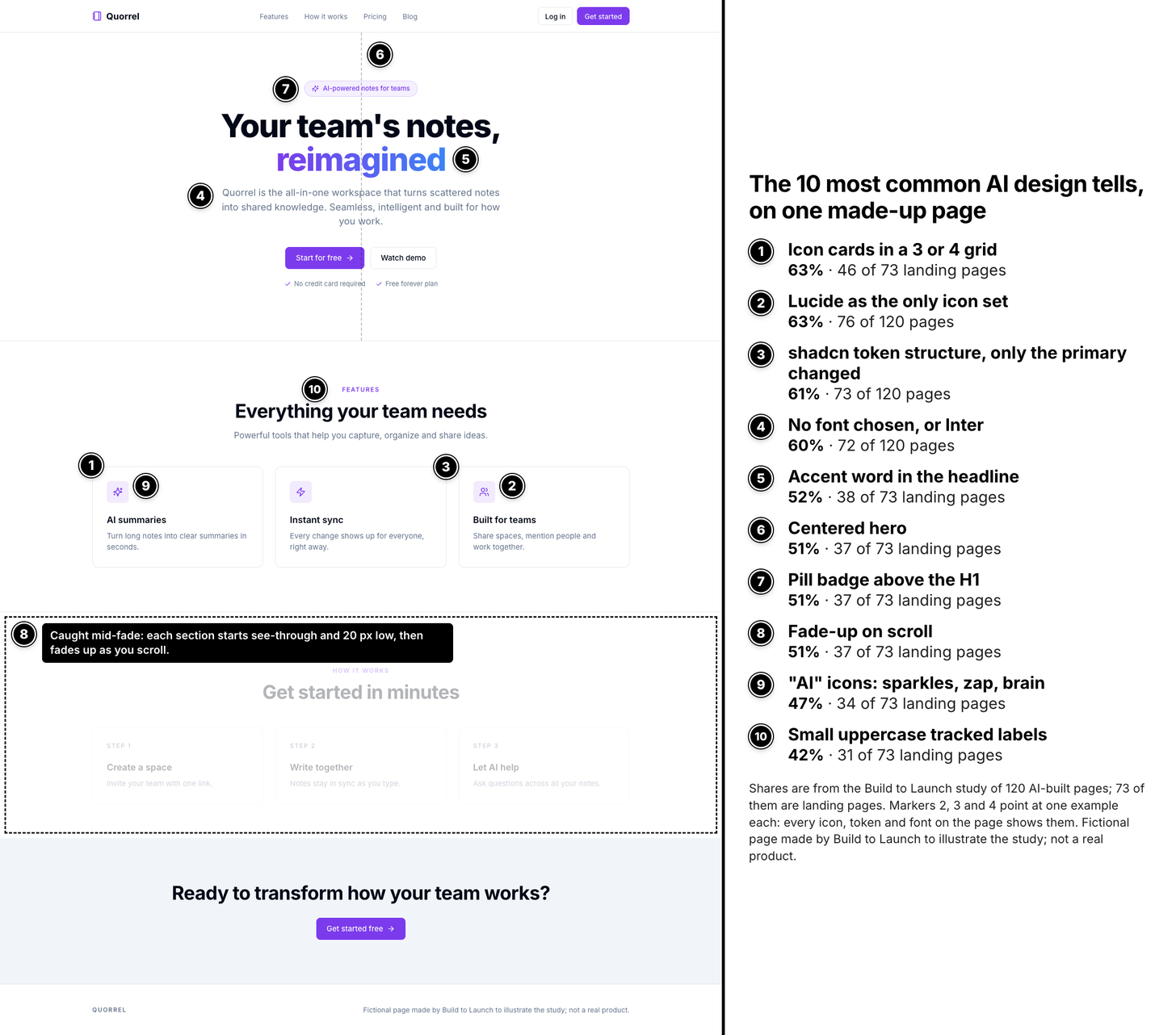
Here are the 10 that showed up most:
Feature cards with an icon on top, in a grid of 3 or 4. 63% of landing pages.
One icon set and nothing else (Lucide). 63% of all 120 pages.
The default component colors (shadcn), with only the main button color changed. 61% of all pages.
No font chosen, or Inter. 60% of all pages.
One word of the headline in the accent color. 52%, by eye.
The headline centered over everything. 51%.
A small label or pill badge above the headline. 51%, by eye.
Every section fading up as you scroll. 51%.
“AI” icons: a lightning bolt, sparkles, a brain. 47%.
Small uppercase labels with wide letter spacing. 42%.
The flavors change, the defaults stay
Purple, the color everyone jokes about, is a small part of the story. Of 91 main buttons, 12 were purple (13%). Orange, coral and red made up 23%.
So the pages come in flavors. I sorted the ones I kept seeing into four, and built one made-up product for each:
Purple-gradient SaaS. A pill above the headline, one word in a gradient, two buttons with a row of check marks under them, three icon cards.
Dark glass. A near-black page with a soft glow, frosted panels, a huge tight headline over a gray subhead, and a row of big numbers.
Bento grid. The same icon cards, now in boxes of uneven size, under a small uppercase “FEATURES” label.
Cream and serif. A warm paper background, a serif headline with one italic orange word, and pill buttons. This one is the newest, and it is where many people land after they try to get away from purple.
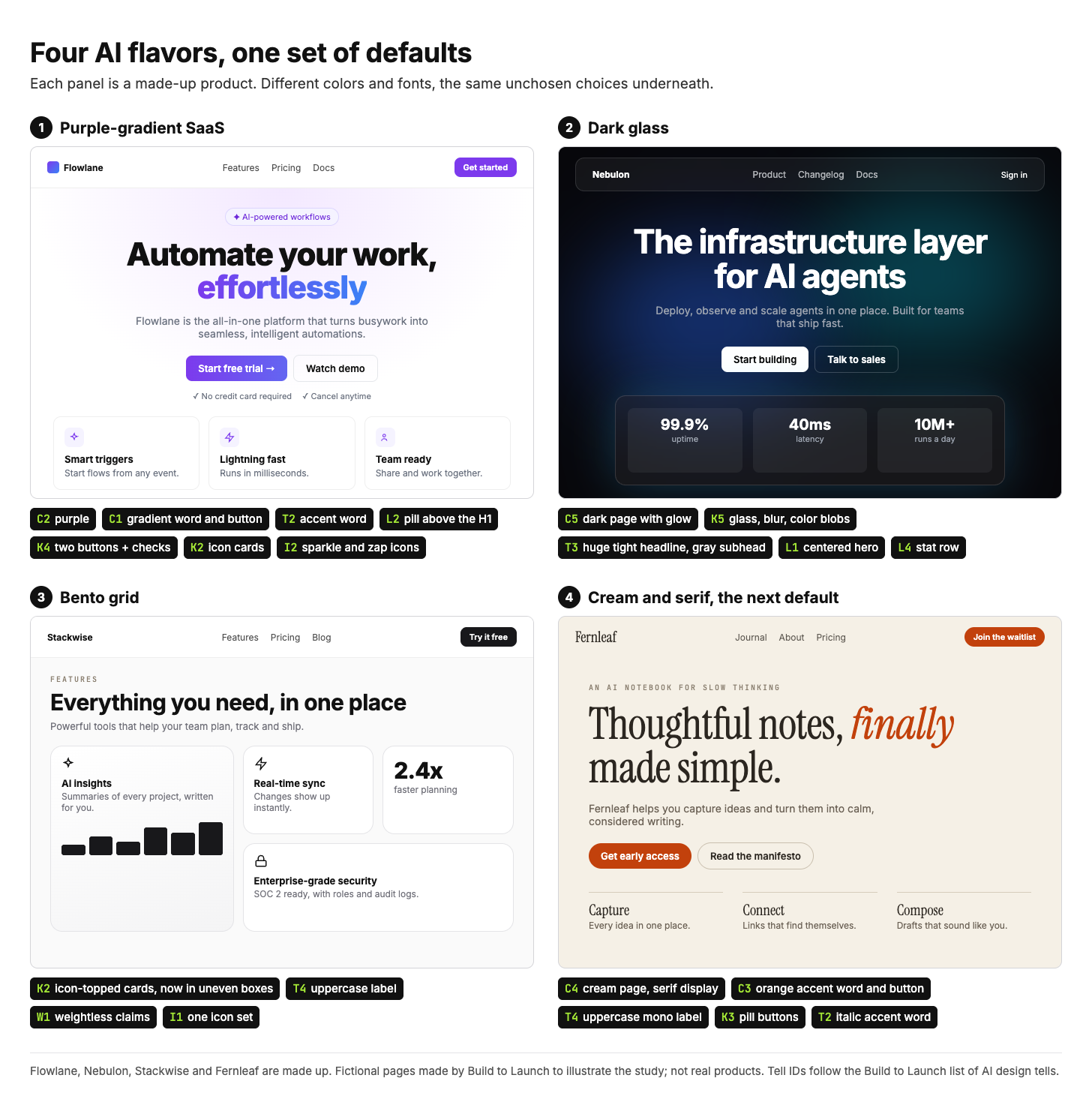
Put them side by side and the colors and fonts are different, but the choices underneath are the same: the centered hero, the cards with an icon on top, the one colored word, the label above the headline. Changing the color moves you from one flavor to the next and leaves the rest of the page where it was.
The motion is a sign too
Half the pages moved the same way. Once you start watching for motion, the same six habits show up again and again:
Cards fade up one by one, so the grid is empty when you arrive.
Every card lifts on hover, with a shadow, whether you can click it or not.
Numbers count up from 0, so “12,480 users” spends two seconds as a smaller number.
The headline types itself out, one letter at a time.
A glowing blob sits behind the input box.
Pages slide in slowly when you switch views.
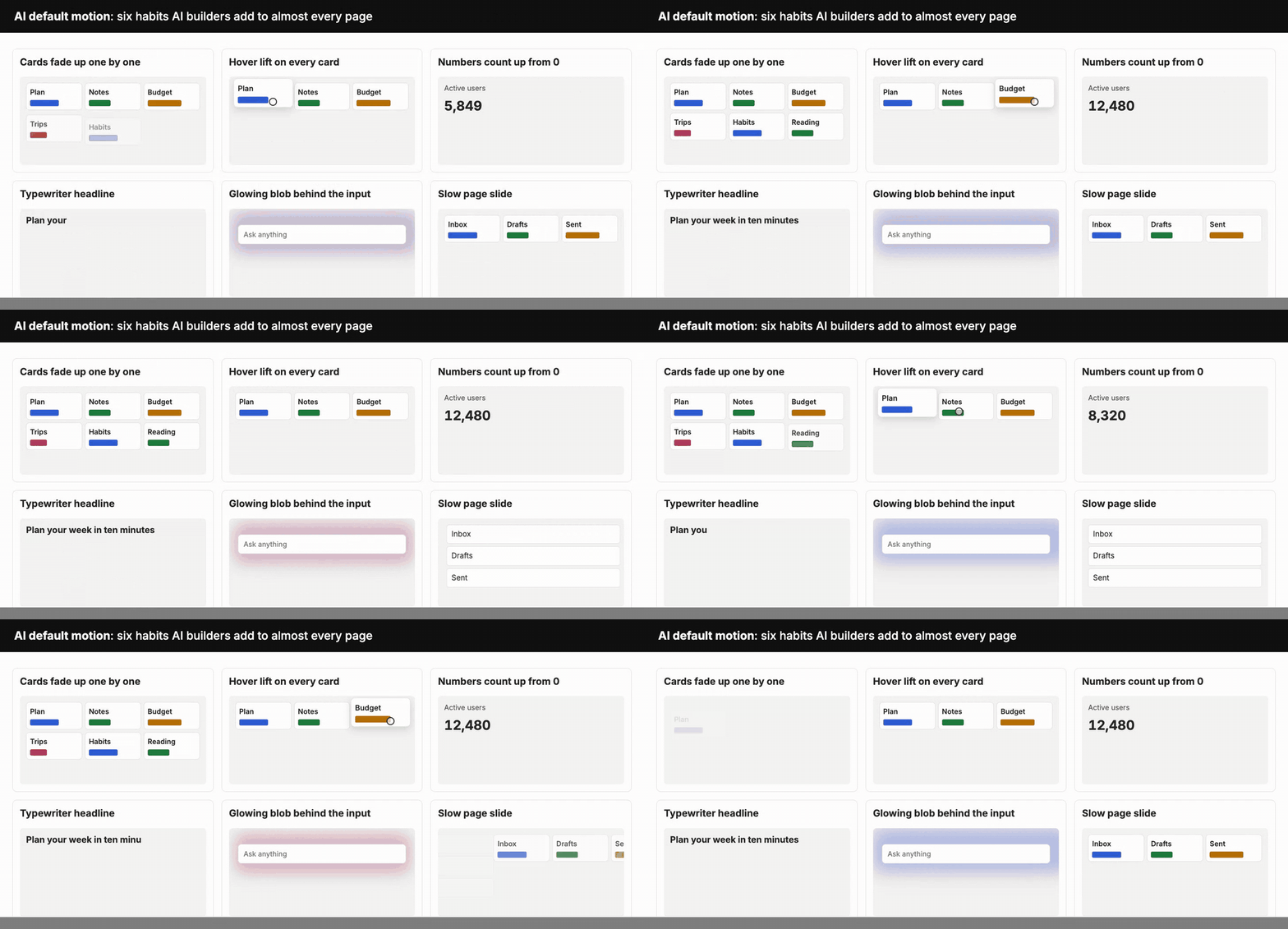
Each one is what an AI builder adds when you ask for the page to “feel alive”. Each one moves things whether they need to move or not. On a slow phone, the text you came for arrives last.
One sign says little. The stack says a lot
Plenty of human-made sites use Inter or a centered headline. One sign alone tells you nothing about who made the page. What gives a page away is the stack: 57 of the 120 pages showed six signs or more.
Why AI websites all look the same, and what it costs you
Look at enough of these pages and you start to feel numb.
Each one is fine. The spacing works, the buttons are clear. It is no longer impressive, though, and you file the page under “AI-made” before you read a word of it. Then “AI-made” slides into meaning low quality, even when the work behind it is good.
That reaction has a name in research. People tune out what they have seen many times. In a study on security warnings, attention in the brain dropped each time people saw the same warning, and changing the warning’s look kept attention up.
The label costs more than attention. In 16 experiments with 27,491 people, readers rated the same stories 6.2% lower when told AI was involved, and no framing reliably removed the drop. Other studies trace the penalty to effort: work that looks like it took less effort is liked less.
So a good product behind a default page gets judged as low effort, before anyone reaches the product.
To be fair to the other side: nobody has yet tested “this website looks AI-made” directly.
The studies above use stories, poems, art and headlines. And research on websites shows people like pages that look typical for their category. A familiar layout helps. The trouble starts when typical turns into identical.
These were good designs once
After I finished the list, I felt sad about it.
Every one of these signs was once good design.
A soft gradient, a clean centered headline, a tidy grid of cards, a gentle fade as you scroll. Each of them used to take a designer real effort to get right.
Writing went through this first. When I mapped the 9 layers of AI flavor in writing, the same thing showed up. Once people called “delve” an AI word, AI drafts stopped using it, and another word took its place. Banning words only moved the sign somewhere else. And some patterns, like short sentences, still help when you use them on purpose.
Design is on the same road. Purple got named, and cream and serif took its place. Single elements that used to signal care now get called slop.
That is the part that bothers me most. The element did nothing wrong. It showed up everywhere, by default, on pages where nobody decided it belonged.
Keep a sign when you chose it
So the goal is not to remove every sign. The goal is to use each one on purpose. A sign I chose for a reason stays. A sign that arrived with the template, and that I never noticed, goes.
AI website design starts with the job: 6 families of sites
“Chosen” depends on what the site is for. A slow moving background that works on a landing page gets in the way on a dashboard someone opens every morning. So before I fixed anything, I sorted the sites I measured by their job.
They fall into 6 families. I bet you have met all six, and if you build anything with AI, you will build at least one of them.
Landing page. One offer, one person or one place, and one action. A stranger has about five seconds to understand it.
Content site. People come to read, watch or talk, then come back. The text is the product.
Directory. Many items to browse, filter and pick from, each with its own page. The items are the visuals.
Dashboard. A signed-in home people open every day to see their own data and what needs doing. For most products, that is a list of their own things, more than a wall of charts.
Interactive tool. One job with a result right away: ask, make, convert, play. The input and the result are the whole product.
Learning app. Small steps, visible progress, a reason to come back.
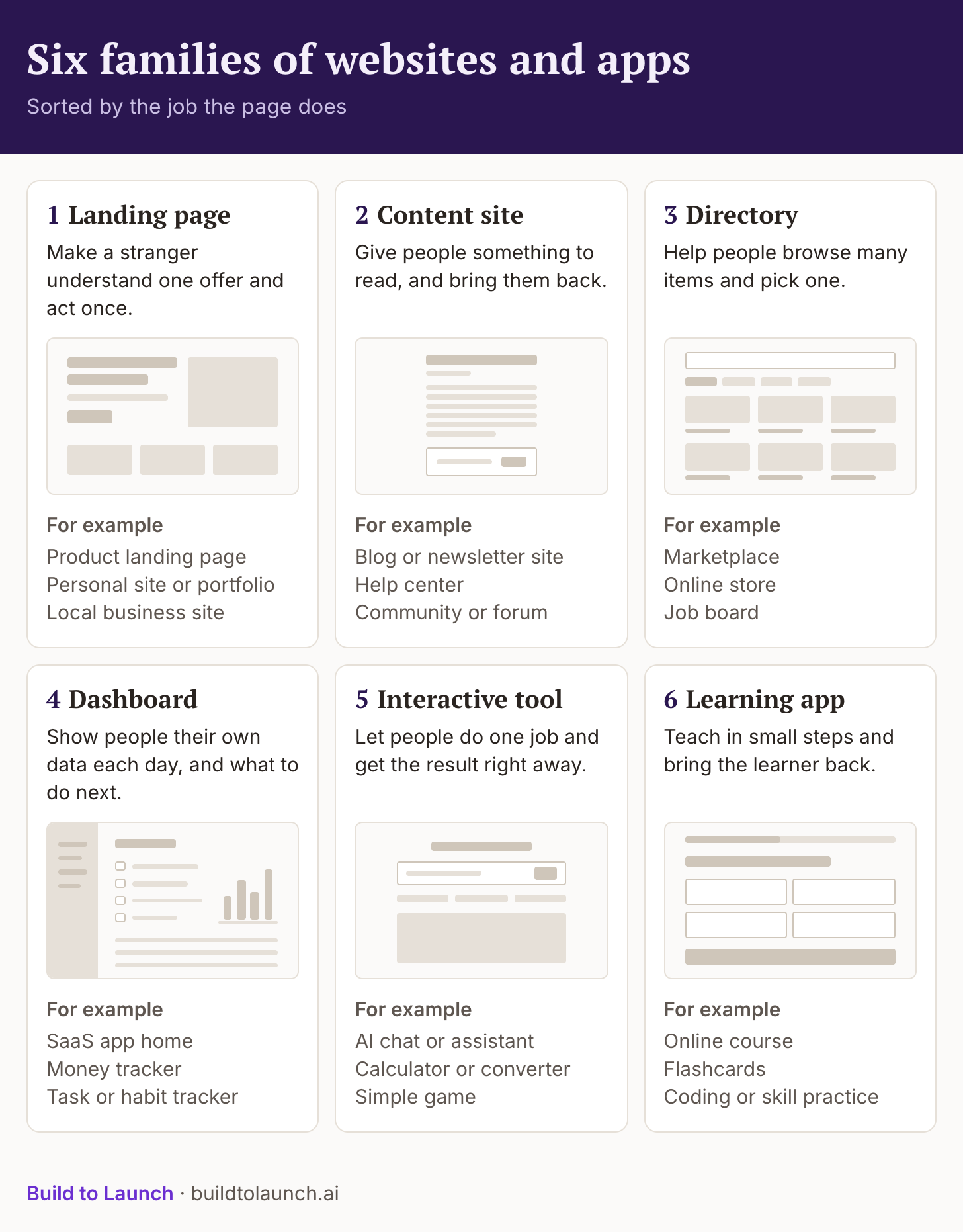
Some sites sit across two or more families. A course has a landing page to sell it and a learning app behind the sign-in. An online store is a directory with a landing page on top. Name the family of each page, and the choices get easier.
Each family has its own normal look. A directory lets the items carry the color and keeps the frame quiet. A learning app needs colors with a fixed meaning, so “right” looks the same on every screen, and the brand palette must not change that.
Motion follows the job too. A content site needs little or none, because the text is the product. A dashboard and a directory need a little: a row that confirms it saved, a filter that updates. A landing page earns one moment, in the hero or a demo. A learning app uses the most, because a reward that moves is part of the lesson.
That is why the same sign lands differently. A centered headline is a fine choice for a landing page and a strange one for a dashboard.
My 6 vibe coded apps, one in each family
I have at least one app in each of the six families. So I decided to go through and improve them for what they’re meant to service. Here are the examples of what I did.
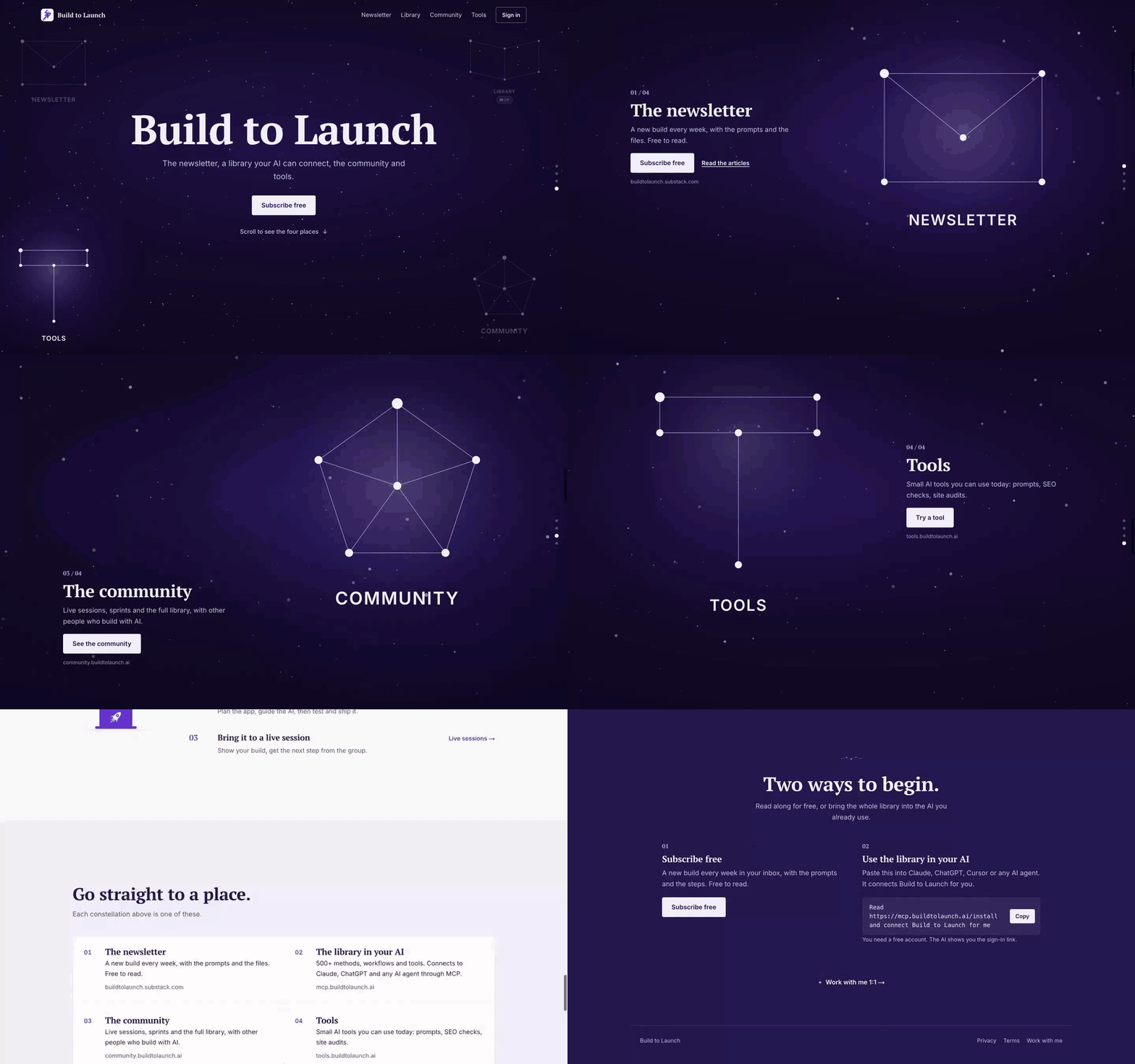
1. Landing page: buildtolaunch.ai
I had no landing page until Build to Launch grew four parts: my substack, the library with MCP, the paid member portal with all resources, and the premium tools, each on its own subdomain.
buildtolaunch.ai became the front door to all four, so a reader can go straight to the one they came for.
2. Content site: the vibecoding.builders guides
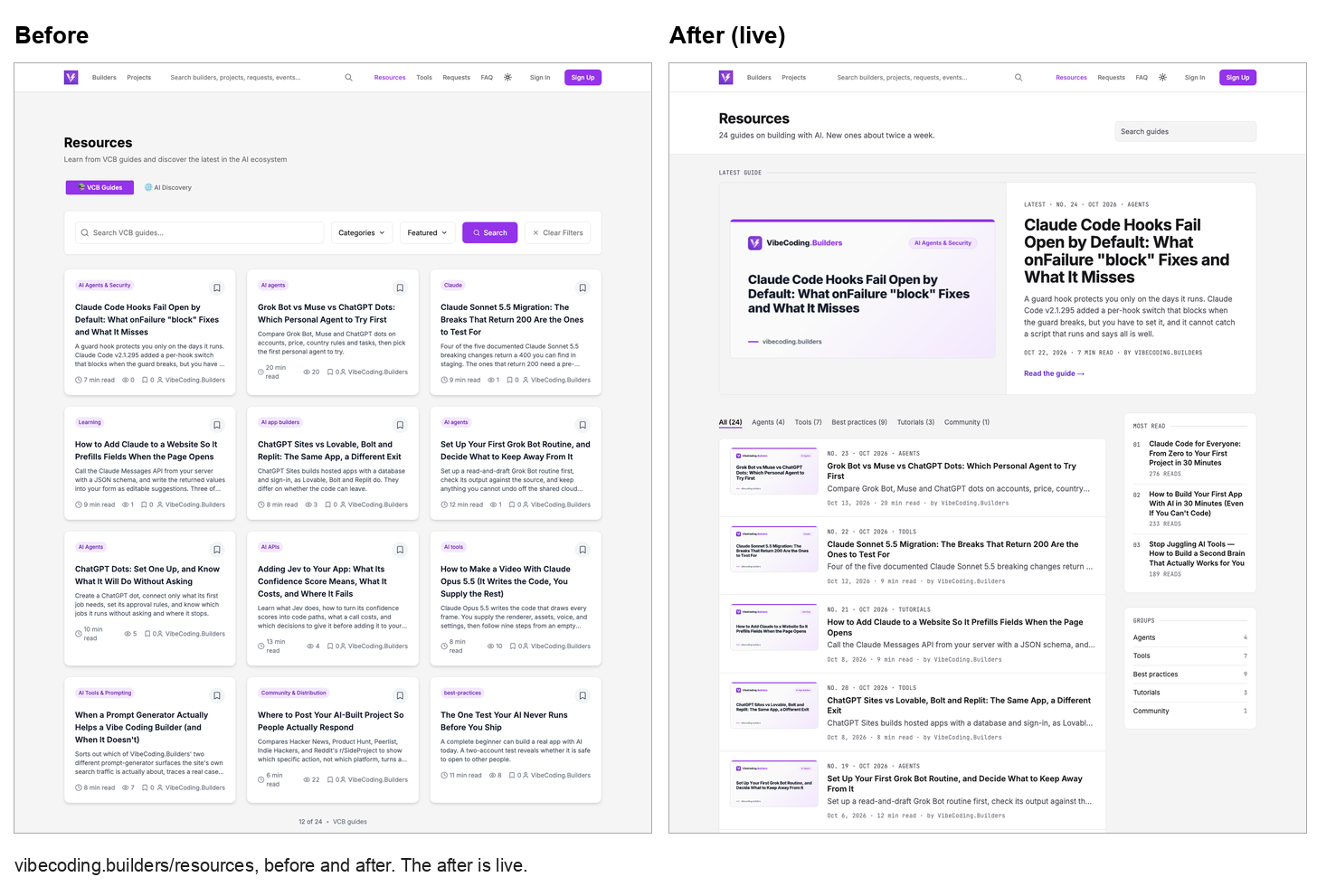
The guides are where I collect research on AI building. I put them on autopilot, so new deep dives arrive for me to learn from, and for builders who come to read. So the words lead: plain text tabs, one quiet row to search and filter, and one small word of color for the topic.
3. Directory: vibecoding.builders
vibecoding.builders shows projects people build with AI. The projects carry the color, and the page stays quiet around them.
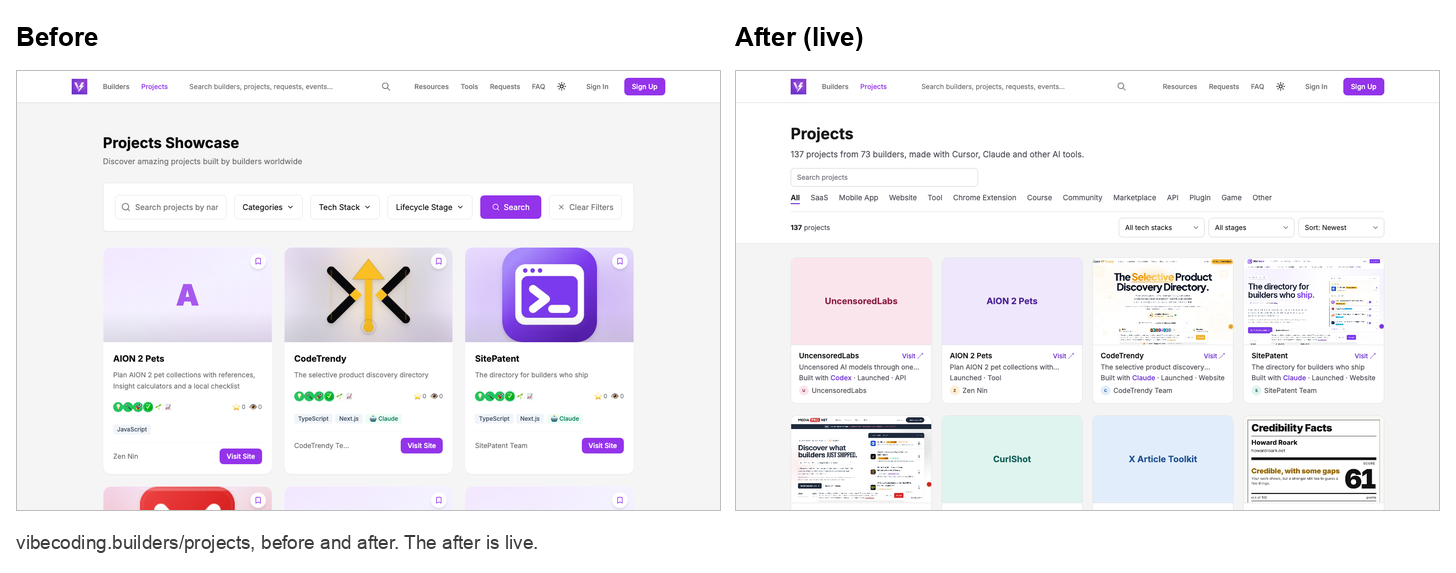
Before, every card carried badges, stars and its own purple button, so nothing stood out. Now each card shows the same few facts, and the projects stand out.
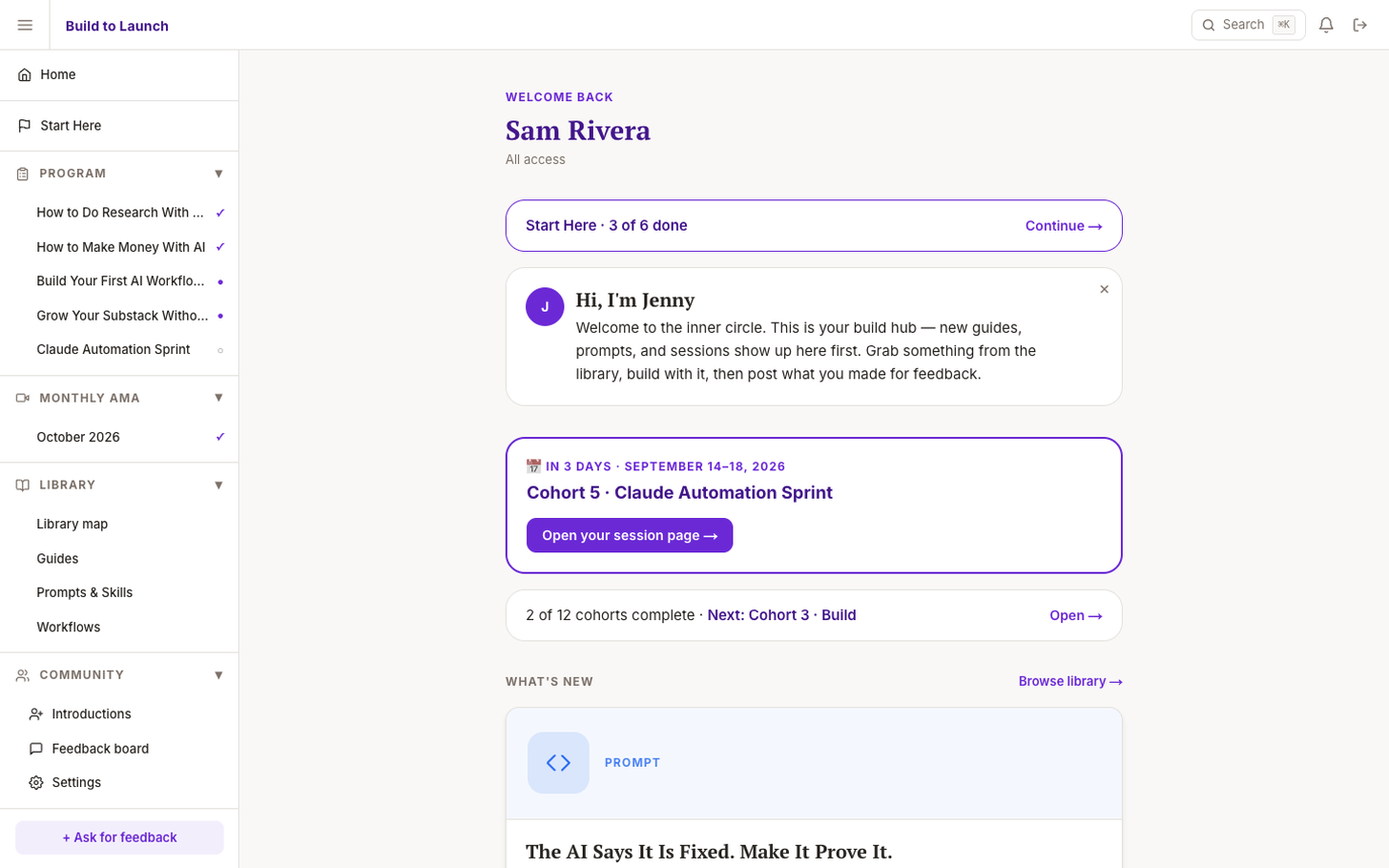
4. Dashboard: the Build to Launch community home
When members sign in to the community, this is their home: what’s new for them and what to do next.
5. Interactive tool: my second brain in the BTL MCP
I’m a big believer in a second brain, and I’ve written about building one. So I built my own, inside my MCP.
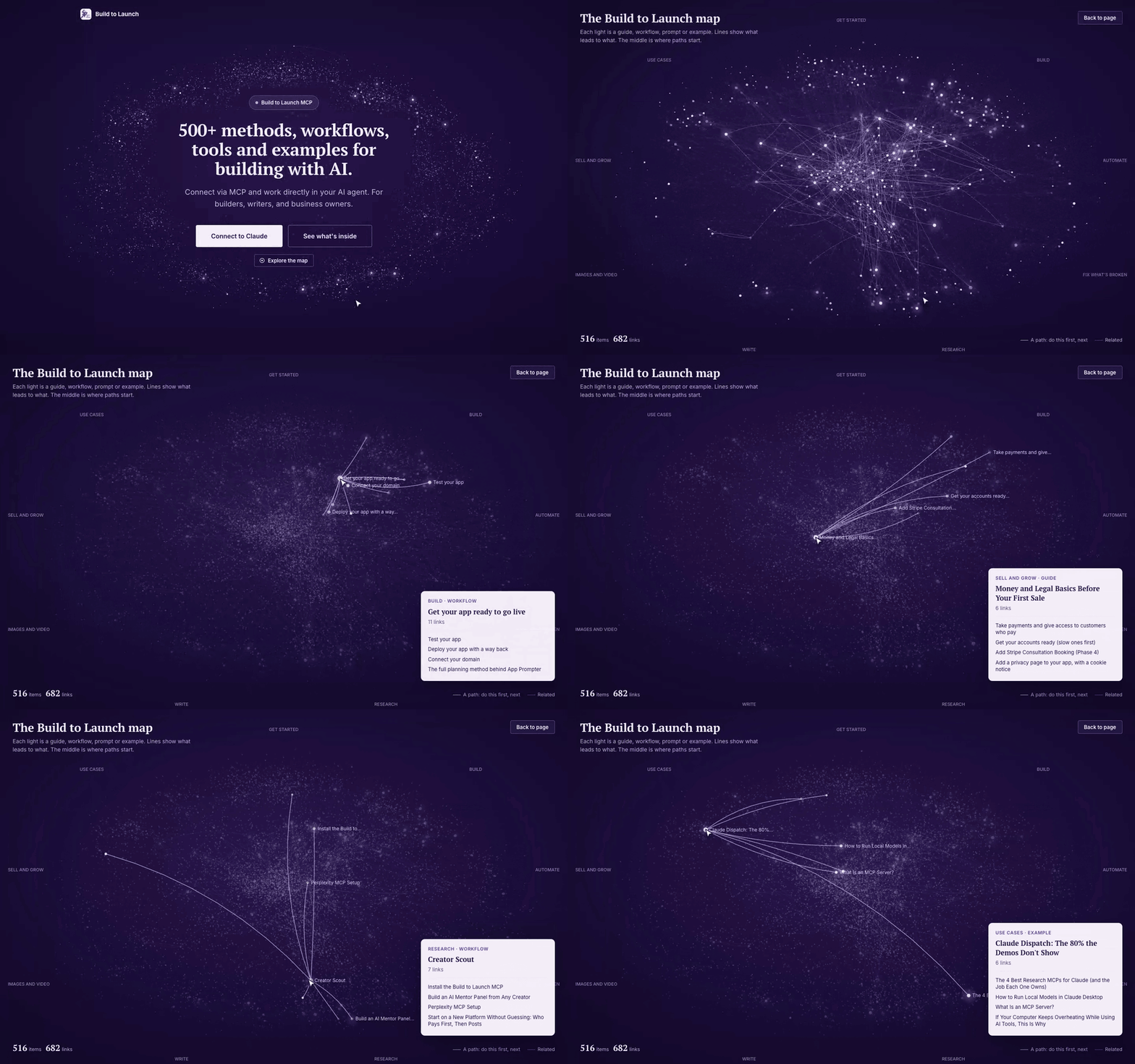
6. Learning app: Mandarineer
I’m helping my kids learn Mandarin. I love Duolingo, but for kids, the lessons kept circling tea, coffee and hot water, with no way to jump to another lesson. So I made Mandarineer for them.
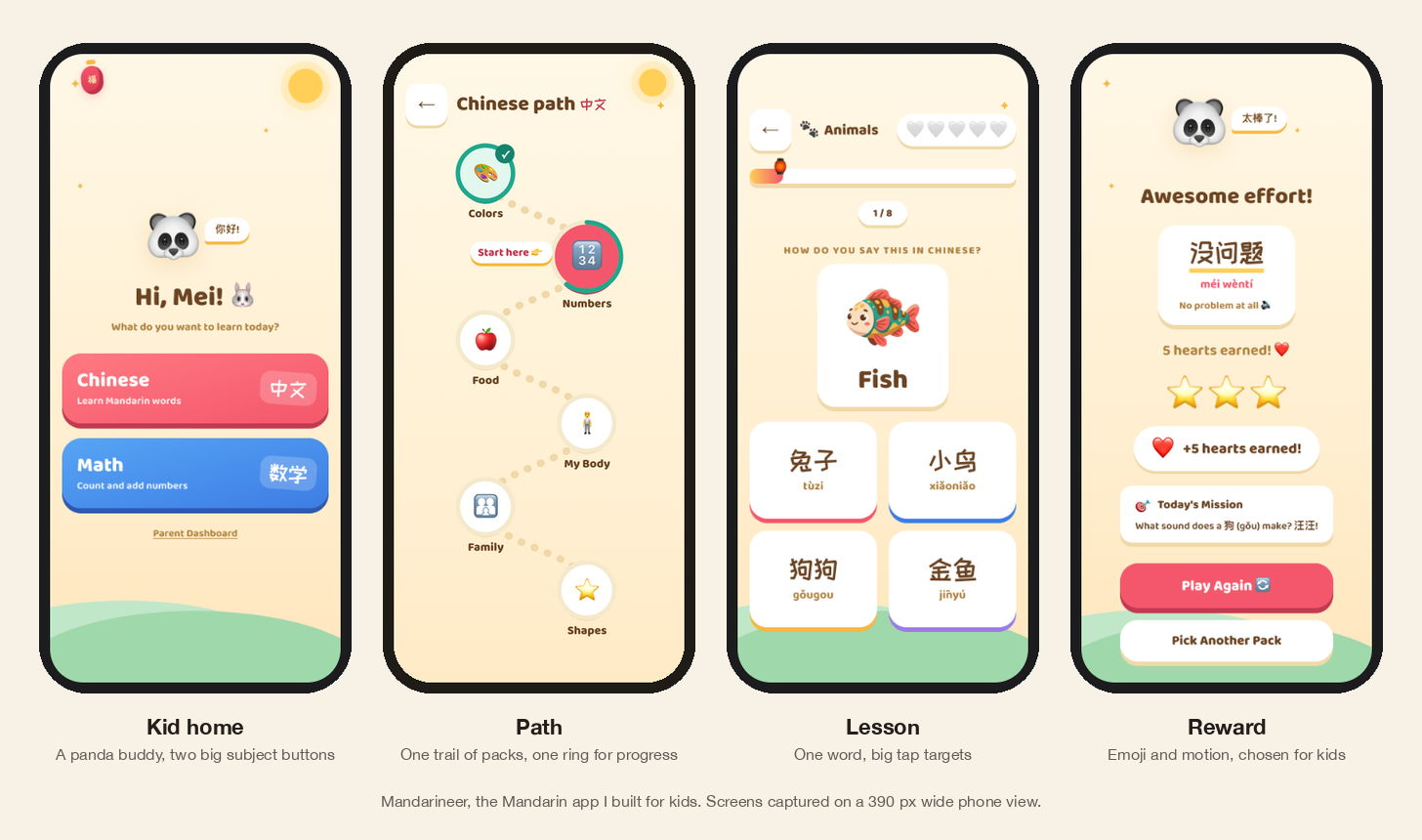
It is not released in the apple app store yet, but you can try it now.
How to fix AI slop design: a few elements, or the whole page
Fixing my own apps taught me one thing the counts did not. Sometimes you only need to change a few elements: the labels, the button color, the motion on one grid. Other times the whole page is telling the wrong story, and no amount of swapping elements fixes it.
So while I studied the good sites, I kept everything I learned in one place. It became a collection, and then a guided route through it.
The best part is that your AI does the browsing for you. Tell it what you need, and point it to the BTL MCP. It reads your project, finds your page’s purpose, pulls the styles, layouts and templates that fit, builds the page, and runs the check. You make the choices. Your AI does the searching through the collection.
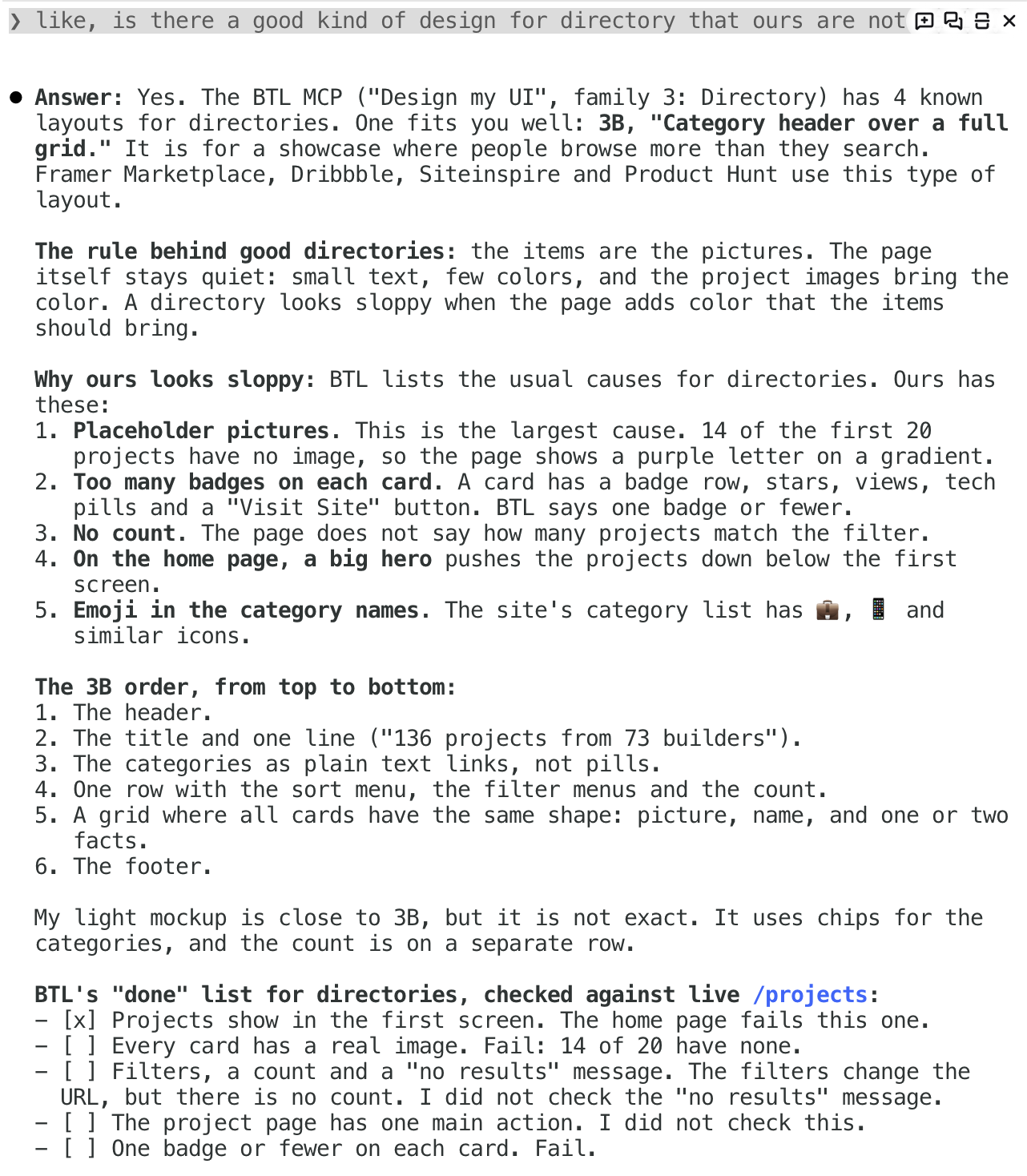
The paid sections shows each step in the order your AI takes it, with a screenshot of each:
Name your page’s purpose. You find it among 51 purposes, written the way people say them (”a landing page for my app”, “sell my course”). You leave with your family and the one main action of the page.
Pick the visual style. You see the same page in 6 visual styles, plus 74 brand specimens. You leave with your colors, fonts and surfaces, or a reason to keep your own brand.
Choose the UI components. Each common UI component, like a button, a form or a card, is shown live, the AI default next to a chosen version. You leave knowing which parts to change.
Pick the page layout. You choose from 24 page layouts, each drawn for desktop and phone. You leave with the order of your sections.
Set the motion. Each motion pattern plays live, at the level your family needs. You leave knowing which parts move, and how.
Set your brand and the seven design tokens. Design tokens are the fixed values a whole page shares: text size, line length, spacing, contrast and three more. There is a checker. You leave with values your AI builder can paste in.
Build from a template. 14 page layouts have a ready template and a prompt to adopt it. You leave with a working page in your own app.
Check it. “Check my UI design” counts the signs on your page (the tool calls them tells) and sorts each one: fix it, keep it on purpose, or a false alarm. You leave with a report.
By the end, you have one page in your own app where every sign left is one you chose, and a report that shows it.
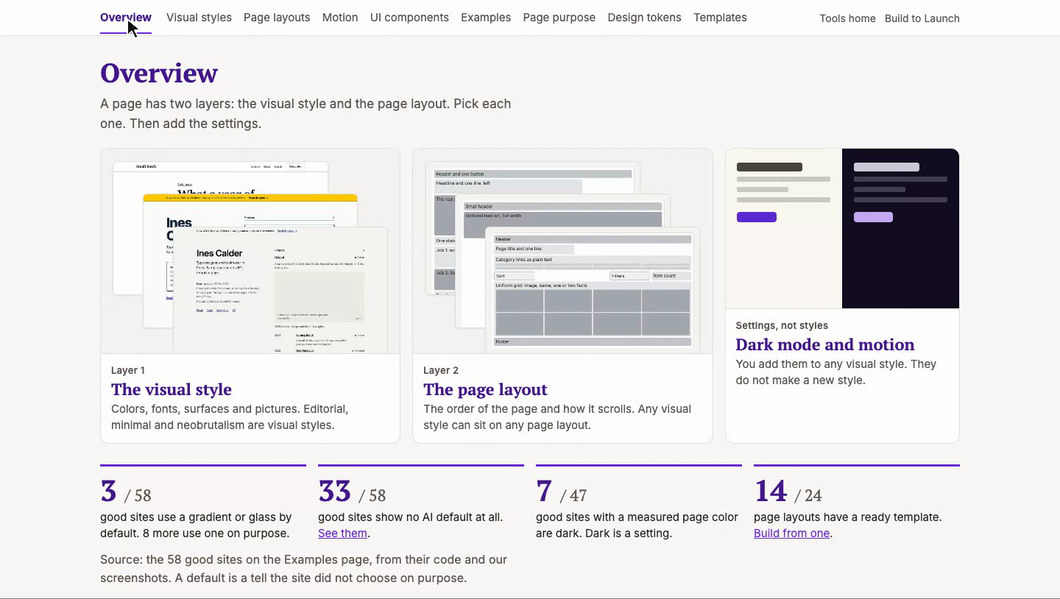
How to make your website not look just AI-generated, step by step
This article continues for members
Join Build to Launch to read the full article, access all cohort content, and connect with other AI builders.