The Complete Map of AI Scheduled Tasks
How Claude, ChatGPT, Perplexity, n8n, agent gateways, and local schedulers divide the clock, the work, and the proof.
AI brought automation to everyone’s face.
Before this, automation usually meant mapping the trigger, steps, branches, and exceptions in tools such as Zapier, Make, n8n, Marketo, cron, or code.
Now you can simply tell an AI, “Every morning, check this source and tell me what changed.”
That makes recurring work easier to start and more adaptive. It also makes the result less predictable.
The screens may all say “scheduled,” but they do not own the same parts of the job.
One task runs in a provider’s cloud. Another runs through your computer desktop app. A third lives only inside your open chat session.
That is a lot of scheduling options. It can feel excessive. It also creates many ways to hand over recurring work we might not even need.
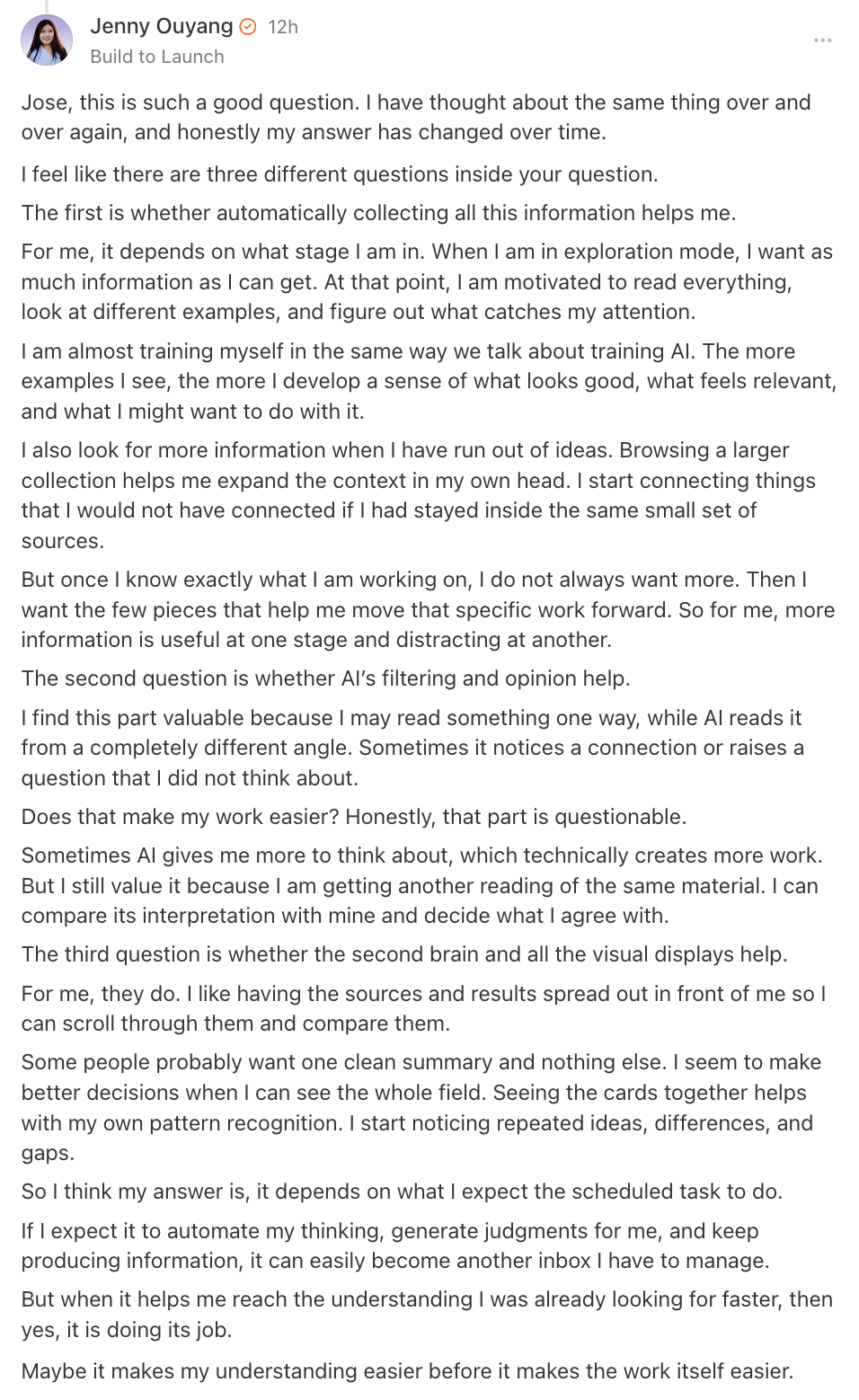
After my last article about bringing recurring jobs into a shared AI second brain, made this thoughtful comment:
All looks amazing and powerful, but I can’t stop asking myself if all that produced information actually makes your work easier.
His question gets to the decision behind this map.
I gave him a whole thesis in reply, and we will return to it toward the end.
But first, I want to make the options easier to judge. We will compare AI-native scheduled tasks with workflow engines, agent gateways, and older schedulers such as cron and launchd.
By the end, you should be able to match one recurring job to the simplest option that can run it reliably and prove the result. That choice also avoids paying for more token cost or infrastructure than the job needs.

What’s inside:
What Makes an AI Scheduled Task Run?
A scheduled AI task can sound simple: run this every morning.
That sentence contains five different responsibilities:
→ trigger
→ scheduler
→ executor
→ reliability controls
→ observation and recovery
Take a morning research brief.
The trigger is what makes the job eligible to start. Eight o’clock is a time trigger. A new email, a changed file, an incoming form, an API call, or a click on Run now can also be a trigger.
The scheduler is the running service that notices the trigger and starts the job. ChatGPT can own that service in its cloud. Claude Desktop can own it on your Mac.
The trigger is the condition. The scheduler is the service watching for that condition.
n8n (workflow automation) can watch a trigger and start the workflow. launchd (built into macOS) can start a local command on schedule.
The executor performs the instructions. It might be Claude, ChatGPT, Perplexity, a workflow, an agent, a Python script, or a command.
The reliability controls decide what happens when the prior run is still active, a connector expires, the network fails, the task finds the same item twice, or the output is incomplete. For a morning brief, the job can remember the last source it processed.
The scheduler or runner can refuse to start a second copy while the first is active. A result check can hold back an incomplete brief.
Observation and recovery tell you what happened. A useful record shows when the run started, which input it used, what it produced, whether the result passed, how to stop future runs, and what to do after a failure.
One morning brief might map like this:
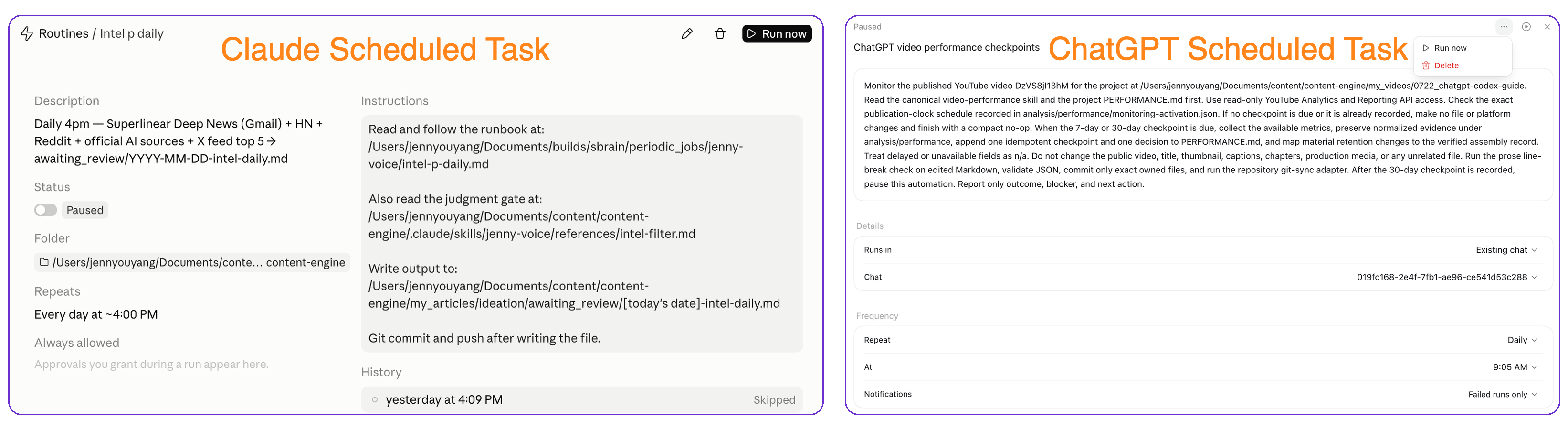
The same five parts can look completely different on screen. Claude and ChatGPT group the instructions, cadence, status, and Run now controls inside a task page.
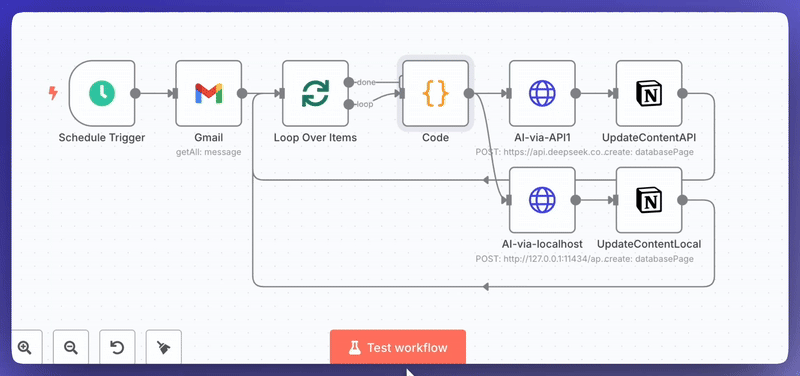
Claude also shows recent history there. A workflow engine such as n8n separates the trigger from the steps that follow.
The screens look different because each product groups the same five responsibilities differently. That gives us four practical families.
The Four Ways AI Scheduling Is Packaged
AI-native scheduled work
AI-native scheduling is the easiest place to begin when the goal stays stable but the material changes, such as watching a source, preparing a brief, or reviewing a new report.
You can describe the job in plain words. The tradeoff is more adaptability and less predictability, so define what a useful result looks like before scheduling it.
Workflow engines
A workflow engine fits work whose handoffs matter. The graph can retrieve data, filter it, branch, call an AI, wait for approval, update a database, and send the result.
n8n, Make, and Zapier keep those steps and branches visible. The path is easier to inspect, but every connection and exception adds something you must maintain.
Agent gateways
An agent gateway fits several recurring jobs that need the same agent, Skills, tools, delivery channel, and run history.
Hermes and OpenClaw fit this shape. The gateway keeps that shared environment available, but it must stay healthy for every scheduled job that depends on it.

Operating-system schedulers
Operating-system schedulers make one more setup possible: the AI app does not have to own the schedule. On a Mac, launchd can start an AI command at the time you choose.
For example, this Unix cron entry calls Claude Code in non-interactive mode at 8:00 every morning:
0 8 * * * cd /path/to/project && claude -p "Summarize the new files in ./sources" > ./briefs/today.md
cron owns the clock. Claude does the work.
This fits jobs that need local files, or when you want the timing to stay outside the AI product. The tradeoff is that your Mac must be available, and you own the logs, overlap checks, result checks, and recovery.
You will see cron used in several places. Sometimes it means the Unix scheduler.
Sometimes it means only the timing expression another product reads. The expression may look the same, but the system reading it determines where the work runs, what context it receives, and what history remains.
How Today’s AI Scheduling Options Compare
Claude alone now has Routines, Desktop scheduled tasks, /loop, Cowork schedules, and scheduled browser shortcuts. ChatGPT and Perplexity also expose several ways to schedule work.
I value these options differently. Some will probably change names, merge, or disappear as the products keep iterating and changing where scheduling belongs.
The easy part is creating a schedule. The difficult part is deciding whether its output deserves attention. I compare each mode by where it runs, what it can reach, and what kind of job it fits.
Claude Code Routine
Runs in: Anthropic’s cloud.
Can reach: Selected repositories, environment variables, network access, connectors, and Skills stored in the repository.
Best fit: Unattended repository work while your computer is off. I share seven useful Routine jobs and starter prompts.
Claude Desktop Scheduled Task
Runs on: Your computer.
Can reach: Local files, apps, tools, configuration, and connectors.
Best fit: Recurring work that needs files or software on your Mac. I compare Desktop tasks with Routines, Cowork schedules, and
/loopin my Claude scheduling guide.
Claude /loop
Runs in: Your current Claude Code session.
Can reach: The conversation, files, tools, and permissions already available in that session.
Best fit: Temporary polling or repeated checks during active work. My
/loopguide shows how I use a stop condition to keep the repetition bounded.
Cowork Scheduled Task
Runs in: A new Cowork session for each run. The task may run remotely or locally, depending on what it needs.
Can reach: Connected services and, for local tasks, approved files and apps on your computer.
Best fit: Recurring Cowork work that you want to manage from one Scheduled page. My practical Cowork guide covers setup, connectors, scheduling, and real uses.
Claude in Chrome Scheduled Shortcut
Runs in: Claude’s Chrome extension.
Can reach: Browser tabs and websites covered by the extension’s permissions.
Best fit: Repeating a browser workflow after you have run and checked it yourself. My Claude in Chrome guide covers browser workflows and their failure modes.
ChatGPT Scheduled Task
Runs in: OpenAI’s cloud.
Can reach: Its saved prompt and the apps available to the account or workspace. Ordinary Tasks do not use project-file attachments.
Best fit: Reminders, recurring prompts, briefings, and monitoring for changes.
ChatGPT Scheduled Web Workflow
Runs in: OpenAI’s cloud.
Can reach: Uploaded context, tools, Skills, plugins, or the current chat’s context, depending on the mode.
Best fit: Cloud project work and recurring research. My shared AI second-brain guide shows how I keep context usable across ChatGPT, Claude, and Hermes.
ChatGPT Scheduled Desktop Workflow
Runs on: Your computer.
Can reach: A local project directory or an isolated Git worktree.
Best fit: Scheduled work against local project files. I share four jobs I ran from the ChatGPT desktop app.
Perplexity Computer Scheduled Task
Runs in: Perplexity’s cloud.
Can reach: A fresh agent, configured connectors, or the originating conversation when attended context is needed.
Best fit: Cloud research, monitoring, and connector-based work. My Perplexity and Claude in Chrome build shows this research shape across 177 products.
Perplexity Scheduled Searches and Tasks
Runs in: Perplexity’s cloud.
Can reach: Perplexity’s older recurring-search and notification system.
Best fit: Recurring searches that still live in the legacy Scheduled Tasks area.
Gemini Scheduled Actions
Runs in: Google’s cloud.
Can reach: Gemini chat and the connected apps enabled for the account.
Best fit: Personal summaries, reminders, and recurring updates.
Microsoft 365 Copilot Scheduled Prompts
Runs in: Microsoft’s service.
Can reach: Copilot Chat, Teams, Outlook, and the Microsoft 365 context available to the user.
Best fit: Recurring work that already lives inside Microsoft 365.
This table is a snapshot. Several current limits are worth knowing, though they should not drive the whole choice:
Claude
/loop: The machine and session must stay open. Missed runs do not catch up, and recurring loops expire after seven days.ChatGPT: Active-task limits depend on the plan.
Perplexity Computer: Stop deletes the task rather than pausing it.
Gemini and Microsoft Copilot: Both set their own active-task limits.
These product limits will keep changing. To understand what stays the same underneath them, it helps to look at how scheduled automation is assembled. n8n is a useful starting point because it keeps the trigger and every step after it visible.
What Is n8n, and How Is It Different From an AI Scheduled Task?
n8n is a workflow automation platform. You build a workflow from connected steps. An n8n Schedule Trigger can start it.
Make and Zapier use the same basic model. Make calls the workflow a scenario. Zapier calls it a Zap. I use n8n as the example here.
This model came before AI-native scheduled tasks. n8n was founded in 2019. ChatGPT introduced Scheduled Tasks in January 2025.
That history matters because AI brought scheduling into a conversation. You can now describe a recurring job in plain words without drawing every step first.
Suppose you want to process new lead forms every weekday at 8 AM.
For each lead, the job should research the company, check its CRM history, ask AI to classify it, wait for your approval, update the CRM, and notify sales.
You can write the complete job inside one AI instruction. You can also split the same job into n8n workflow nodes.
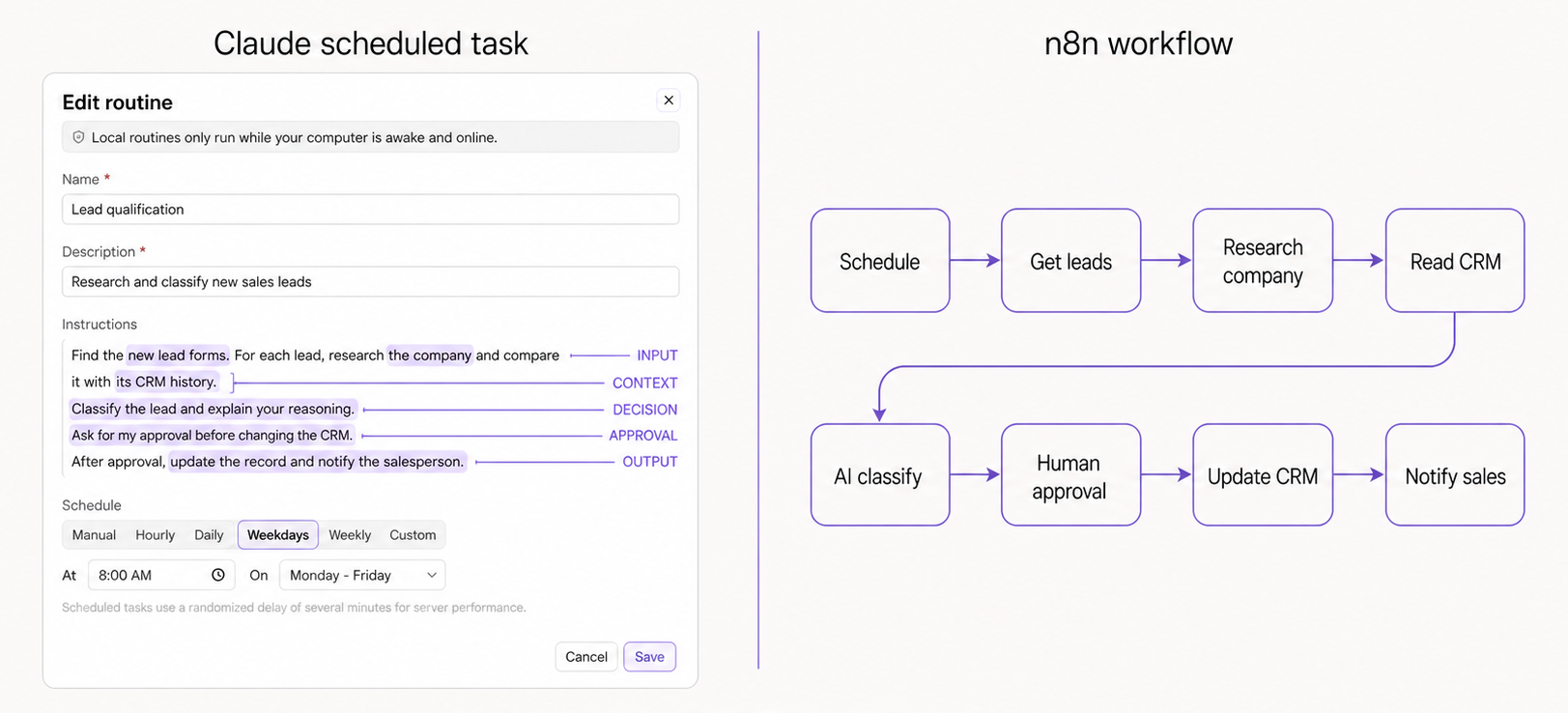
In Claude, the job lives inside the Instructions field. Claude chooses the smaller steps during the run. You review those steps later in the transcript or Receipt.
In n8n, the CRM lookup, AI classification, approval, and CRM update can each have their own node. You can inspect what entered a node, what came out, and where the workflow stopped.
n8n can still include an AI Agent or a Code node. AI handles the judgment. n8n shows the steps around it.
Anthropic describes the same difference: a workflow follows a path set in advance, while an agent chooses more of its own process.
That gives me a practical way to choose.
If I can describe the job as one instruction and judge one final result, I can begin with an AI scheduled task.
If I need to inspect the handoffs, pause for approval, control which app receives data, or restart part of the process, I use a workflow tool.
For this CRM job, I would use both. n8n would handle the schedule, lead retrieval, approval, and CRM update. AI would research and classify each lead.
The AI part can still change from run to run. It may use more searches, tools, or tokens when the input changes. My Claude Code token guide explains how that happens.
One routine in my Pipeline history shows the variation. Across 12 runs, Claude used 0 to 17 tool calls, took 2 seconds to 6 minutes, and wrote 0 to 3 files. One run stopped at the spend limit before using any tools.
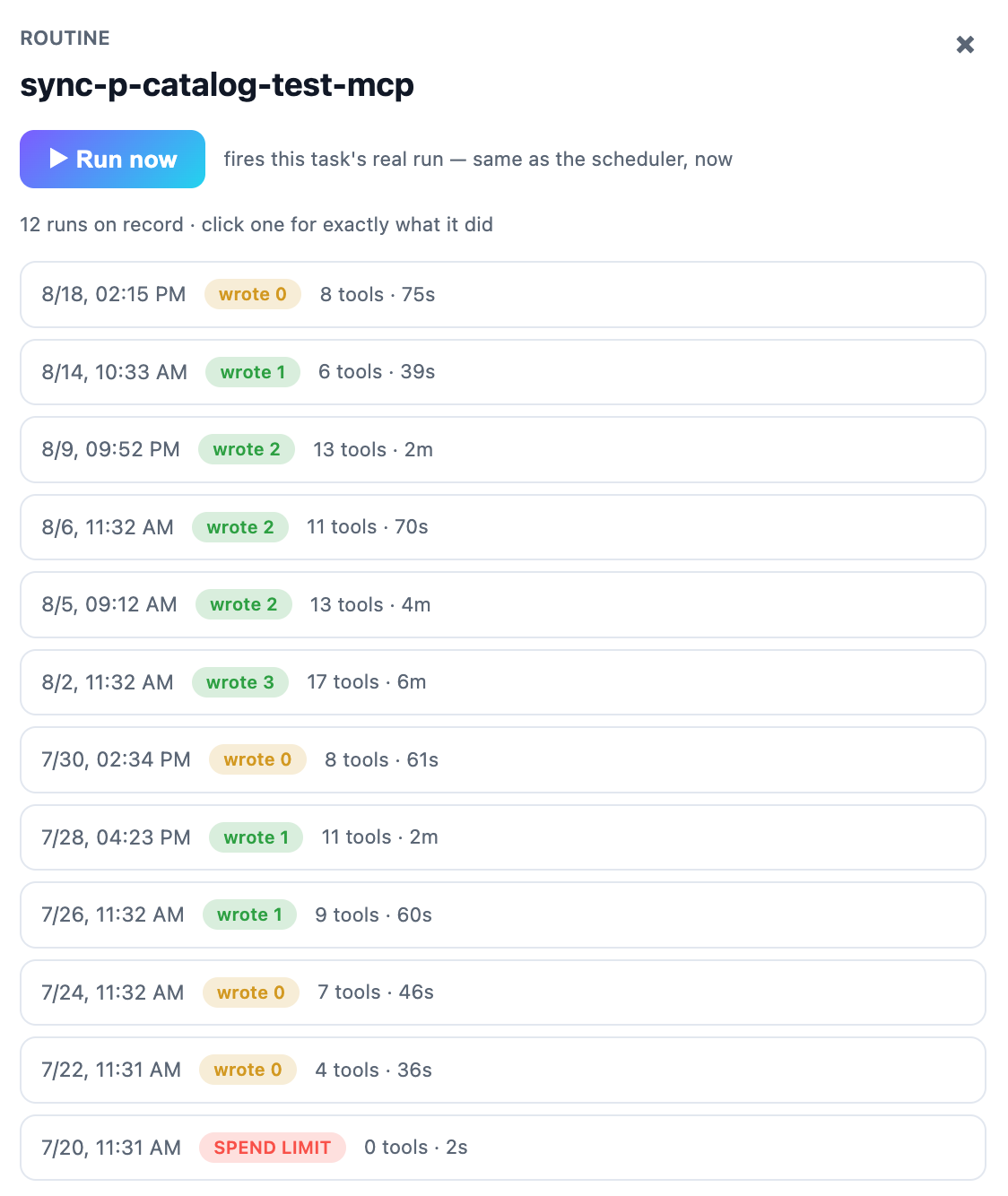
That is why I set limits for spending, tool use, output count, and when the run should stop.
Next, we need to look at what can go wrong after the schedule starts.
What Can Go Wrong After You Add a Schedule?
A scheduled job can fail in two ways.
The run may never start or finish.
It may also finish and produce the wrong result.
The major risks depend on where the work happens.
A cloud AI task can keep running while your laptop is closed. It can still lose connector access, hit a usage or credit limit, lose permission to a source, receive ambiguous instructions, or be paused by the product.
A local AI task can reach your files and apps. It can also miss work because the computer is off, the app is closed, the session ended, or the local environment changed.
An n8n workflow can show every node and execution. n8n can also start an error workflow when a step fails. It can still run at the wrong time because of a timezone setting, keep an unpublished change out of production, overlap with another run, or repeat an external action without a dedupe rule.
An OS scheduler can start the right command at the right time. It still cannot tell you whether the command produced the right answer.
That is why I keep two kinds of proof. Scheduler proof shows that the job started. Job proof shows that it produced an acceptable result.
One of my scheduled jobs created every file I expected, but two required checks failed. The schedule worked. The job did not.
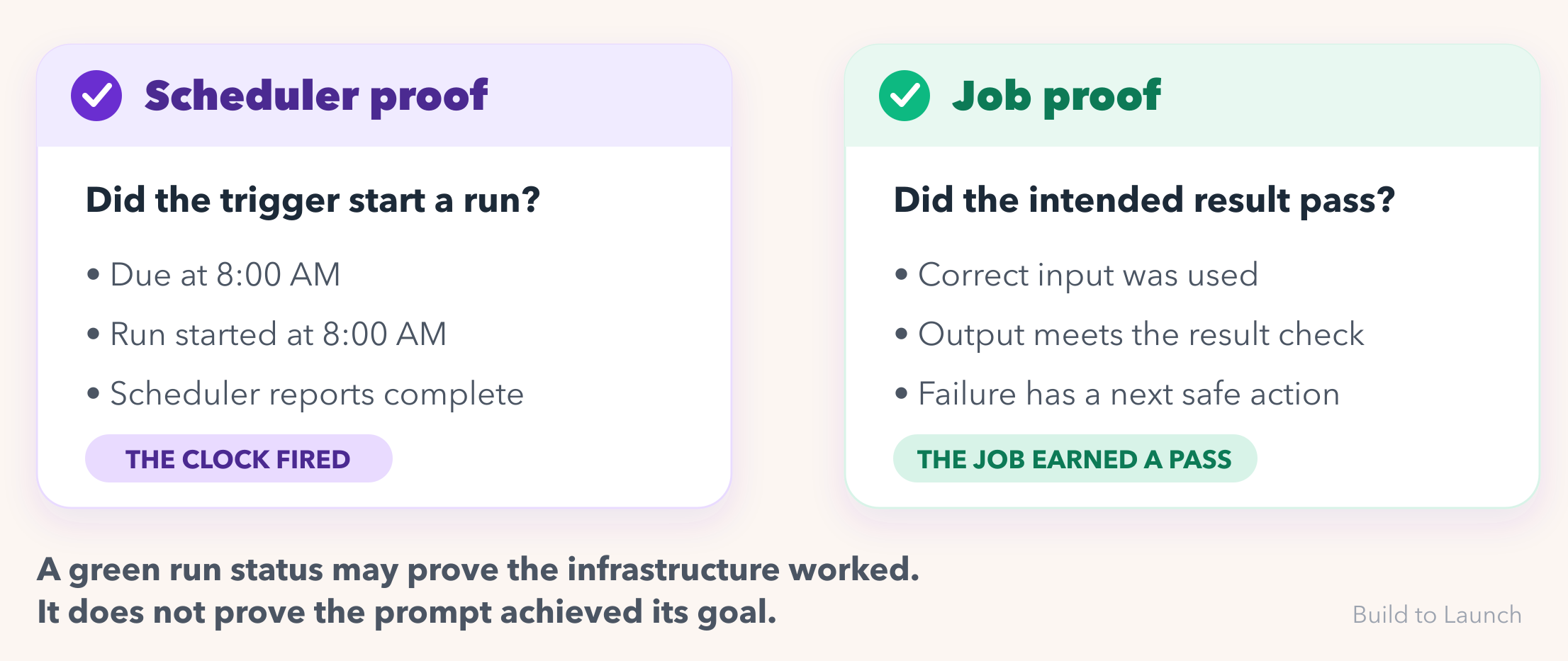
One useful receipt records whether the job started and whether the result passed: when the job was due, whether it started, what it used, what it produced, which checks passed, and what should happen next. For AI work, I also keep tool calls, usage, accepted items, and the stop reason. When you turn the schedule off, the old run records should stay.
In my shared AI second brain for scheduled tasks, the job, each run, its output, and its receipt stay together.
Once you know what can fail and what proof you need, you can choose the scheduling option that fits the job.
Which AI Scheduling Option Fits Your Job?
Start with one recurring job.
For example, I want a weekly brief from five public sources. The sources are online, the job should run while my laptop is closed, and I want one private result.
I can check it by requiring source links and a short list of required sections. That points to a cloud AI schedule.
Use the same test for your job:
When more than one row fits, start with the option that needs fewer services, connections, and always-on machines. Then check plan limits, provider credits, and anything that must stay available.
Manual is a complete decision. Keep the job manual until you know what a useful result looks like, how to check it, and how to stop it.
Before turning any option on, write down who owns each part:
Trigger:
Scheduler:
Executor:
Reliability controls:
Observation and recovery:
This brings me back to the response to ’s question.
Pick one recurring job and fill in those five lines before you open another product. If you cannot name the proof or the off switch, keep it manual.
This article gives you the map. The next Practical AI Builder sprint is where we use it to finish one recurring job from your own work.
Make Claude Automation Stick runs September 14–18.
Current paid members are already included. Join at the $160 annual rate before September 14, and you will keep access to this and any future sprints for as long as your membership stays active. After that, new sprint access moves to the $600 Founding tier.
What is one recurring job you want to schedule, and which option fits it now?
— Jenny