Claude Dispatch: The 80% the Demos Don't Show
18 tasks tested across all 5 Claude remote modes: Dispatch, Scheduled Tasks, Computer Use, Chrome, code triggers. Exact prompts, real times, honest verdicts.
When Claude launched Dispatch, the community went into a frenzy.
Within days: screenshots of tasks completing from phones, workflows that used to take an hour finishing in minutes, threads with hundreds of reactions. People claiming they’d automated their entire morning routine. That their Mac was finally working for them while they were away. That this was the thing they’d been waiting for.
The hype was immediate. The transformation is real. It earned every bit of it.
Reactions were split hard: breakthrough for some, impossibly frustrating for others, nothing new for the rest. I had a theory why, so I went and tested it. 18 tasks that would change how a one-person operation runs.
My results are genuinely split: some exceeded what I thought was possible, some are still getting there.
But the thing that struck me most wasn’t any specific result. It was what Dispatch is actually standing on.
Claude has spent a year quietly building the stack: MCPs, Claude Cowork, Claude in Chrome, skills, plugins, Claude Code, Claude Routines. Each one looked like a separate feature. Together, they’re the reason any of this works at all.
What’s Inside:
What Dispatch is built on — and why the demos suddenly make sense — the five layers underneath, what each one does, and what breaks without it
What this changes for a one-person business — the real shift, the OpenClaw tension, and the few findings that changed my view fast
18 tasks, one complete pack each — onboarding, warm-ups, real work, and the failures worth knowing before you trust this
The prompt structure that prevents most stalls — the one line and task-shape that made the biggest difference
The stack — what lives where — which mode owns which job so you stop overlapping tools
Loading...

Hi, I’m Jenny 👋
I build AI systems and tools, then share how I did it. I run the Practical AI Builder program, for people who already use AI and want to build real things with it. Check it out if that sounds like you.
If you’re new to Build to Launch, welcome! Here’s what you might enjoy:

What Dispatch is built on — and why the demos suddenly make sense
Here’s what each layer does, why it matters, and what breaks without it.
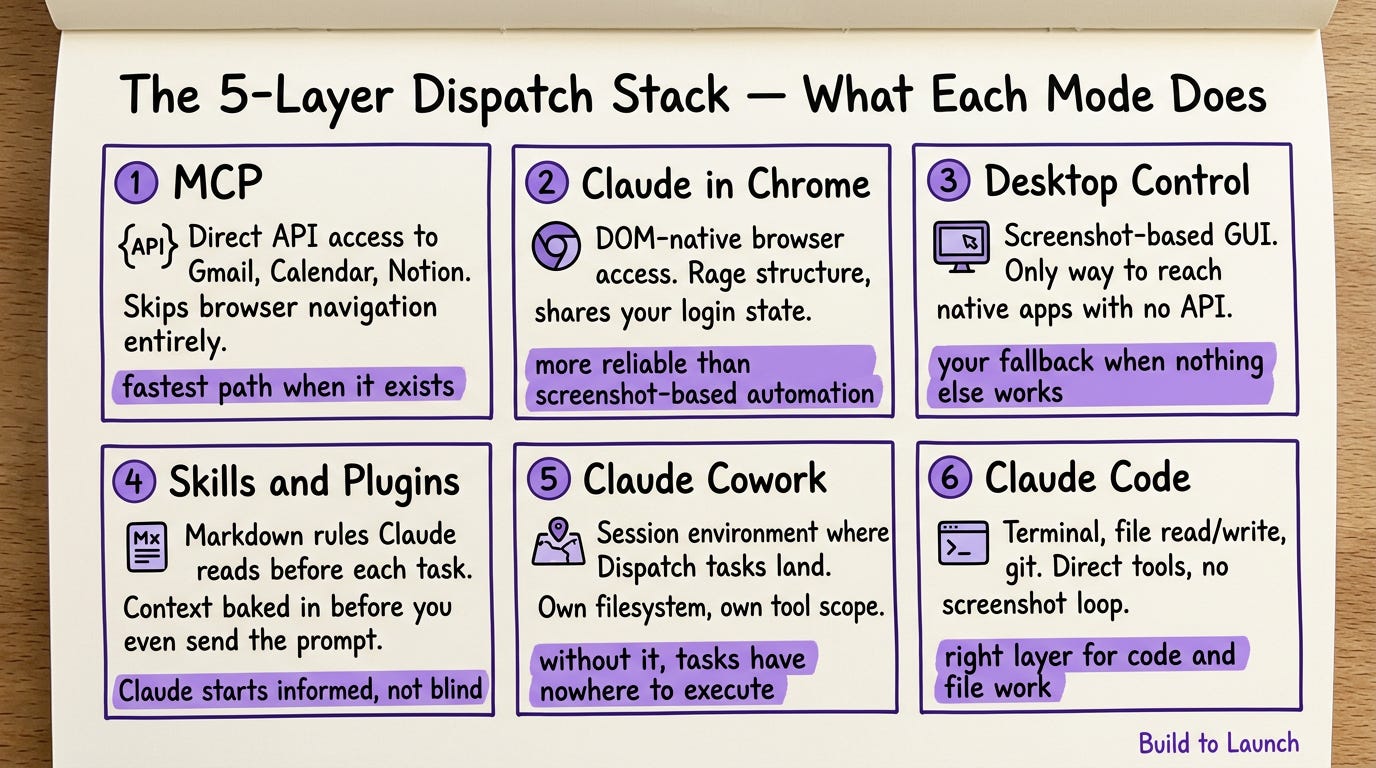
MCP — The efficient communication layer
What it is: Connectors that give Claude direct API access to Gmail, Calendar, Notion, Substack — no browser navigation required
Why it matters: When an MCP exists for the service, Claude uses it directly instead of opening a browser and navigating manually. Faster, fewer steps, fewer failure points.
How to trigger: Install in Claude Desktop settings, connect the service. Claude picks it up automatically when the task involves that service.
Without it: Claude has to open a browser, navigate the UI, and work through the page manually. More steps, more failure points.
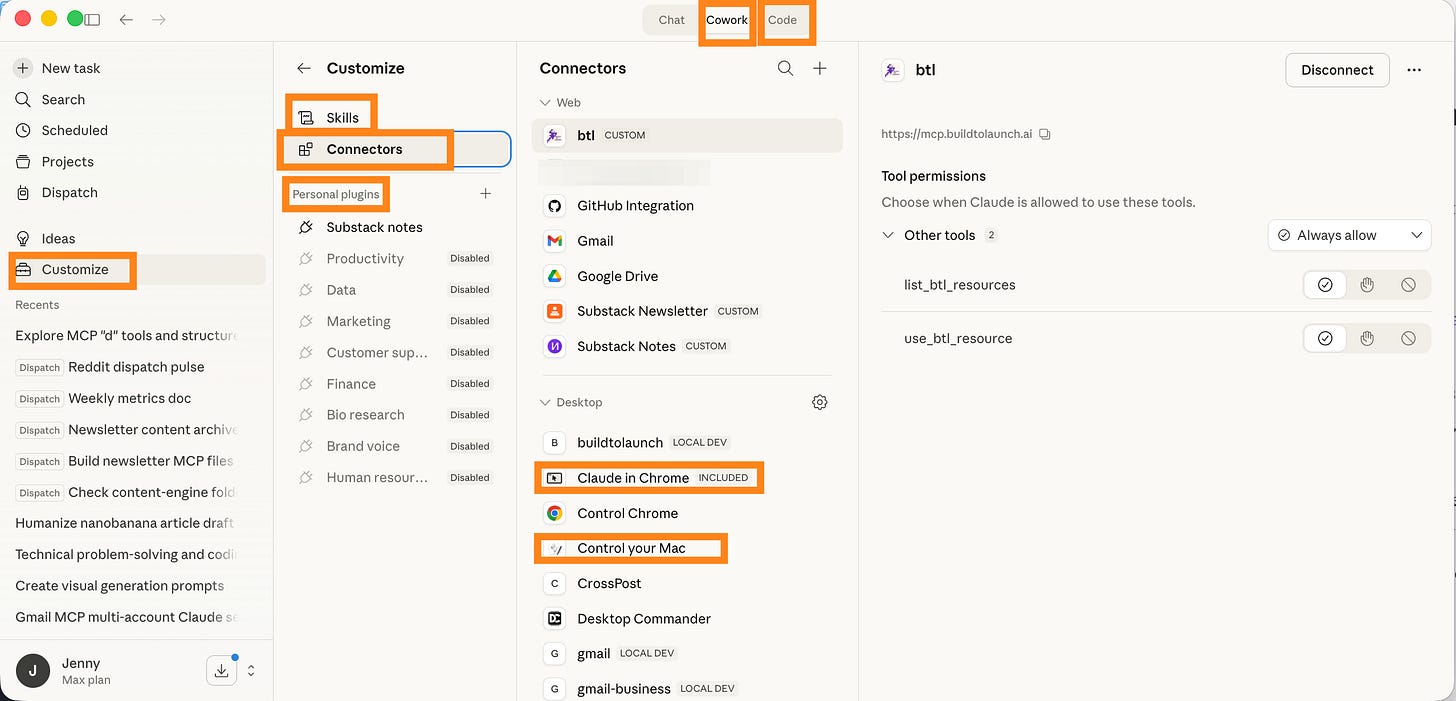
Claude in Chrome — DOM access without the OS screenshot loop
What it is: A browser extension that gives Claude direct access to the page’s DOM structure — reads and interacts with web content without taking OS-level screenshots
Why it matters: For browser-only tasks, it’s more precise than Computer Use because it reads the page directly rather than interpreting a screenshot
How to trigger: Requires installing the Chrome extension first — not enabled by default. Once installed, specify the URL in your task prompt and Claude reads the page through the extension.
Without it: All browser tasks fall back to the Computer Use screenshot loop. React forms will consistently fail.
Claude Desktop Control — The GUI hand
What it is: Claude sees your screen and controls your mouse and keyboard — real automation of native desktop apps via screenshot-based Computer Use
Why it matters: The only way to reach software that has no API and no browser version. Anything that lives on your Mac and nowhere else.
How to trigger: Built into Claude Desktop. Send a Dispatch task that requires GUI work — Claude takes over automatically.
Without it: Native apps are unreachable. Finder, local software, anything outside a browser won’t work.
Skills & Plugins — Nice to have, not required
Skills are markdown files Claude reads before a task starts — your workflow rules, preferences, context.
Plugins are MCP-connected services with their own communication interface.
Neither is required to use Dispatch, but both make it noticeably more capable.
Without skills, Claude starts each session without context.
Without plugins, it falls back to browser navigation for external services.
Claude Cowork — The session hub
What it is: The session environment where Dispatch tasks run — a separate context from Claude Desktop, with its own filesystem mount and tool access
Why it matters: Without a live Cowork session, Dispatch has nowhere to land. The task arrives on your Mac but can’t execute.
How to trigger: Open the Claude app on your phone → Cowork tab → describe your task → send.
Without it: You can’t trigger any of this remotely. You’re back at your desk.
Claude Code — The coding buddy
What it is: Claude’s coding environment with terminal access, file read/write, and git operations — runs as a separate session
Why it matters: For code-heavy tasks, Code sessions use direct tools rather than screenshots, more reliable for anything involving files, code, or git
How to trigger: Start a Code session from Claude app, or Dispatch a task that requires code or file work.
Without it: Code and file work falls back to the screenshot loop. Slower and less precise on anything technical.
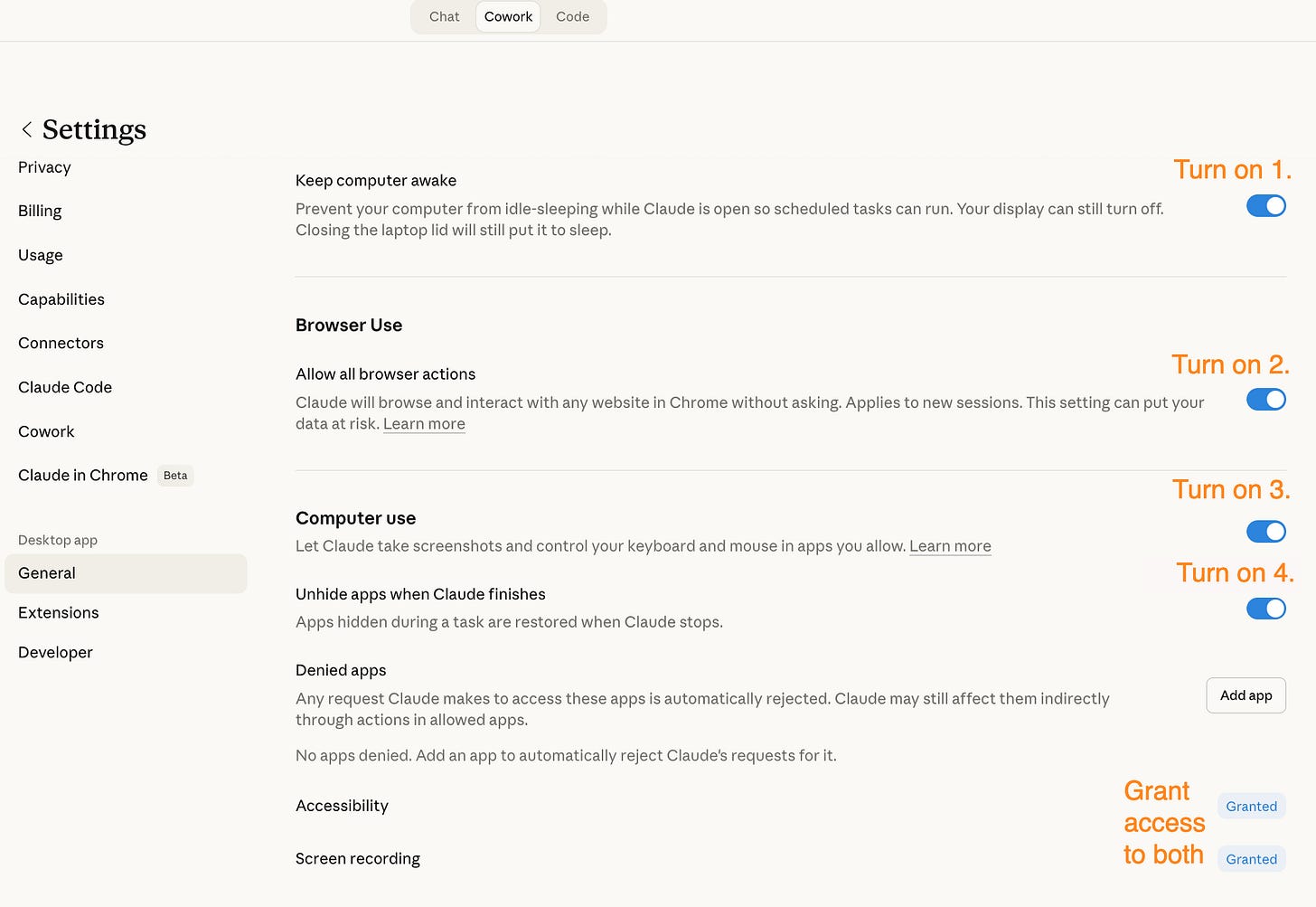
How to enable Dispatch
Enable Dispatch: Open Claude Desktop app → click your profile → Settings. Toggle on: “Keep computer awake”, “Browser Use”, “Computer use”, “unhide apps”. Grant access to files and screen recording.
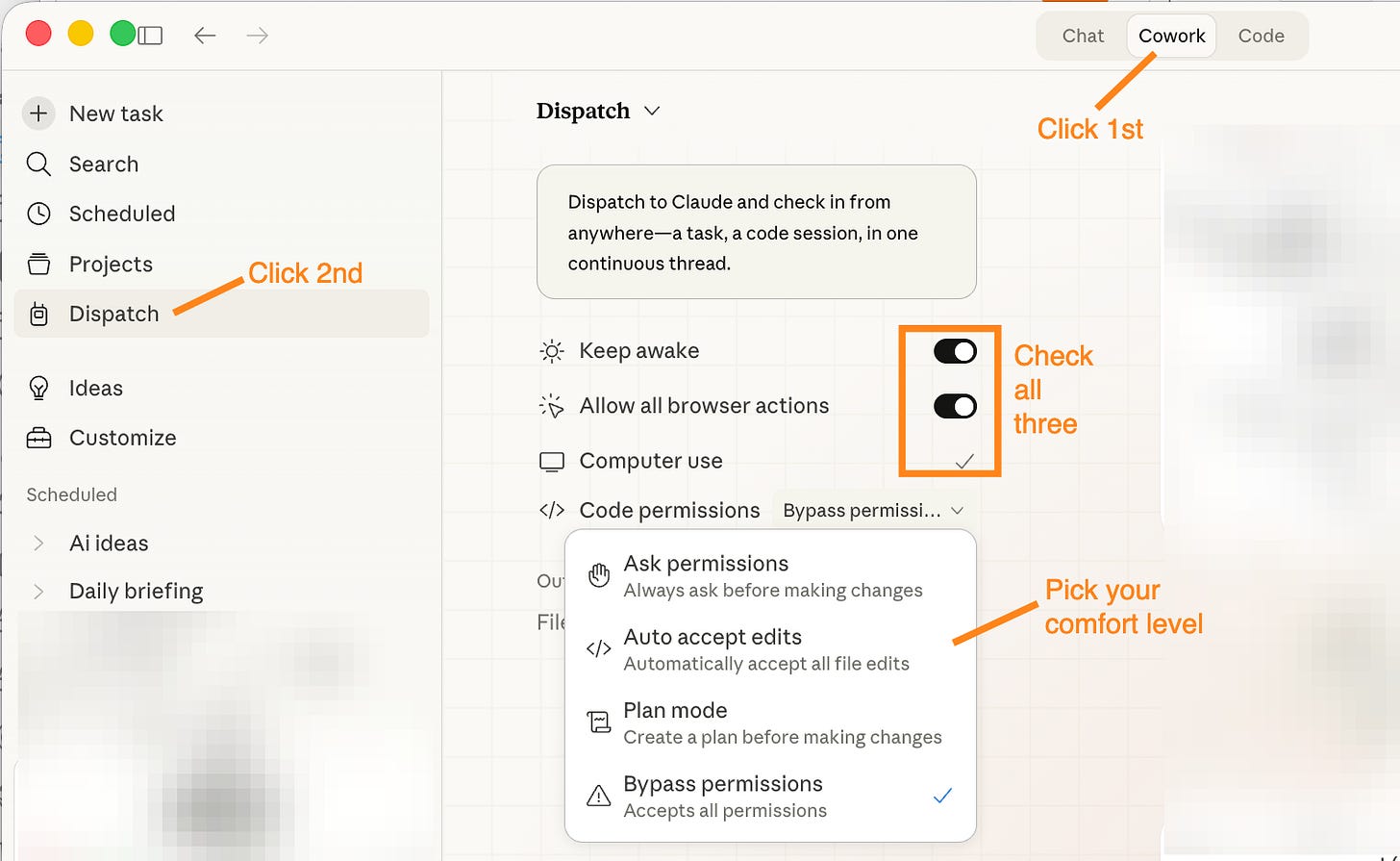
From Claude Desktop: Open Claude Desktop app → click the Cowork tab. This is where you trigger tasks from the desktop or send them from your phone.
From Claude Code: Open Claude Code → start or connect a Code session in terminal (e.g. claude) → /mcp → select “computer-use” under “Built-in MCPs”. Dispatch tasks route here automatically when they involve code, files, or git.
Settings worth checking before your first task:
macOS permissions: System Settings → Privacy & Security → Screen Recording → Claude Desktop ✓ and Accessibility → Claude Desktop ✓. Both are required for Computer Use. Without them, any task that touches the screen or GUI fails silently.
Desktop Commander enabled in Claude Desktop settings (Connectors tab)
Claude in Chrome extension installed (Chrome Web Store) if you want browser tasks
MCPs connected for any external services (Gmail, Notion, etc.) you want Claude to reach directly
Sensitive apps blocked if needed: Settings → Cowork → Blocked Apps (e.g. 1Password, banking apps)
That’s the infrastructure. Now we can explore what it actually changes.
What this changes for a one-person business
Leave your laptop home. Your phone is the interface. Whatever is on your Mac, files, apps, git repos, browser tabs… Claude can reach it while you’re away.
You can be at a coffee shop and have Claude close 25 browser tabs. At the gym while a morning brief builds itself. On a phone call while Claude merges the git branches you’ve been avoiding. The Mac keeps working while you’re not sitting in front of it.
For a one-person operation, that changes the math fast.
The OpenClaw question matters here. I’ve been running OpenClaw since March for the jobs that need to run while my Mac is off: newsletter scanning, content research, recurring ops. Dispatch needs your machine awake. OpenClaw runs on a server and doesn’t care what time it is. The question going into testing was whether Dispatch, with everything it’s now standing on, starts closing that gap.
A few things changed my view fast:
Claude can check multiple Gmail inboxes in one prompt if the MCP stack is set up correctly.
The content research pipeline was the task I was most excited about.
Computer Use works, but on my hardware I’d call it about 60% reliable, useful, not blindly trustworthy.
Next: the full breakdown, every task tested across all 5 modes, with real times, exact prompts, the stack used, and my verdict on each. One task, one complete pack.
18 tasks, one complete pack each
Each task is a complete pack: mode, time, result, prompt, what happened, where it’s useful, the catch, and my verdict. Prompts are reconstructed from session notes — exact copy-paste templates in the Prompt Pack.
Before you send your first task — onboard Claude to your computer
Most people open Dispatch and immediately throw a real task at it. Don’t. The first session should be orientation, not work.
Send this prompt first:
This article continues for members
Join Build to Launch to read the full article, access all cohort content, and connect with other AI builders.