What GitHub Actually Gives You, If You Never Write Code
A filing system that remembers, a place where one job holds one conversation, and a computer that runs while you sleep. Coding was the first use, not the point.
GitHub calls itself a developer platform. You are not a programmer, and it still has three things you cannot get anywhere else for free. One of them you can try tonight.

You have heard people mention GitHub for years now. Developers live there. Your AI tools keep asking to connect to it. And every time you looked, the page said something about repositories and pull requests, and you closed the tab.
I did that too, for about four years.
Somewhere on your machine there is a folder with draft-final.md, draft-final-v2.md, and draft-final-ACTUAL.md in it. Maybe you have an AI assistant you like, and you still will not let it touch the files that matter, because what if it changes something and you cannot get it back.
People tried to make GitHub work for writers before, and it didn’t stick, because you had to learn Git. You don’t anymore.
That is the whole change, and it is smaller than it sounds. Git is the thing underneath, the part with the intimidating vocabulary. It used to be that a person had to operate it. Now an assistant does, and what is left is a website with buttons.
Which matters because of what was sitting under there the whole time. Last week I published a comparison of every way I know to run something on a schedule. Claude routines, Cowork, ChatGPT, Perplexity, Gemini, Copilot, n8n, cron, launchd. Ten of them. The one that had been quietly running my work all month was not in it, because I had never thought of it as a scheduler.
That missed piece is in this article.
Three things GitHub gives you that have nothing to do with code, and one small way to try it.
What’s inside:
GitHub’s own page never says “code”: what the five words actually mean
People tried this before: why it failed, and what changed
It remembers: the version you regret, still there
One job, one conversation: a thread with its own address
A free computer: that runs when you aren’t there
Five buttons, four words: the commands you never type
Your first twenty minutes: from nothing to a file with a history


GitHub’s own product page never says the word “code”
Go to the pricing page and the headline reads “the complete developer platform.” Open the vertical they built for government and it says “Government Agency Software Development Solutions.”
They are talking to programmers. Loudly, and on every page.
Then look at the product menu, which is the part written by whoever had to describe what the thing does. Issues: “Plan and track work.” Actions: “Automate any workflow.”
Neither one says code.
That gap is the whole opportunity. The marketing was written for the audience they have. The product descriptions were written for what the product is.
The five words
Here is the vocabulary, one line each. Everything else you will ever read about GitHub is built from these.
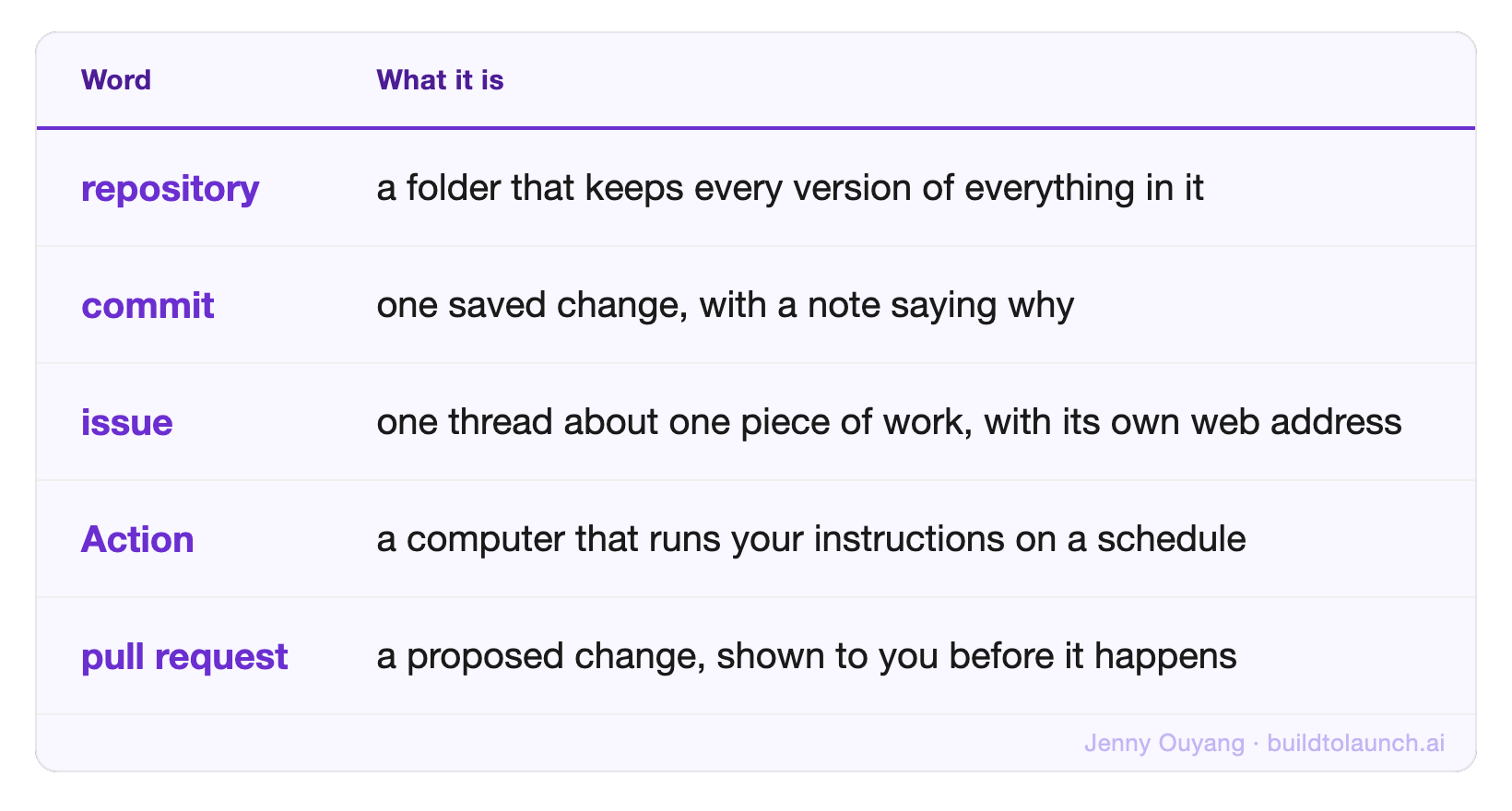
Read that list again and notice how ordinary it is. A folder. A save. A thread. A scheduled task. A proposal.
The words sound technical because programmers named them, and programmers name things after the mechanism. If a writer had named commit, it would be called “save with a note,” and nobody would have been scared of it.
People tried this before, and it didn’t stick
I want to be honest about this, because it is the reason you have not already done it.
Penflip was GitHub for writers. It is closed. Authorea was GitHub for scientists, it raised real money, and it got absorbed into a publishing company. GitBook started out wanting to be the place books were written and now sells technical documentation software.
Three serious attempts, all of them building the same thing: a friendlier face on top of Git.
In 2013 two researchers at MIT published a paper asking why Git is so hard, and their answer was not that people are lazy. They found the difficulty is in the design. The concepts do not match what users are actually trying to do, so no amount of tutorial fixes it. A better button on top of the same idea does not help.
That paper explains every one of those closures. The interface was the problem, and they all tried to decorate it.
So what changed is not the interface. It is that you are no longer the one operating it. You describe what you want in a sentence, an assistant does the Git part, and you look at the result. The layer that defeated three companies is now somebody else’s job.
That is a real shift, and it is worth being suspicious of anyone who tells you the tool got easier. It did not. The tool is the same. You just stopped having to drive it.
It remembers every version, including the one you regret
Every save is kept. Not a backup of the current state, every state, with a note on each one saying what changed and who changed it.
Dropbox and Google Docs have version history too, so this sounds like a small thing. It stops being small the moment something other than you is doing the editing.
I asked Claude, through Slack, to count something in one of my files. It came back with 27, and cited the exact line range it had used. I opened the same file and counted 41. So I told it that it was wrong.
It went back, checked again, and held its ground. Still 27. Here is the heading on line 13, here is the next one on line 43, and the line you are looking at is inside a different section entirely.
It was right and I was wrong. My file had unsaved changes that pushed the section forty-eight lines further down. It was reading the committed version. I was reading the one on my laptop that existed nowhere else.
Two files, same name, both answers correct.
I had expected the failure mode of working with AI to be the model confidently making something up. What actually happened was the model being confidently right while I supplied it bad evidence and argued.
The history is what let me find that out in ninety seconds instead of never. And it is why “what if it breaks something” stops being the deciding question. You can see exactly what changed, and you can put it back.
One job, one conversation, one address
Think about how you use an AI chat now. One long session, a dozen unrelated things in it, and by Thursday you cannot find the decision you made on Tuesday.
An issue is the opposite shape. One thread, one piece of work, and a link you can send to a person or hand to an assistant. It holds the request, the evidence, your pushback, the answer, and the result. Then you close it and it stops being an open question.
Kent Gigger runs his whole practice this way. Client briefs, email templates, an editorial calendar, and a shared to-do list, all in a private repository his assistant reads and edits. He ticks the checkboxes from his phone.
His description of the setup is one sentence: “Everything is markdown. No database, no app, no SaaS tool.”
No project management subscription. No tool to migrate off in two years.
A free computer that runs when you aren’t there
This is the one with no substitute, and the one I had missed on my own list.
An Action is a computer GitHub starts for you, runs your instructions on, and shuts down. On a schedule, or when something happens. You do not own it, rent it, or keep it awake.
Two weeks ago I asked Claude, from Slack, to clear the promotional mail out of one of my inboxes. It found 23, marked them read, and reported back in 1 minute 13 seconds. Then I asked it to check the next account and it found 658 going back to 2014, and told me the size before touching any of it.
My laptop was shut the entire time.
The free allowance is 2,000 minutes a month, 3,000 on Pro. Worth knowing: that budget belongs to your account, not to each repository, so ten projects share one pool. Public repositories do not count against it at all.
Two honest limits. A schedule is best effort rather than a clock, and GitHub says plainly that runs can be delayed and some queued jobs may be dropped. And on a public repository, a schedule switches itself off after 60 days with no activity.
So it is excellent for a nightly job and wrong for anything that must happen at exactly 9:00.
The five buttons, and the four words you never type
This is where most guides lose people, so let me be direct.
The next twenty minutes need nothing installed. Every step in the following section happens at github.com in your browser. No terminal, no downloads, no Git.
Two things do take setup, and I would rather say that here than at the end. Connecting an assistant to your repository is a one-time step, and so is the computer that runs while you sleep. Neither is in your first session. Both are linked at the bottom of this piece.
The five things you will actually click:
New repository · Add file · Commit changes · Issues → New issue · History
That is the interface. Five buttons.
And the four words you will only ever read, never type:
commitis a saved version, with a notepushis sending it up to GitHubmergeis combining two versionspull requestis a proposed change, before it happens
You need to recognise these, because your assistant will report back using them. When it says “committed and pushed,” you want to know that means saved and uploaded, not deleted. That is the whole requirement.
What you say instead of typing any of it sounds like this:
Read the file I just added, fix the three broken links, and save it with a note saying what you changed.
Your first twenty minutes
Six steps. Nothing here can break anything you own, and step six is how you prove that to yourself.
1. Make an account
Go to github.com and click Sign up. Email, password, username, and a verification code. Free, no card, about two minutes.
The username becomes part of every address you make later, so pick the one you would put on a business card rather than a joke.
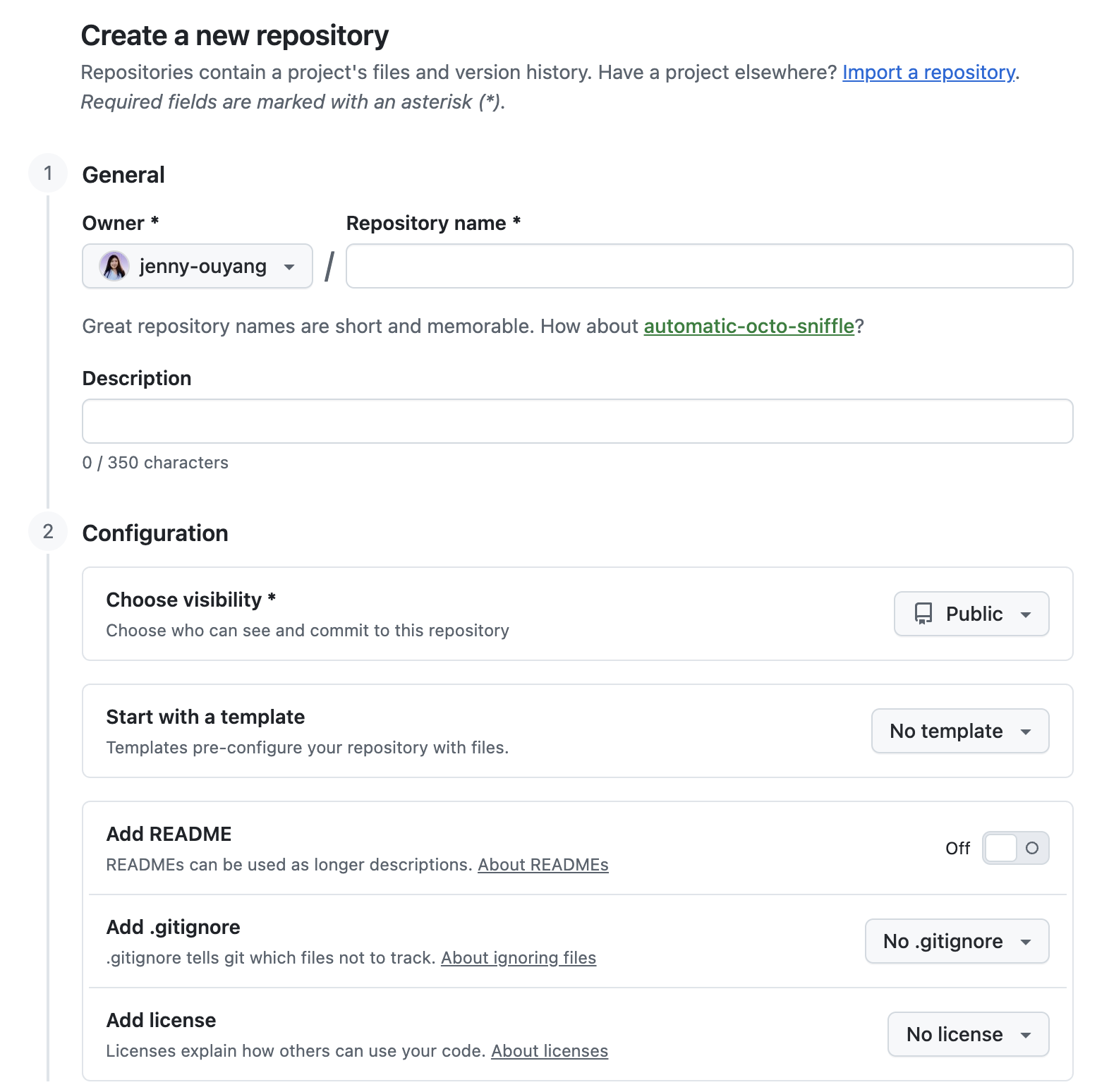
2. Make a private repository
On your home page, click the green New button, or go straight to github.com/new.
Three things on that form matter:
Repository name. Lowercase, hyphens instead of spaces.
my-draftsworks.Private. Select it. Public means the whole internet can read this, and you can always switch later.
Add a README file. Tick it. It gives you a file to look at instead of an empty screen.
Then Create repository.
3. Put one real file in it
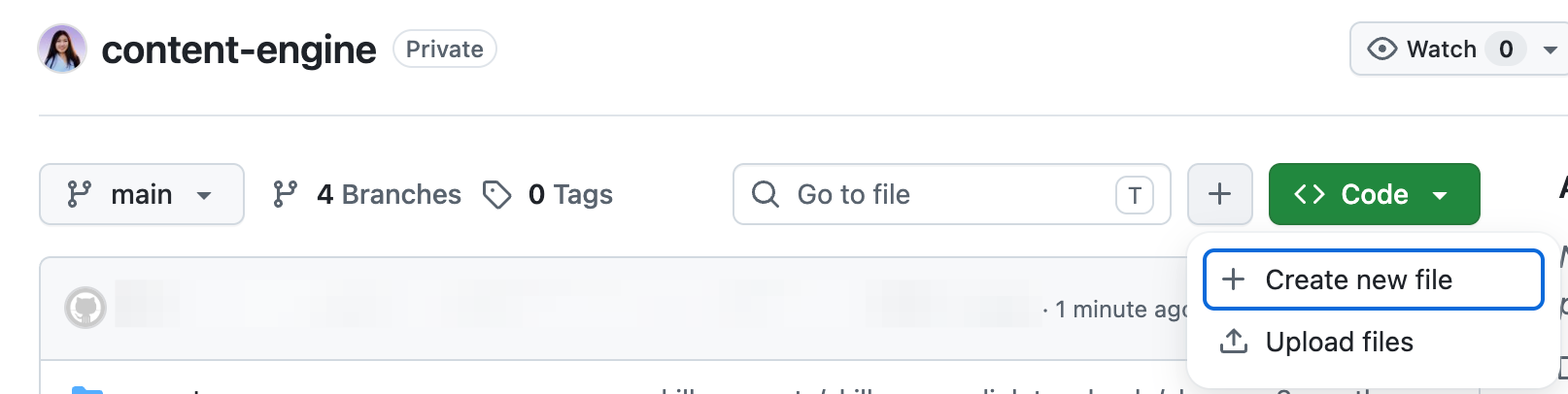
Click Add file, then Create new file.
Name it something ending in .md, like notes.md. The .md means markdown, which is just text with a couple of formatting shortcuts. Then paste in something real. Not a test. A draft you are working on, a list you keep losing, notes from a call this week.
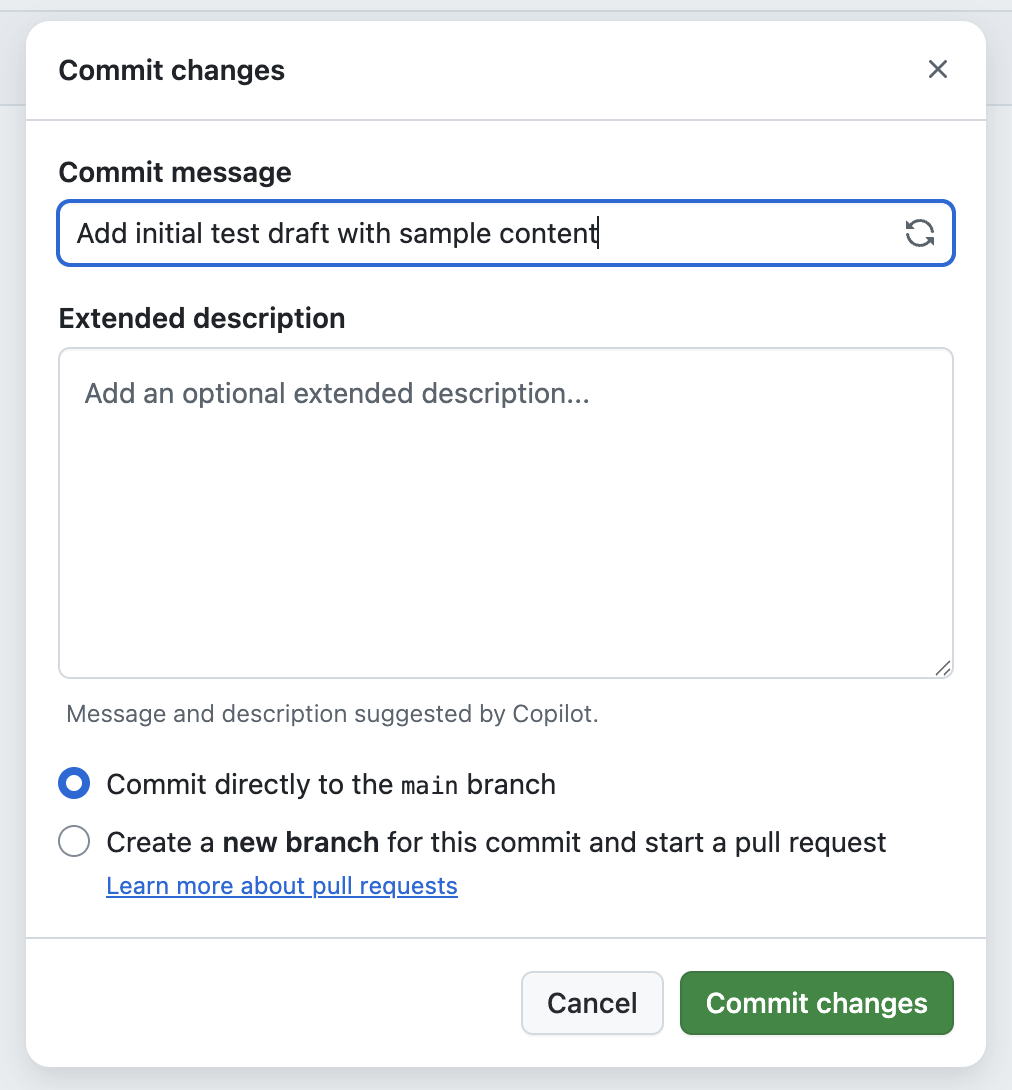
Now look at the bottom of the page, because this is the part that matters. There is a box asking what you changed. That box is the whole point of the system. Write a short honest sentence: “first draft of the launch email.”
Click Commit changes.
4. Change it, and save again
Open the file and click the pencil icon. Change one line. Anything.
Scroll down, write a different note in that box, and commit again.
You have now done the thing. Twice.
5. Look at what you built
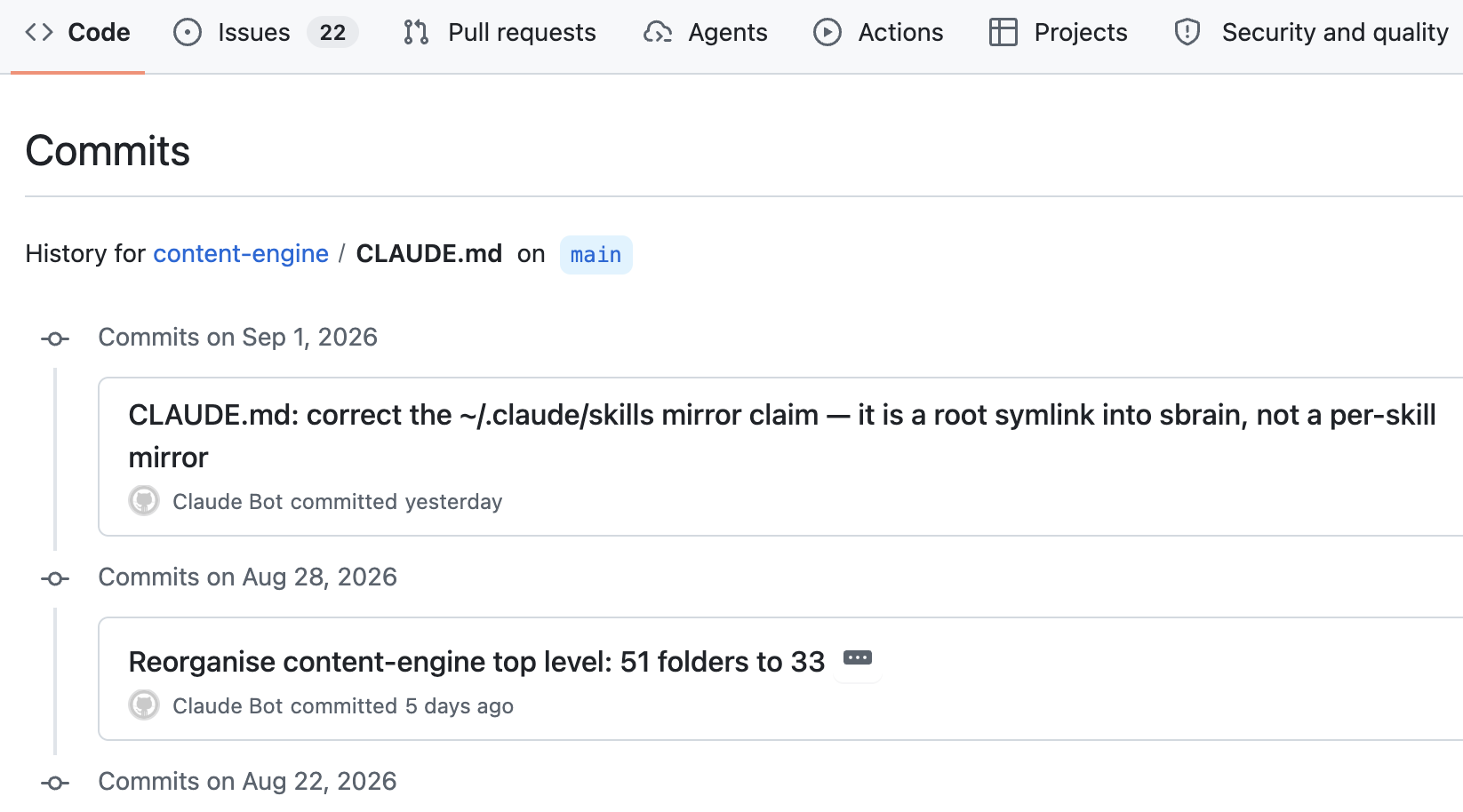
On the file page, click History.

Both versions are listed, newest first, each with the note you wrote and the time you wrote it. Click either one and GitHub shows you exactly what changed between them: removed lines in red, added lines in green.
This is the view that makes the rest of it safe. Anything that ever edits this file, you, an assistant, or someone you invite, shows up here with their name on it.
6. Undo it on purpose
Do this one deliberately, while nothing is at stake.
From History, click the older version. You are looking at the file exactly as it was before your edit. Copy what you see, open the current file, paste it back over the top, and commit with the note “restored the earlier version.”
Nothing was lost. The change you undid is still in the history too, because nothing here deletes.
That is the step worth doing slowly, because everything else in this article rests on it. Once you have put something back yourself, “what if it breaks something” stops being the question that keeps AI away from your real work.
Then stop
That is the whole first session. Do not import your archive.
German federal law lives in a public repository. 1,916 people starred it, eleven contributed, and it has not been updated since November 2022. The equivalent project for US Congress is still going after thirteen years, with 44 contributors and 783 saves.
Same idea, same tools, opposite outcomes. The difference was whether anyone kept showing up.
So start with the one file you will actually open again next week.
Now hand it to your assistant
The point of putting the file there was never the folder. It was that something else can now safely work in it.
Once your repository exists, connect Claude to it and try a sentence like this:
Read notes.md, tidy the formatting, and commit it with a note saying what you changed. Do not change any wording.
Then open History and read what it actually did. That loop, ask, check the diff, keep or restore, is the whole working relationship.
Three guides in the Build to Launch library cover the connection itself:
GitHub MCP Setup connects Claude to your repositories so it can read files and open issues from a chat.
Run Claude from Slack With Your Laptop Closed is the version I use daily, where a message becomes an issue and the answer comes back to the thread.
Run Local MCP Servers Inside GitHub Actions is the step after that, for when you want it running without you.
When something does not behave, GitHub’s own documentation is genuinely good for the interface itself.
Next Steps
What you can do today:
Put one real file in a private repository. Twenty minutes, following the six steps above. Change it once so you have a history to look at.
Restore the old version. Deliberately, while nothing is at stake. This is the step that changes how you feel about letting an assistant near your work.
Point your AI tool at it. Ask it to read the file and change one thing. If you want the bigger picture first, my guide on how to build an AI agent covers where this fits. Then read the history and see exactly what it did.
If you have been keeping AI away from anything that matters, that third step is where it stops being a reasonable fear.
If this read is useful, share this to the person you know who might benefit from reading it.
If someone shared this with you, thank them, and subscribe so you won’t miss the next useful guide.
What is the one file you would put somewhere that remembers it?
— Jenny
Claude Hub · Vibe Coding · AI Agents · Shipped Products · Substack Growth